


Set team or scenario notification options for IMS organizations
Set team or scenario notification options for IMS organizations
IMS organizations can now enable or disable each notification type independently at the team level — the same fine-grained controls previously available only to non‑IMS organizations. Scenario-level notification settings continue to override team settings when present.
Overview
To give teams finer control over the notifications they receive, administrators and team managers in IMS organizations can now choose which situations trigger Fusion notifications. Instead of a single on/off switch for all notifications, you can toggle each notification type independently:
- Notify on warning — Send a notification when a scenario execution logs a warning.
- Notify on error — Send a notification when a scenario execution fails.
- Notify when scenario is disabled — Send a notification when Fusion auto‑deactivates a scenario (for example, after too many consecutive errors).
Scenario-level notification settings still take precedence over team-level settings. If a scenario has its own notification configuration, that configuration is applied regardless of the team setting.
How to configure team notification options (IMS organizations)
- Sign in to Workfront Fusion and open the Admin or Team management area for your IMS organization.
- Select the team you want to configure.
- Locate the Notifications section for the team (use Show advanced settings if required).
- Toggle the individual notification types you want the team to receive: Notify on warning, Notify on error, and Notify when scenario is disabled.
- Save your changes.
How to configure scenario-level notification options
- Open the scenario in the Fusion canvas.
- Open the scenario settings or the notification panel.
- Set the desired notification options for that scenario. These settings will override the team-level values for this specific scenario.
- Save the scenario settings.
Behavior and tips
- Scenario settings always override team settings. The team notification UI indicates when a scenario has an override for a particular notification type.
- By default, all notification types are enabled. Review team and scenario settings after migration to ensure teams receive the notifications they expect.
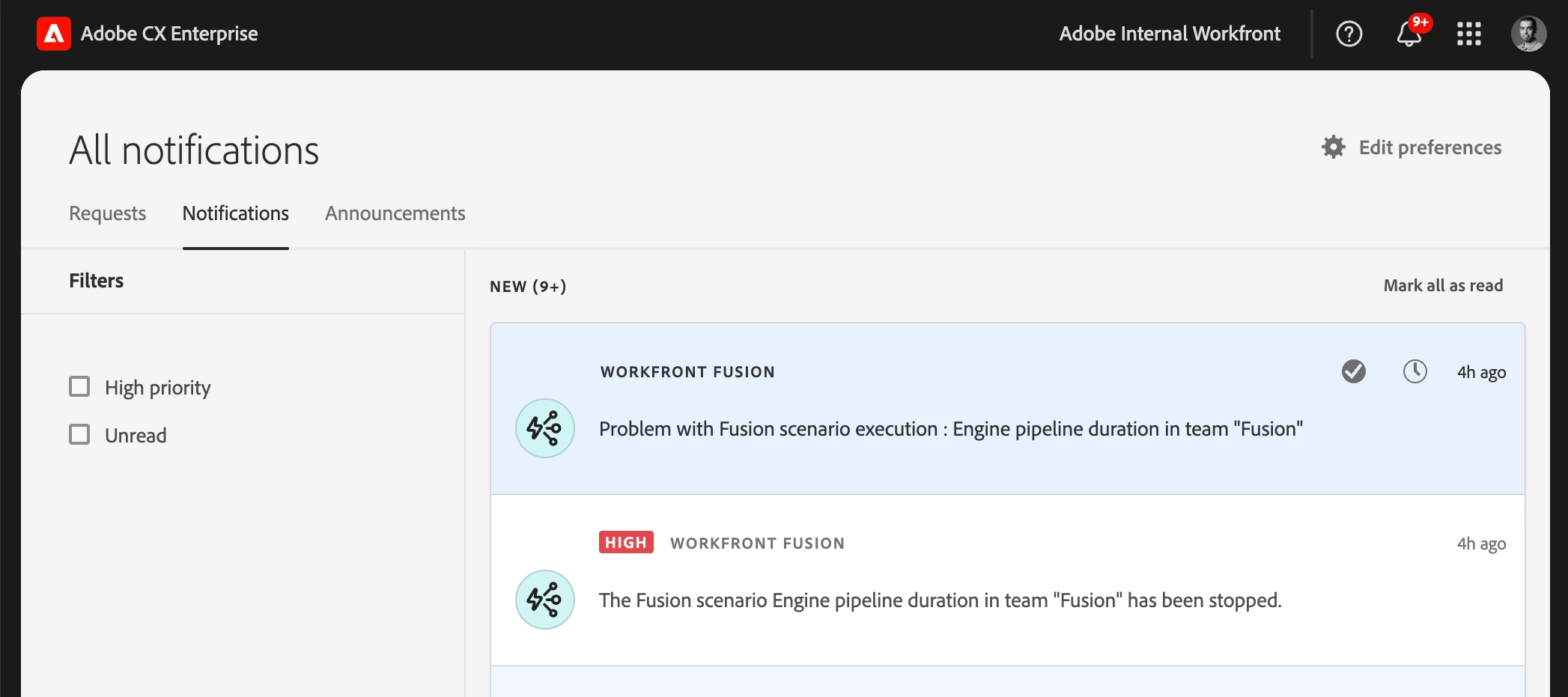
- If your organization uses the Adobe Unified Shell, notifications are delivered through the Adobe Notifications area — check the shell’s notification center for messages.
- Use team-level controls to set broad defaults (for example, suppress Notify on warning for very noisy teams) and use scenario-level settings for exceptions (for example, enable Notify on error for a mission‑critical scenario).
- Audit your notification settings periodically to avoid notification fatigue and ensure important events (errors and disabled scenarios) reach the right people.
Where to find documentation
Step‑by‑step instructions and reference details are available on Experience League: see Set notification options for usage examples and troubleshooting.
Need help or want to give feedback?
If you have questions, run into issues, or want to suggest improvements (for example, notification digests, more granular recipient controls, or programmatic management of notification defaults), post a comment below, start a thread in the Experience League Community, or contact Adobe Support through the Admin Console Support portal. Your feedback helps us prioritize future enhancements.