


New scenario editor experience
Overview
The new Scenario editor experience gives you a faster, more focused way to build, navigate, and debug scenarios. The underlying scenario behavior—mappings, filters, schedules, connections, routers, error handlers, and execution—remains unchanged when you switch experiences. You can toggle back to the classic editor at any time. If you don’t see the toggle, the new experience may not yet be enabled for your organization.
What’s new
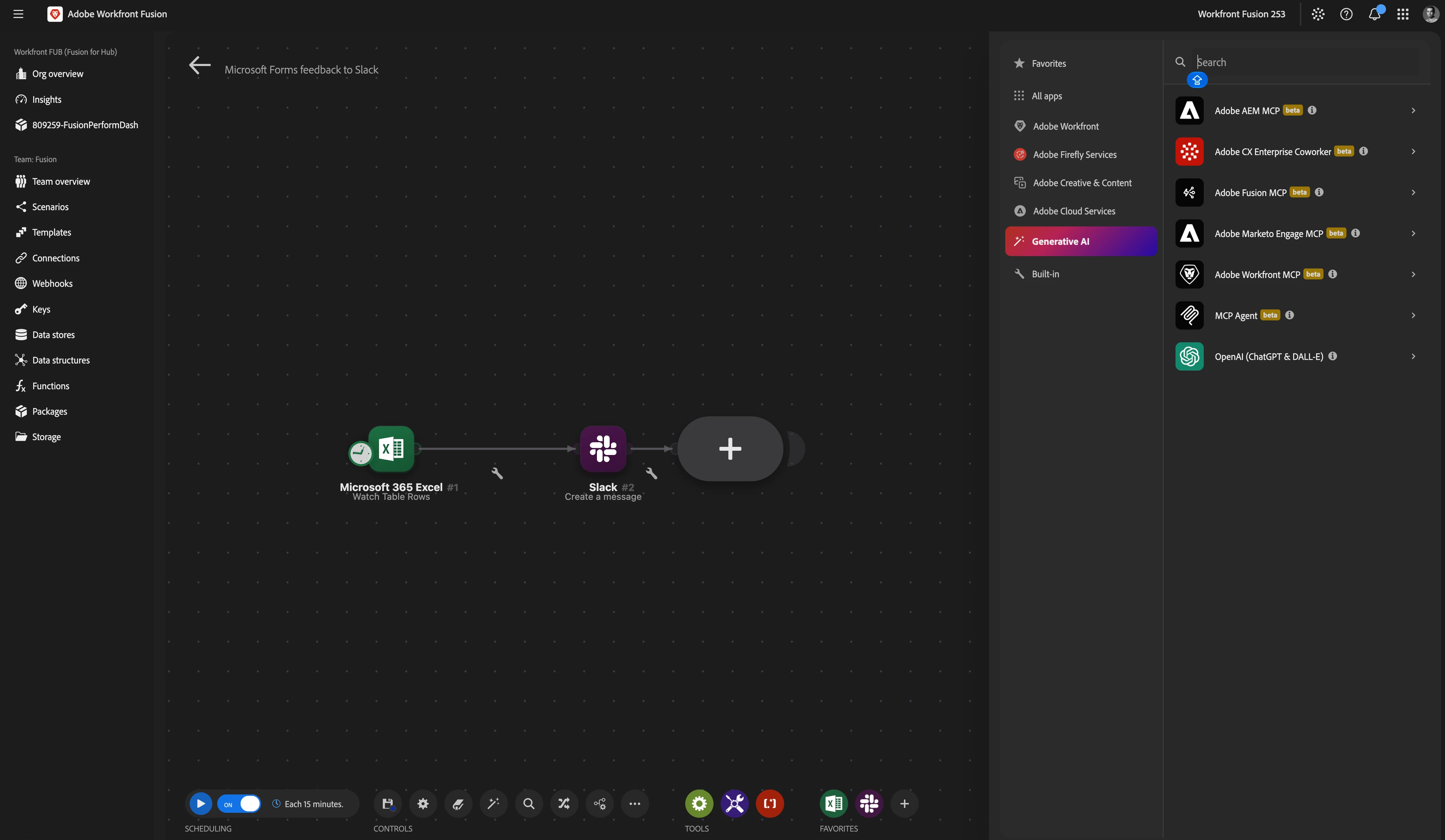
- Module cards — compact cards show app icon, module name, short description, and module ID with curved links and status indicators for clearer canvas readability.
- Improved navigation — Compact view, zoom, Focus mode, and a minimap make it easier to move around and reason about large scenarios. Use cmd/ctrl + K for fast search. You can navigate between executions with a single click.
- Foldable routers — Collapse a router to hide its routes and reduce visual noise while you work on other parts of the scenario.
- Dark mode — Editor color theme for low‑light workflows and longer sessions.
- Search‑first module browser — Quickly find modules by name or function and add them to the canvas.
- Edit history — Undo, Redo, and Undo all let you recover or reset recent changes faster.
- Unified right panel — A single right‑hand panel now hosts Module setup, Find & replace, Snippets, Live Trail, and request/response details for a consistent authoring experience.
- Live Trail — see a run as it happens: chronological requests, statuses, and searchable request/response details in one place.
- Find & replace — replace mapped variables, remap sources, or copy connections across a whole scenario or a single module with a preview of affected modules before you apply changes.
- Snippets — save selected modules as reusable snippets; search, tag, pin, import/export, and share them with teammates or across your org.
- Temporary debug logs — enable short‑lived capture of request/response details for limited windows (next hour, day, run, or up to 10 runs) to avoid persistent log storage.
- Developer Tools — built into the editor: Get app metadata, Copy mapping, Copy filter, Copy module name, Swap connection, Swap variable, and Remap source accessible from module/link context menus or the Find & replace panel.
How it works (quick)
- Open a scenario and toggle Try the new design in the upper‑right of the editor to switch to the new experience (choice is saved per user).
- Use the search‑first module browser to add modules; module cards display key metadata and status at a glance.
- Navigate large scenarios with Compact view, zoom, Focus, and the minimap. Fold routers to reduce clutter.
- Open the right panel to configure a module, run Find & replace, manage Snippets, view Live Trail, or inspect request/response details.
- Turn on Temporary debug logs in Scenario settings when you need request/response capture for a limited time.
- Use built‑in Developer Tools from a module or link context menu for rapid debugging and refactoring tasks.
Why this matters
- Faster authoring and debugging — clearer module cards, focused navigation, and the single right panel reduce context switching so you can build scenarios more quickly.
- Better observability — Live Trail and temporary debug logs give you targeted visibility into runs without retaining full logs indefinitely.
- Safe, large‑scale edits — Find & replace previews and Developer Tools let you refactor mappings, sources, and connections confidently across an entire scenario.
- Reusable work — Snippets let teams standardize and share common scenario sections to accelerate onboarding and maintain consistency.
Getting started
- Open a scenario and click the Try the new design toggle in the upper‑right of the editor. Your selection is saved for your user. If the toggle is not present, check with your admin about availability.
- Explore the module browser and add a few modules; note the module card metadata and status indicators.
- Use Compact view, zoom, Focus, and the minimap to position and tidy large scenarios. Fold routers to reduce visual noise.
- Open the right panel to set up modules, run Find & replace, create or paste Snippets, and inspect Live Trail entries during a run.
- Enable Temporary debug logs from Scenario settings when you need to capture request/response details for a limited timeframe.
- Try Developer Tools from a module or link context menu for common refactor/debug tasks (for example, Swap connection or Copy mapping).
Troubleshooting (quick)
- No toggle visible: The new experience may not be enabled for your organization yet—contact your admin or open a support ticket.
- Right panel not showing expected tools: Ensure you’re in the new scenario editor experience (Try the new design enabled). The single right panel consolidates setup, Find & replace, Snippets, Live Trail, and request/response details.
- Live Trail entries missing request/response: Live Trail shows runtime activity for runs; if you need full request/response capture, enable Temporary debug logs in scenario settings before running.
- Find & replace affected more modules than expected: Review the preview before applying changes. Use scoped replace (single module) if you only intend to change one area.
- Snippets import/export issues: Check snippet file format and permissions. If sharing across organizations, ensure recipients have compatible connector access and permissions.
Documentation & support
See the Experience League for full editor details and step‑by‑step guides:
- The scenario editor (Experience League)
- Use Live Trail to review a scenario run
- Find and replace variables, sources, and connections
- Save and reuse scenario sections with snippets
- Configure scenario settings (Temporary debug logs)
Feedback and support
Tell us what you think or request enhancements (examples: per‑route folding defaults, persistent debug retention policies, snippet permission controls, or additional Developer Tools) by:
- Posting in the Experience League Community scenario editor thread.
- Opening a support ticket via the Admin Console Support portal for configuration or availability questions.
- When reporting issues, include the scenario name, example screenshots or screen recordings, and the user toggle state (new vs classic) to help us reproduce and resolve problems faster.
Try the new scenario editor to speed up authoring, reduce visual clutter, and get richer, targeted debugging—then let us know what editor improvements you’d like next.