


New: Describe with AI button in Scenario description
Save time writing scenario summaries — click Describe with AI in a scenario’s Settings panel and Fusion will generate a clear, human‑readable description for you automatically, based on the modules and configuration in the scenario.
Overview
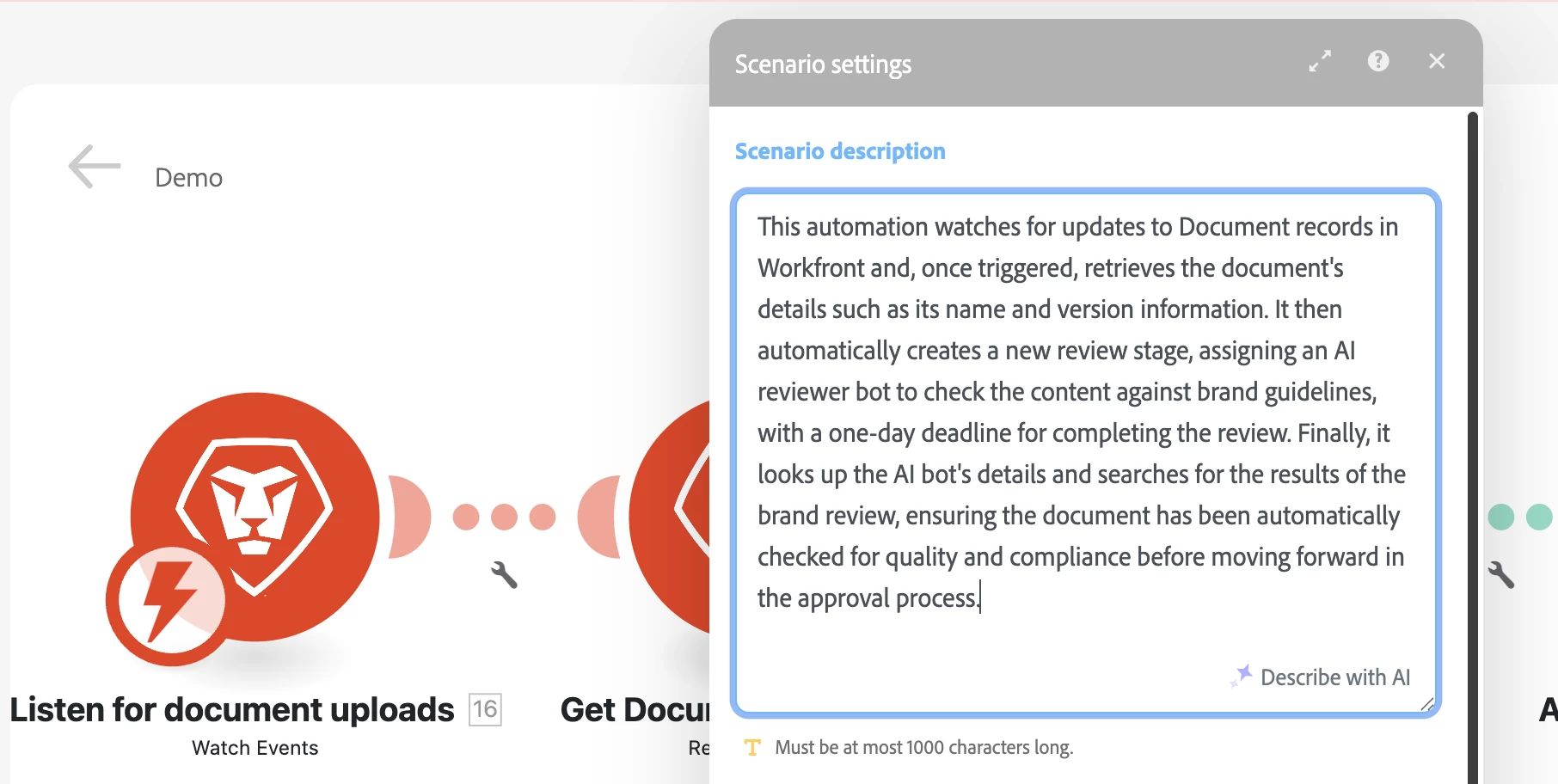
This release adds a Describe with AI action to the Description field in a scenario’s Settings panel. When invoked, Fusion analyzes the modules, connections, triggers, and mapped outputs in the scenario and produces a concise description you can accept, edit, or discard. The feature is designed to help teams keep scenario metadata accurate and useful without having to compose descriptions manually.
What’s new
- Describe with AI button — One‑click generation of a scenario description from the Settings panel description field.
- Context‑aware summaries — The generated text reflects the scenario’s modules, triggers, key connections, and primary outputs so descriptions are actionable and relevant.
- Edit and accept flow — Generated descriptions are presented in an editable dialog so you can tweak phrasing, add business context, or preserve version notes before saving.
- Non‑destructive — Using Describe with AI does not overwrite existing descriptions unless you choose Save; you can always revert to the previous text.
Why this matters
Good scenario descriptions help operators, reviewers, and new team members understand intent, ownership, and risk without opening the canvas. Describe with AI reduces friction when documenting automations, improving discoverability and maintainability across teams:
- Faster documentation — Spend less time writing routine summaries and more time on design and validation.
- Consistent quality — AI‑generated descriptions follow a clear, concise style that improves readability across your org.
- Onboarding & governance — Accurate descriptions make it easier to triage, hand off, and audit scenarios.
How to get started
- Open Fusion and navigate to the scenario you want to document.
- Click the gear icon to open Settings and locate the Description field.
- Click Describe with AI. Fusion will analyze the scenario and present a suggested description in an editable dialog.
- Review and edit the suggested text as needed, then click Save to update the scenario description.
- Test the workflow on a few scenarios to confirm the summary style meets your team’s needs, then adopt it as part of your scenario‑documentation process.
Behavior and tips
- Start with scenarios that have clear triggers and outputs — the AI produces the best results when there is sufficient contextual structure to analyze.
- If a generated description is missing business context, add brief notes (owner, SLAs, or related docs) before saving so future readers get the full picture.
- Use Describe with AI as a starting point — the editable dialog lets you align tone and terminology with your team’s conventions.
Where to find documentation
See Experience League for full details on configuring scenario settings and examples:
Need help or want to give feedback?
If you have questions, encounter issues, or want to suggest improvements (for example, tone templates, team‑level style presets, or the ability to include linked docs automatically), please:
- Post a comment on the Experience League article
- Start a thread in the Experience League Community
- Contact Adobe Support through the Admin Console Support portal
Your feedback helps us improve the Describe with AI experience and prioritize future enhancements.