


mTLS support for custom webhooks
Product update:
mTLS support for custom webhooks
To meet stronger security requirements, you can now use mutual TLS (mTLS) with custom webhooks. Add a client certificate and private key to a webhook so Experience League integrations and automations authenticate to the receiving service using client-side TLS credentials.
Overview
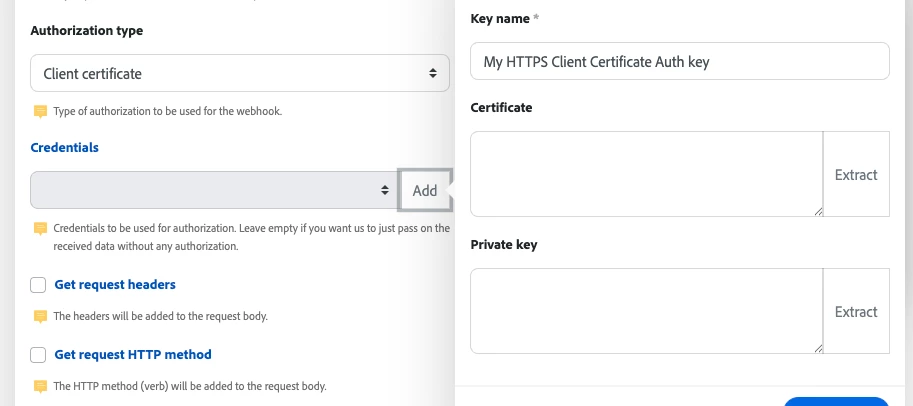
Custom webhooks now support Client certificate authorization. When you configure a webhook to use a client certificate, Fusion will present that certificate and private key during the TLS handshake so the remote service can verify the client. This provides an extra layer of security for server-to-server webhook delivery when the endpoint requires mTLS.
How to configure mTLS for a webhook
- Open the Add a hook dialog for the webhook you want to create or edit and check Show advanced settings.
- Under Authorization type, select Client certificate.
- In the Credentials field, click Add. This opens the Create a key dialog.
- Give the key a descriptive Key name (for example, “My HTTPS Client Certificate Auth key”).
- Paste the client Certificate (PEM) into the Certificate field. Use Extract if your certificate is bundled with other data.
- Paste the corresponding Private key (PEM) into the Private key field. Use Extract if the private key is in the same PEM bundle.
- Click Create a key to save the credential.
- Back in the Add a hook dialog, select the new key from the Credentials dropdown and click Save.
Reuse keys in HTTP modules and other places
The client certificate keys you create for webhooks are not limited to use with webhooks. The same saved credentials (Basic auth and Client certificate keys) are selectable in HTTP modules (for example, HTTP > Make a request), so you can reuse one saved key for outgoing requests to the same mTLS-protected endpoint. Create the credential once and use it anywhere the matching auth type is supported.
Notes and behavior
- Credentials (both Basic auth and Client certificate keys) are saved once and can be reused across multiple webhooks and HTTP modules — you don’t need to re-enter them each time.
- Leaving the Credentials field empty means Fusion will send the received webhook data without presenting a client certificate.
- The Extract buttons in the Create a key dialog can parse a certificate or private key out of a pasted PEM bundle so you don’t have to split combined files manually.
- Stored keys are used for authentication during the TLS handshake; they are not sent as part of the webhook payload.
How to get help or give feedback
If you have questions or run into issues when configuring mTLS, post a comment below, start a thread in the Experience League Community, or contact Adobe Support through the Admin Console Support portal. Your feedback helps us prioritize enhancements (for example, additional certificate formats, automated rotation, or private key management integrations).
Where to find documentation
Step‑by‑step instructions and reference details are available on Experience League: see the Webhooks and HTTP module authentication topics for configuration examples and troubleshooting tips.