How to using another abbreviation/String to represent the URL link in a Workfront report? | Community
Skip to main content
Level 2
August 11, 2024
Question

How to using another abbreviation/String to represent the URL link in a Workfront report?

  • August 11, 2024
  • 1 reply
  • 1187 views

Hello Friends,

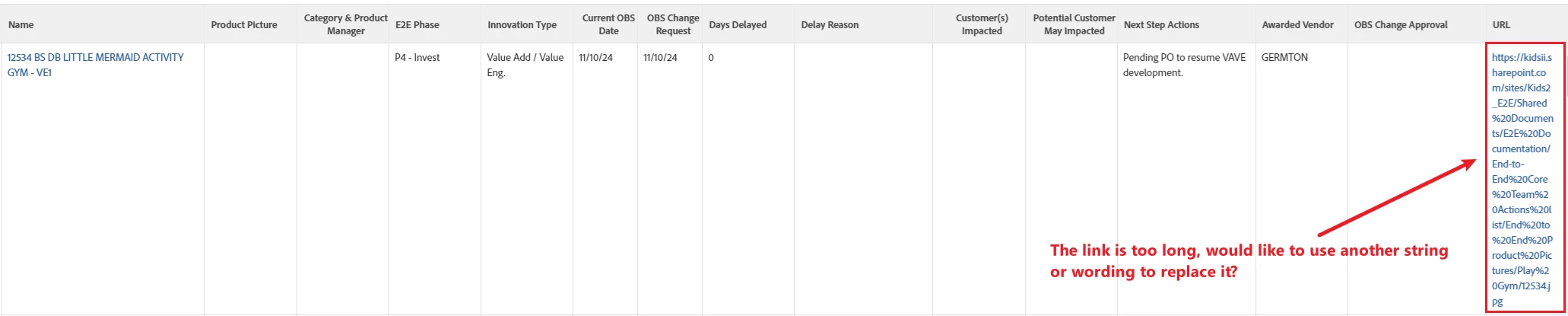
There is a URL link in my Wrokfront report, but due to the link is quite long (annoying), would like use another string/abbreviation to replace this URL link. But when i output the workfront report to Excel format, i wanted the URL link is there for my insert photo purpose. thanks!
 

1 reply

NicholeVargas
Adobe Employee
Adobe Employee
August 19, 2024

[EDITED] You can add a column rule to say something like "Click here" so that the URL doesn't display, but in doing so, the link will not be clickable if you export to Excel. See reply below for instructions

New Member
August 20, 2024

Nichole,

I have attempted to follow your instructions listed above. Unfortunately, I have not been able to successfully change the URL text to "Click Here" and maintain the ability to actually use the link to redirect to another Webpage.


Here is my Textmode Code, did I miss a value that would help complete the link? 

case.0.comparison.icon=false
case.0.comparison.leftmethod=URL
case.0.comparison.lefttext=URL
case.0.comparison.operator=notblank
case.0.comparison.operatortype=string
case.0.comparison.righttext=
case.0.comparison.truetext=Click Here
linkedname=direct
namekey=URL
querysort=URL
styledef.case.0.comparison.icon=false
styledef.case.0.comparison.leftmethod=URL
styledef.case.0.comparison.lefttext=URL
styledef.case.0.comparison.operator=notblank
styledef.case.0.comparison.operatortype=string
styledef.case.0.comparison.righttext=
styledef.case.0.comparison.trueproperty.0.name=textcolor
styledef.case.0.comparison.trueproperty.0.value=1b878c
styledef.case.0.comparison.truetext=Click Here
textmode=true
valuefield=URL
valueformat=HTML
link.url=URL

NicholeVargas
Adobe Employee
Adobe Employee
August 20, 2024

@dominicth Apologies for the confusion! I'm going to go ahead and delete my reply above since the link.url text mode works for custom fields, but I didn't realize that there was a different text mode for native fields. 

For native Workfront fields (ex: URL), you can use the following: 


displayname=URL link.url=URL textmode=true valueexpression=IF(ISBLANK({URL}),"","Click Here") valueformat=HTML


If you want to hyperlink a custom field, you would follow the instructions from above (re-pasted here):  

  • Edit your report and click on the appropriate custom field column
  • Select Advanced Options > + Add Column Rule
  • Custom Field > Is Not Blank 
  • Click on the Checkbox for "Show Text" and add the words, Click here
  • Option to change the text color to blue
  • Click Add Rule
  • Switch to text mode and add the following line to the bottom. Keep in mind you would need to replace fieldname with the actual name of your custom field.
link.url=customDataLabelsAsString(fieldname)
  • Save and run your report