
How can I display multiple hyperlinks in a column using text mode within Reports in Adobe Workfront? | Community
Skip to main content
MarieClara
Level 2
October 10, 2024
Solved

How can I display multiple hyperlinks in a column using text mode within Reports in Adobe Workfront?

  • October 10, 2024
  • 2 replies
  • 2555 views

Hi super league!


I'm new around here and just diving into Workfront. I'm already loving this tool! I was wondering if anyone knows how to display multiple hyperlinks in a column using text mode within a Report?


Here's the query string I'm using to create a Hyperlink column within text mode:

displayname=Calendar

View valueformat=HTML

textmode=true

value=<a href="URL">Calendar Name</a>


Thanks in advance for your help!


Marie-Clara
This post is no longer active and is closed to new replies. Need help? Start a new post to ask your question.
Best answer by KatherineLa

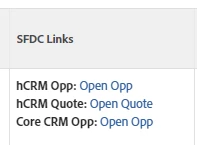
In my instance, I had a set of custom fields that had URLs stored in them to reference various things about a project in our Salesforce instance. I wanted to display them all in the same column, but because I like things to be pretty, I also wanted them to display as a short phrase rather than long ugly URLs. If the custom field happens to not have a URL in it, that space will simply remain blank.


column.1.displayname=SFDC Links column.1.sharecol=true column.1.textmode=true column.1.value=<strong>hCRM Opp: </strong> column.1.valueformat=HTML column.2.link.url=DE:Opportunity Name - URL Link column.2.linkedname=html(DE:Opportunity Name - URL Link) column.2.sharecol=true column.2.textmode=true column.2.valueexpression=IF(ISBLANK({DE:Opportunity Name - URL Link}),"","Open Opp") column.2.valueformat=HTML column.3.sharecol=true column.3.textmode=true column.3.value=<br><strong>hCRM Quote: </strong> column.3.valueformat=HTML column.4.link.url=DE:CPQ Quote URL column.4.linkedname=html(DE:CPQ Quote URL) column.4.sharecol=true column.4.textmode=true column.4.valueexpression=IF(ISBLANK({DE:CPQ Quote URL}),"","Open Quote") column.4.valueformat=HTML column.5.sharecol=true column.5.textmode=true column.5.value=<br><strong>Core CRM Opp: </strong> column.5.valueformat=HTML column.6.link.url=DE:SFDC - Core CRM URL Link column.6.linkedname=html(DE:SFDC - Core CRM URL Link) column.6.textmode=true column.6.valueexpression=IF(ISBLANK({DE:SFDC - Core CRM URL Link}),"","Open Opp") column.6.valueformat=HTML


2 replies

KatherineLa
Community Advisor
KatherineLaCommunity AdvisorAccepted solution
Community Advisor
October 10, 2024

In my instance, I had a set of custom fields that had URLs stored in them to reference various things about a project in our Salesforce instance. I wanted to display them all in the same column, but because I like things to be pretty, I also wanted them to display as a short phrase rather than long ugly URLs. If the custom field happens to not have a URL in it, that space will simply remain blank.


column.1.displayname=SFDC Links column.1.sharecol=true column.1.textmode=true column.1.value=<strong>hCRM Opp: </strong> column.1.valueformat=HTML column.2.link.url=DE:Opportunity Name - URL Link column.2.linkedname=html(DE:Opportunity Name - URL Link) column.2.sharecol=true column.2.textmode=true column.2.valueexpression=IF(ISBLANK({DE:Opportunity Name - URL Link}),"","Open Opp") column.2.valueformat=HTML column.3.sharecol=true column.3.textmode=true column.3.value=<br><strong>hCRM Quote: </strong> column.3.valueformat=HTML column.4.link.url=DE:CPQ Quote URL column.4.linkedname=html(DE:CPQ Quote URL) column.4.sharecol=true column.4.textmode=true column.4.valueexpression=IF(ISBLANK({DE:CPQ Quote URL}),"","Open Quote") column.4.valueformat=HTML column.5.sharecol=true column.5.textmode=true column.5.value=<br><strong>Core CRM Opp: </strong> column.5.valueformat=HTML column.6.link.url=DE:SFDC - Core CRM URL Link column.6.linkedname=html(DE:SFDC - Core CRM URL Link) column.6.textmode=true column.6.valueexpression=IF(ISBLANK({DE:SFDC - Core CRM URL Link}),"","Open Opp") column.6.valueformat=HTML


MarieClara
Level 2
October 10, 2024

Thank you Katherine for your inputs, this is really helpful! I also like it when things are clean and pretty.

But when I try to save or apply the changes to the columns, I get an error message included below and I'm unsure how to fix that.

Sven-atClient
Level 3
October 10, 2024

Hi @marieclara 
Sometimes the report editor gets confused. 
Start fresh: 
Note if you paste in Katherine's code you need to paste that into a second column (her columns start with 1 meaning it's the second column ;/)

If you follow my steps - save after you create your 3 columns, and again after adding the separator columns. 

Let me know how it goes!

Sven-atClient
Level 3
October 10, 2024

Hi @marieclara 

To display multiple links, it's easiest if you create multiple columns and join them. 
Katherine did that in her example: It's a way to visually combine 2 or more columns into one. 

say you have 3 columns, col1link, col2link, col3link that each display a link as you described. 

add another column after columns 1 and 2, so you have 

col1link, newcol1, col2link, newcol2, col3link


enter the separator HTML into each of the new columns: 
valueformat=HTML

value=<br/> (or <hr/> etc)


Now, from newcol2 moving left, add

sharecol=true and save


that argument will combine the current with the next column into one. You'll end up with a massive compound column that has 

col1link

newcol1

col2link

newcol2

col3link


similar to Katherine's cod.

MarieClara
Level 2
October 10, 2024

Thank you, Sven! This is great but same thing I get an error message when I try to save the columns. It says that I need to include at least one column. Any tips on how to fix that? Thank you!