Grouping by Issue Age | Community
Skip to main content
Level 2
June 21, 2023
Solved

Grouping by Issue Age

  • June 21, 2023
  • 1 reply
  • 1924 views

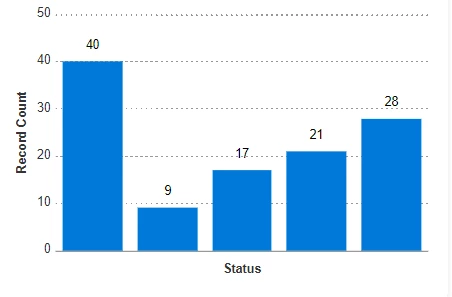
I would like to create a report that displays the number of issues within six different groups based on the age of the issue. I want to group the issues by Age for 0-15 Days, 16-30, 31-60, 61-90, and 90+ Days. Age is a default field for Issues but I am needing help on how to group the issues into ranges and use Age on the X-Axis of a bar chart. My end goal is to have a chart like the photo below, but instead of Status, it would show the count for the various Issue Age ranges. If this is possible, I would appreciate any guidance. Thanks!


This post is no longer active and is closed to new replies. Need help? Start a new post to ask your question.
Best answer by skyehansen

I don't think you're going to be able to get this in a chart form. If you need it there, it's best if you pull it out using powerBI or Tableau or good old Excel.


In terms of setting up a grouping, here's some sample code you can use just to get a feel for syntax -- I'll leave it as an exercise to you to complete it (I got 3 deep and then got bored with all the parentheses). This would get you a grouping, and it would work as long as your report kept to one page. But there's not a nice way to get this into a chart, as far as I know.


group.0.name=Age group.0.valueexpression=IF(ROUND(DATEDIFF($$TODAY,{entryDate}))<16,"0-15",IF(ROUND(DATEDIFF($$TODAY,{entryDate}))<31,"16-30",IF(ROUND(DATEDIFF($$TODAY,{entryDate}))<46,"30-45","+45"))) group.0.valueformat=HTML textmode=true


--------------------------------

If you liked my post, please like my ideas at
https://experienceleaguecommunities.adobe.com/t5/user/viewprofilepage/user-id/17528599/contributions/ideas?filter=authored

--------------------------------


1 reply

skyehansen
Community Advisor
skyehansenCommunity AdvisorAccepted solution
June 23, 2023

I don't think you're going to be able to get this in a chart form. If you need it there, it's best if you pull it out using powerBI or Tableau or good old Excel.


In terms of setting up a grouping, here's some sample code you can use just to get a feel for syntax -- I'll leave it as an exercise to you to complete it (I got 3 deep and then got bored with all the parentheses). This would get you a grouping, and it would work as long as your report kept to one page. But there's not a nice way to get this into a chart, as far as I know.


group.0.name=Age group.0.valueexpression=IF(ROUND(DATEDIFF($$TODAY,{entryDate}))<16,"0-15",IF(ROUND(DATEDIFF($$TODAY,{entryDate}))<31,"16-30",IF(ROUND(DATEDIFF($$TODAY,{entryDate}))<46,"30-45","+45"))) group.0.valueformat=HTML textmode=true


--------------------------------

If you liked my post, please like my ideas at
https://experienceleaguecommunities.adobe.com/t5/user/viewprofilepage/user-id/17528599/contributions/ideas?filter=authored

--------------------------------


Tgore08Author
Level 2
June 23, 2023

Thank you! Would this text work in a custom field? Then I could create a grouping by the value in the calculated field and maybe be able to use that in a chart?

skyehansen
Community Advisor
June 26, 2023

while I'm sure this is something a lot of us would quite like, the sad truth is that custom fields "often" only update when the custom form is resaved and the custom field is recalculated. All that to say you can certainly TRY to make this a calculated field, but please don't be surprised if it doesn't update itself the next day. (there are certainly exceptions, ... but in general I try to prepare my users for the opposite, so they don't have too high of an expectation that this is something that would happen all the time)


Then there are certainly ways around that, like maybe an automation, or maybe someone just recalculates the field every day... but in general it's not as wonderful as something that just happens by itself.