Can you filter a project report based on the planned completion date of a specific task? | Community
Skip to main content
Level 2
February 12, 2025
Solved

Can you filter a project report based on the planned completion date of a specific task?

  • February 12, 2025
  • 1 reply
  • 484 views

I've managed to get it to search for the task name but I can't get the planned completion date part to work. 

This is the ugly code I was trying but it gives and error for planned completion date

Any help is welcome. 

EXISTS:A:$$EXISTSMOD=CIContains

EXISTS:A:$$OBJCODE=TASK

EXISTS:A:name=Send campaign for GLB approval

EXISTS:A:projectID=FIELD:ID

EXISTS:B:$$OBJCODE=TASK

EXISTS:B:task:plannedCompletionDate=$$TODAYb-1w

EXISTS:B:task:plannedCompletionDate_Mod=between

EXISTS:B:task:actualCompletionDate_Range=$$TODAYe-1w
Best answer by skyehansen

I'm not entirely sure what you're trying to do, but I can try a guess below, if you're willing.


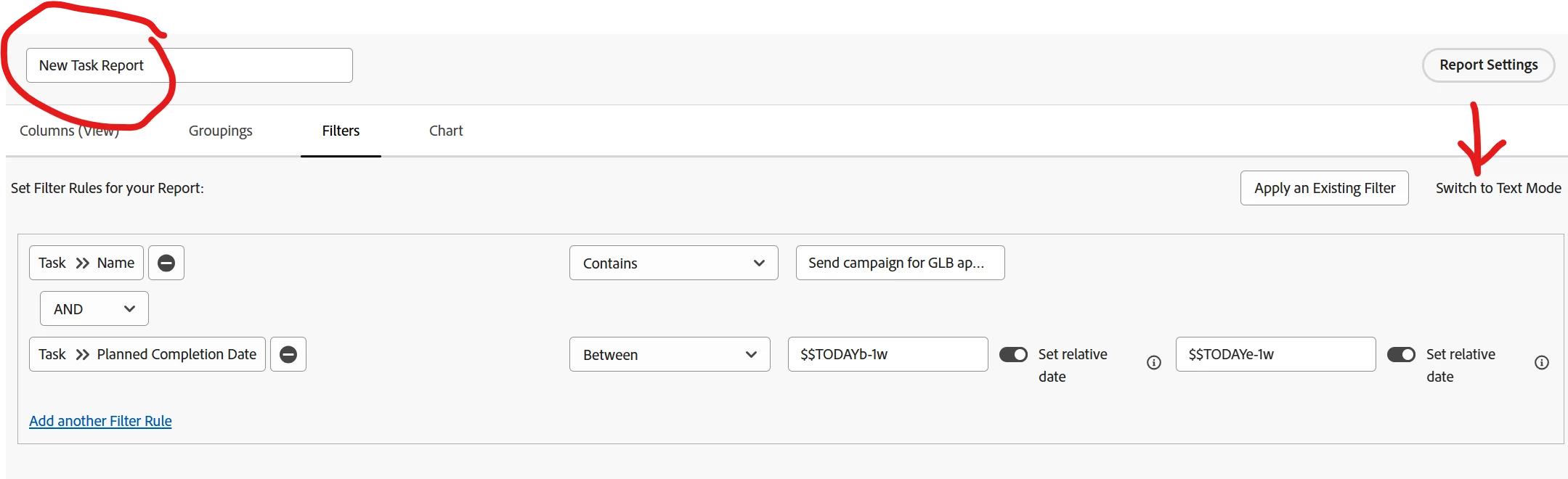
All of the filter can be copied straight from a TASK report. Just go into a task report, like I have done below, configure your filter, and then switch over to text mode, copy and paste into the project report and include your two connector lines. Prepend all your pasted lines with your "exists:A:" text.


Your two "connector" lines will connect your project to your task:


EXISTS:a:$$OBJCODE=TASK

EXISTS:a:projectID=FIELD:ID


Everything that came from your task report:


EXISTS:a:name=Send campaign for GLB approval
EXISTS:a:name_Mod=cicontains
EXISTS:a:plannedCompletionDate=$$TODAYb-1w
EXISTS:a:plannedCompletionDate_Mod=between
EXISTS:a:plannedCompletionDate_Range=$$TODAYe-1w


This is all one filter, I don't think there's a need for an exists:A and exists:B at this time.

1 reply

skyehansen
Community Advisor
skyehansenCommunity AdvisorAccepted solution
February 13, 2025

I'm not entirely sure what you're trying to do, but I can try a guess below, if you're willing.


All of the filter can be copied straight from a TASK report. Just go into a task report, like I have done below, configure your filter, and then switch over to text mode, copy and paste into the project report and include your two connector lines. Prepend all your pasted lines with your "exists:A:" text.


Your two "connector" lines will connect your project to your task:


EXISTS:a:$$OBJCODE=TASK

EXISTS:a:projectID=FIELD:ID


Everything that came from your task report:


EXISTS:a:name=Send campaign for GLB approval
EXISTS:a:name_Mod=cicontains
EXISTS:a:plannedCompletionDate=$$TODAYb-1w
EXISTS:a:plannedCompletionDate_Mod=between
EXISTS:a:plannedCompletionDate_Range=$$TODAYe-1w


This is all one filter, I don't think there's a need for an exists:A and exists:B at this time.

Level 2
February 14, 2025

Thank you this was exactly what I needed!