My Salesforce Activities are not synching to Marketo and I see a sync error...
My Salesforce activities are not showing up in Marketo and when I go to the Admin section I see the following sync error:

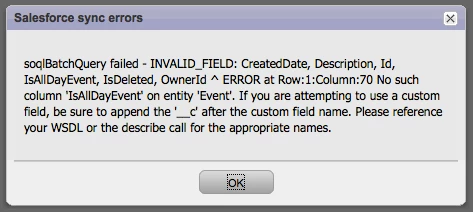
soqlBatchQuery failed - INVALID_FIELD: CreatedDate, Description, Id, IsAllDayEvent, IsDeleted, OwnerId ^ ERROR at Row:1:Column:70 No such column 'IsAllDayEvent' on entity 'Event'. If you are attempting to use a custom field, be sure to append the '__c' after the custom field name. Please reference your WSDL or the describe call for the appropriate names.
This is due to lack of permissions for the Marketo Sync User on the Salesforce side. Please have your Salesforce Administrator log into your instance of Salesforce and carry out the following steps:
- Log into Salesforce with Admin rights
- Click on your name drop-down and click on Setup
- In the left hand column, under App Setup, click on Customize
- Then click on Activities and then Event Fields
- Click on the All Day Event Field Label then "Set Field-Level Security"
- Here make sure to check the box under the Visible column for the Profile that the Marketo Sync User is associated to
- Click Save
Once the above changes have been made on next sync we will begin pulling your Salesforce activities and once the next sync is over, the error message in the Marketo Admin section should go away.
Is this article helpful ?