
Changing mailing address information in an email template
If your company moves to a new location, follow these steps to change the mailing address in your email templates located in the footer.
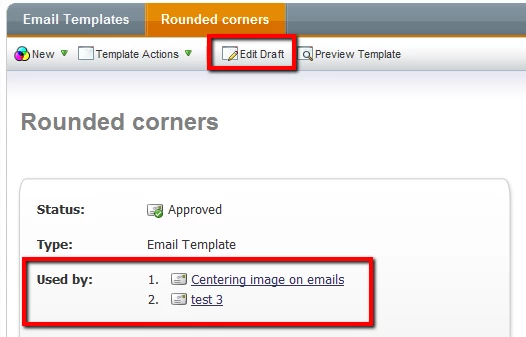
1. Find the email template that you want to update your company mailing address. We're using the Rounded Corners email template for this example.
2. Click Edit Draft.
The email template shows in the preview window.
3. Click HTML Source.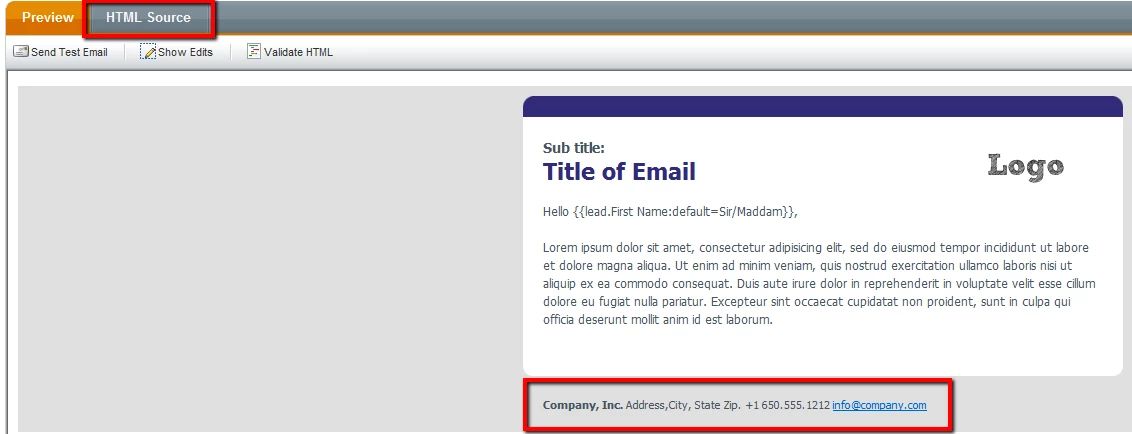
4. Scroll to where your current mailing address is located (usually at the bottom) and update the information.
5 Click Preview to view your changes.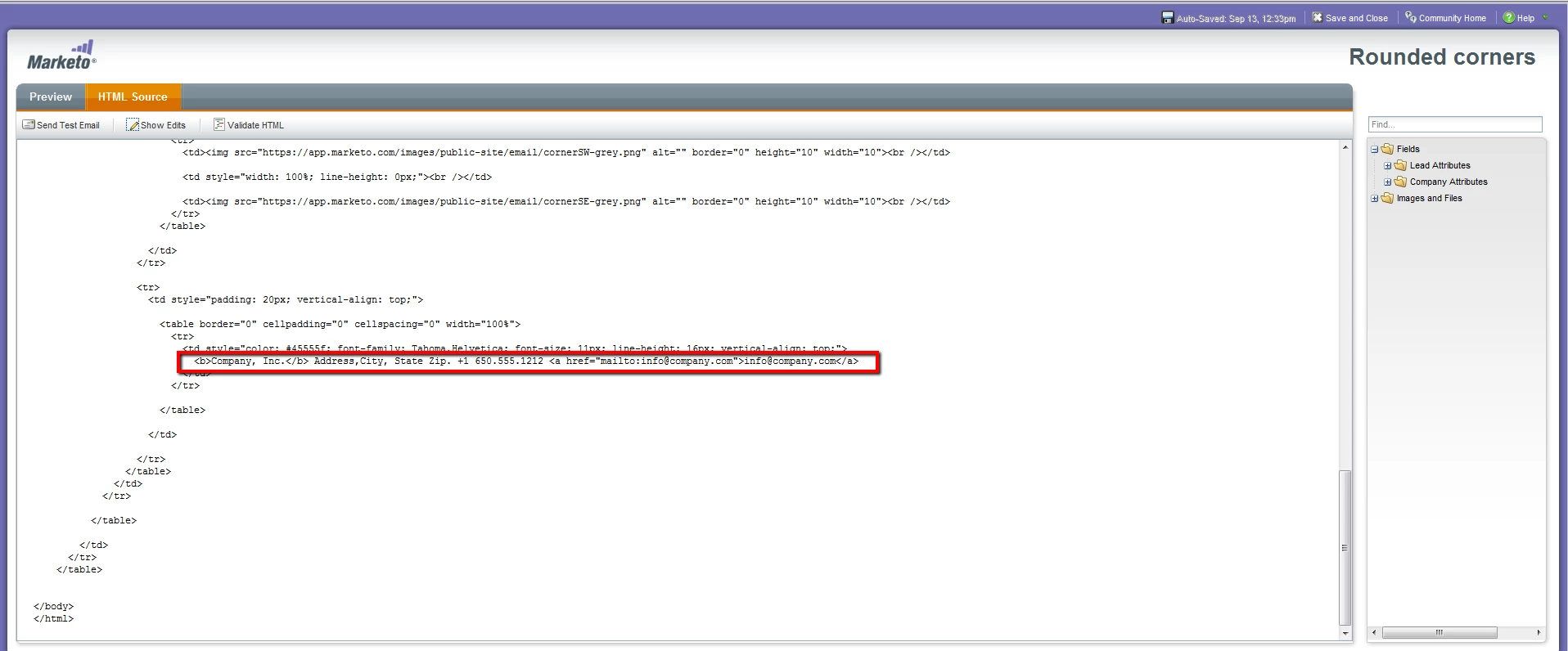
Validate your changes.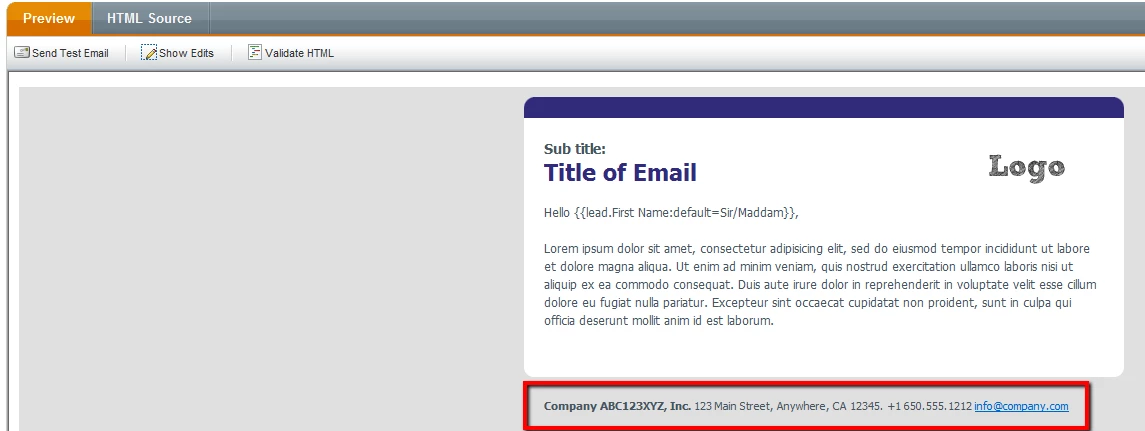
6. Click Save and Close.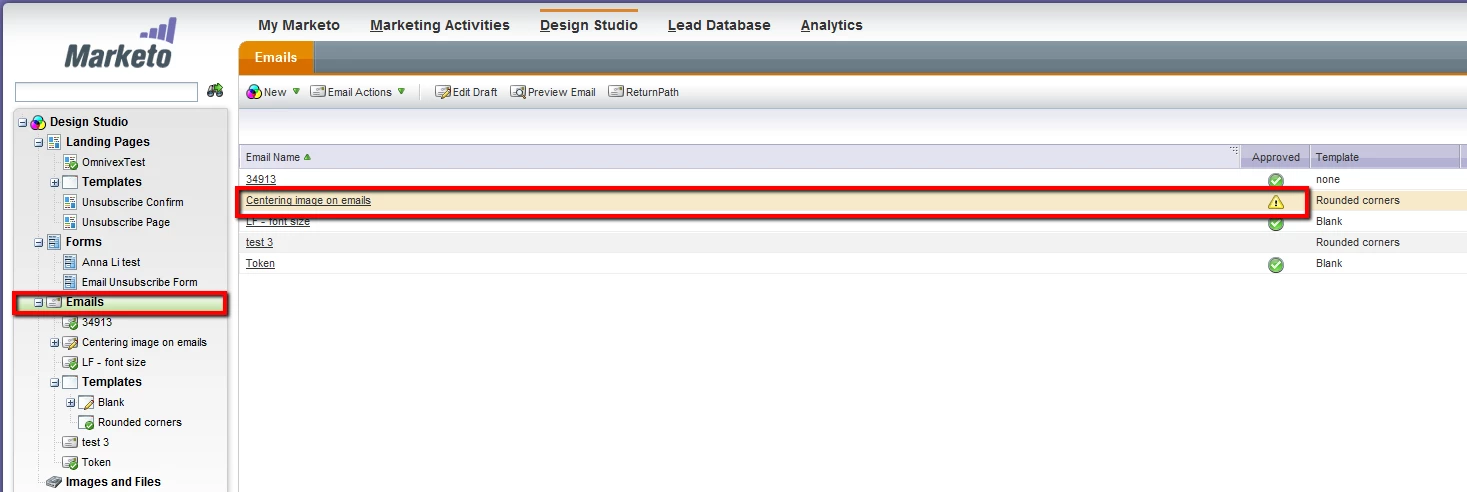
7. Approve your draft.
8. Click Emails from the tree on the left side of your screen.
9. Any emails that use the updated template will need to be re-approved.
10. You can approve the affected emails in this view (shown in the screen shot above) by highlighting the email(s) and choosing Email Actions > Approve Draft.