Adding Custom Marketo Fields to Salesforce | Community
Skip to main content
Mike_Reynolds2
Level 10
August 5, 2016

Adding Custom Marketo Fields to Salesforce

  • August 5, 2016
  • 53 replies
  • 26309 views

Included in this article

Overview

Marketo uses a set of fields to capture certain kinds of marketing related information. If you would like this data in Salesforce, please follow the instructions below.

  1. Create three custom fields in Salesforce on the lead and contact objects: Lead Score, Acquisition Program, and Acquisition Date.

  2. Map these custom fields between leads and contacts so that on conversion in Salesforce, the values carry over.

  3. You can create other additional fields, if necessary (see the table below).

All of these custom fields are optional and are not required to sync Marketo and Salesforce. As a best practice, we recommend that you do create fields for Lead Score, Acquisition Program, and Acquisition Date.

Add Marketo Fields to Salesforce

Add three custom fields on the lead and contact objects in Salesforce listed above. If you want to add more, see the table of available fields at the end of this section.

Perform the following steps for each of the three custom fields to add them. Start with Lead Score.

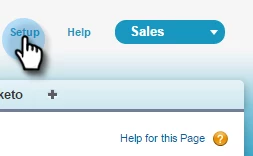
1. Log into Salesforce and click Setup.
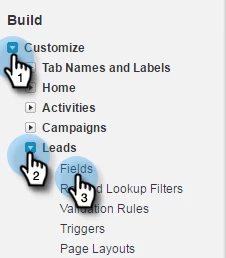
2. In the Build menu on the left, click Customize and select Leads. Click Fields.
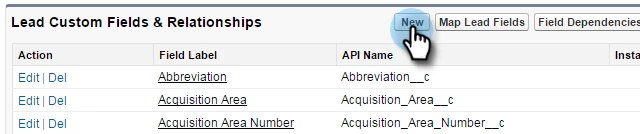
3. Click New in the Custom Fields & Relationships section at the bottom of the page.
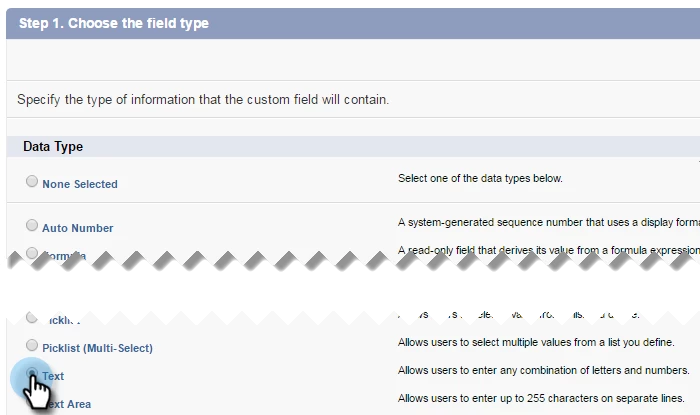
4. Choose the appropriate field type (for Lead Score — number; Acquisition Program — text; Acquisition Date — Date/Time).
5. Click Next.
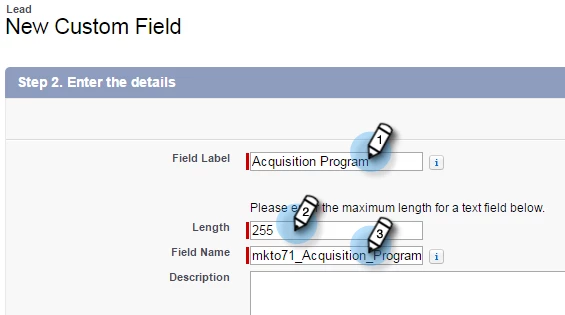
6. Enter the Field Label, Length, and Field Name for the field, as shown in the table below.

Field Label

Field Name

Data Type

Field Attributes

Lead Scoremkto71_Lead_ScoreNumberLength 10
Decimal Places 0
Acquisition Datemkto71_Acquisition_DateDate/Time
Acquisition Programmkto71_Acquisition_ProgramTextLength 255

7. Click Next.

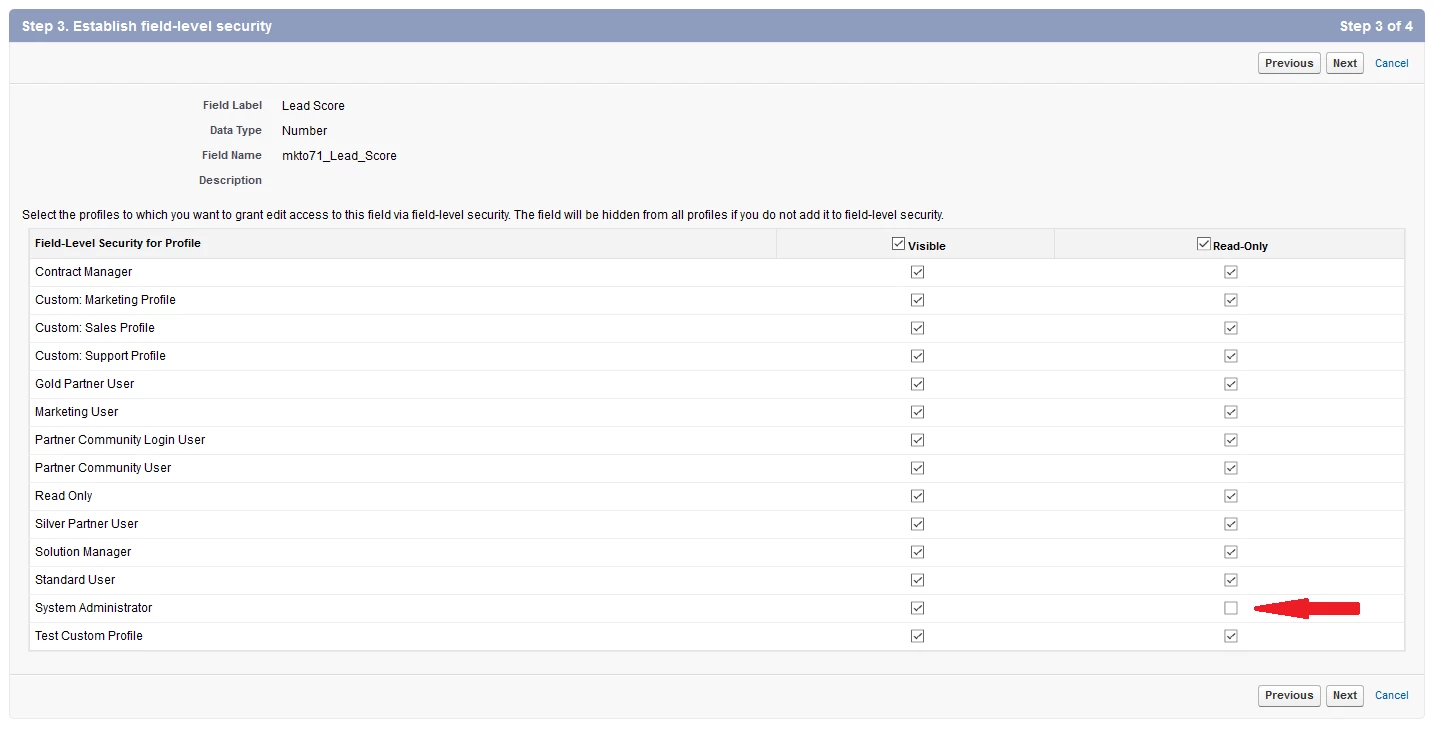
8. Specify the access settings and click Next:

  • Set all profiles to Visible and "Read-Only".
  • Uncheck "Read Only" for the profile of your sync user.
  • Often customers have a user with the profile of a System Administrator as the sync user. If that's the case with you, then uncheck “Read Only” for the System Administrator profile as shown in the picture below.

  • If you have created a custom profile for the sync user, then uncheck "Read-Only" for that custom profile
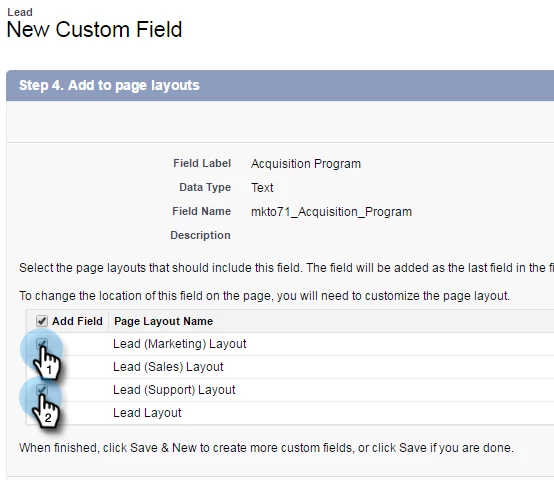
9. Choose the page layouts that should display the field.
10. Click Save & New to go back and create each of the other two custom fields. Click Save when you're done with all three.
11. In the Build menu on the left, click Customize and select Contacts. Click Fields.

12. Perform steps 3 through 10 for the Lead Score, Acquisition Date, and Acquisition Program fields on the contact object, just as you did for the lead object.

13. Optionally, use the above procedure for any additional custom fields from this table.

     NOTE: These fields are additional optional fields you may choose to add as well. The Lead Score, Acquisition Date and Acquisition Program fields      are detailed above

Field Label

Field Name

Data Type

Field Attributes

Acquisition Program Idmkto71_Acquisition_Program_IdNumberLength 18
Decimal Places 0
Original Referrermkto71_Original_ReferrerTextLength 255
Original Search Enginemkto71_Original_Search_EngineTextLength 255
Original Search Phrasemkto71_Original_Search_PhraseTextLength 255
Original Source Infomkto71_Original_Source_InfoTextLength 255
Original Source Typemkto71_Original_Source_TypeTextLength 255
Inferred Citymkto71_Inferred_CityTextLength 255
Inferred Companymkto71_Inferred_CompanyTextLength 255
Inferred Countrymkto71_Inferred_CountryTextLength 255
Inferred Metropolitan Areamkto71_Inferred_Metropolitan_AreaTextLength 255
Inferred Phone Area Codemkto71_Inferred_Phone_Area_CodeTextLength 255
Inferred Postal Codemkto71_Inferred_Postal_CodeTextLength 255
Inferred State Regionmkto71_Inferred_State_RegionTextLength 255

Map Custom Fields for Conversions

A custom field on the lead object in Salesforce should be mapped to a contact field on the contact object so that data is carried over when a conversion occurs. 

1. In the top right corner, click Setup.
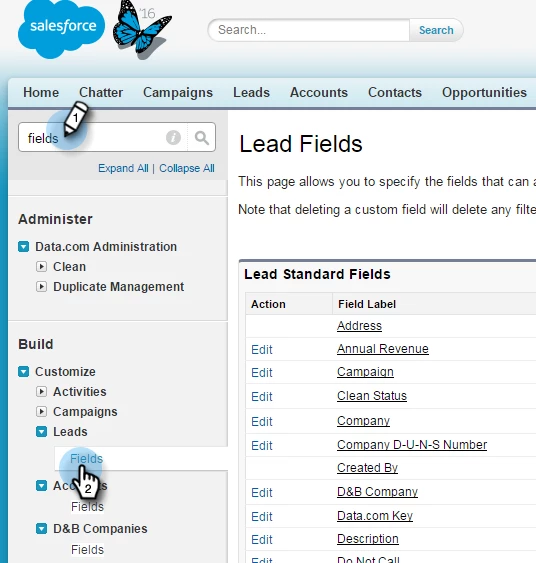
2. Type "Fields" into the Nav Search without pressing Enter. Fields appears under different objects; Click Fields under Leads.
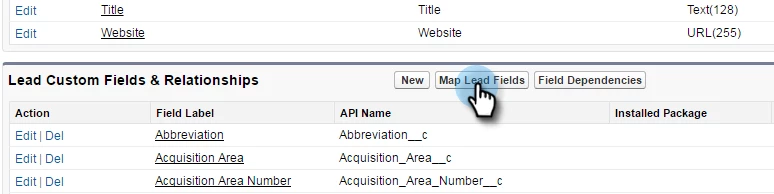
3. Go to the Lead Custom Fields & Relationships section and click Map Lead Fields.
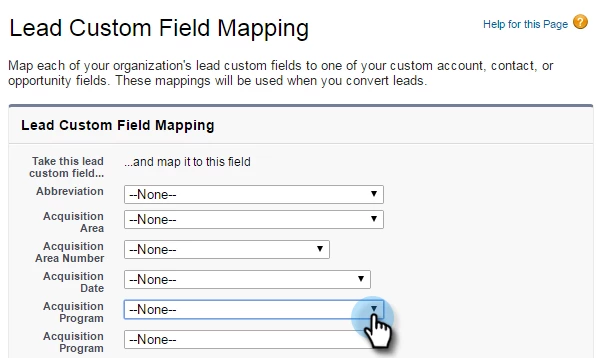
4. Click the drop-down next to the field you want to map.
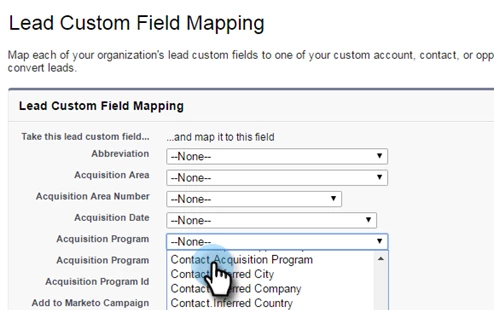
5. Select the corresponding contact custom field.
6. Repeat the above steps for any other fields you've created.

7. Click Save when you're done.

Here's a video of the entire process that should make it easy to follow along: Salesforce Connector Setup

This post is no longer active and is closed to new replies. Need help? Start a new post to ask your question.

53 replies

October 26, 2016

Here's the problem I have with making these changes.  I have a few "Leads with converted lead information" reports that run off the acquisition program field in Salesforce.  If I completely remove and delete the old acquisition program fields from Salesforce, these reports won't run accurately because if a lead was converted to a contact in Salesforce prior to the change, these contacts won't show up on the "Leads with converted lead information" report because the lead was already converted to a contact and doesn't contain the historical acquisition program data anymore. 

I guess basically what I'm trying to say is that if a lead was converted to a contact prior to the changes I made to the acquisition program field, Marketo does not backfill the data for these leads that were converted because they are no longer consider "Leads" since they're considered "Contacts" now. 

Mike_Reynolds2
Level 10
October 26, 2016

Hi @Nam Nguyen​,

The acquisition program field in Marketo will push the data it has already over into the new field in SFDC as part of the backfill process once those fields have been created. So you won't lose any of the data on which Marketo program they came from. The backfill process may take a little time depending on the size of your lead database, but all data comes through to the new fields.

Let me know if that answers your question.

Thanks,

Mike

October 26, 2016

Thanks for the quick reply Mike.  Marketo actually doens't backfill acquisition programs for leads that were previously converted.  Since I'm running a report on "Leads with converted info" and some of the data on this report includes Contacts that were converted, it won't show me the contact's acquisition program that it had when it was previously a Lead.  Marekto didn't backfill that information because it's no longer a Lead and is instead a Contact record now. 

I could easily run a report on the Contact object to catch the backfilled acquisition program, but I am purposely running the report from the lead object because of the data I need in the report on the lead object. 

So in short, if a Lead was converted to a contact, the contact record won't have any of it's historical lead data for it's acquisition program because it was never backfilled. 

Mike_Reynolds2
Level 10
October 26, 2016

That clarifies things a lot more. The reason it's not backfilling the data back to the old lead record after converting to contact is because the Marketo lead record is pointing to the SFDC Contact record, and not the SFDC Lead record any more.

Marketo only retains one record ID from SFDC. When it's still an SFDC Lead, the record ID is different than the record ID it has as an SFDC Contact record. So after conversion, the Marketo lead record changes the SFDC record ID on file to the one for the Contact record instead. At that point all communication to the SFDC Lead record stops, just as base Marketo functionality.

The backfill process pushes the data to the Contact record as you've seen, but the Lead record has already been cut off from communication, so there's no need to backfill data to an SFDC record that's already obsolete from the Marketo software's perspective.

So that explains why and how. But, there are two things to consider.

First, moving forward with the new fields, it will be a non-issue because as long as the Acquisition Program field has been recreated on both the Lead and Contact objects, it will still carry through to the Contact record and will still be there on the original Lead record as well.

Second, as long as you haven't deleted the fields from SFDC yet, the data is still there for you to report on. You'd have to change your report or recreate it to point back to the original fields again, but that data should still be in the original Lead records.

Does that help?

-Mike

Mike_Reynolds2
Level 10
November 10, 2016

If anyone is interested, Jenn DiMaria over at  RevEngine will be holding a webinar on these configuration changes on Thursday, November 17th, from 1 - 1:45pm Eastern time. I'll be there along with a couple other key contributors to this project from Marketo to answer as many questions as we can. If you'd like to join in, please check out their webinar registration page right here.

Cheers!

Mike

November 21, 2016

Assuming I missed this from the above conversations, do we need to add the new field to the lead page layout and remove the old field?

Ex remove mkto2_Lead_Score__c add mkto71_Lead_Score__c

Will data from the old field convert to the new field?

Can I delete mkto2_Lead_Score__c?

Mike_Reynolds2
Level 10
November 21, 2016

Hi @Bart Young​

As part of the MLM package deprecation, when you create the new fields, it will automatically kick off a backfill process that updates the new fields with the existing data from the fields on the Marketo side.

If you want to clean up your SFDC, you can delete the old fields by uninstalling the MLM package. Just be sure that you create the fields exactly as they are described in the documentation, because that's what tells the sync to remap the existing Marketo fields over to the newly recreated fields in Salesforce. Uninstalling the MLM package will remove any dependencies to other things in SFDC that were created by the MLM package itself. However, if you have other things like reports or workflows that reference these fields, you'll need to remove those dependencies before SFDC allows you to uninstall the package. Watch out for any actions that could happen by checking out the documentation here: Changes to Marketo Salesforce Sync – Preventative Troubleshooting

Hope that helps!

Mike

November 21, 2016

Very helpful, appreciate it Mike!

November 29, 2016

Hello,

Do these fields need to be added and running in production by the cut-off? Can they live in our Marketo Sandbox and SFDC Sandbox until January?

Thank you!

Mike_Reynolds2
Level 10
November 29, 2016

@Amy Gummel

The cutoff date of January 31st 2017 is when the data will stop syncing to the original fields created by the MLM package. You can recreate the fields at any time after that cutoff if you'd like and it will still automatically remap the newly recreated fields to the originals on the Marketo side. However, the data will stop flowing to the original fields after January 31st whether you plan to do it later or not. This would be the case for production and sandbox both--if the new fields haven't been recreated yet, then inside of Salesforce, the last field values you'll see from the cutoff date forward will be whatever the last value was at that time at the cutoff date. Again, you can wait to recreate the fields until whenever you want anytime in the future, but you'll have old, obsolete data in the original fields.

Hope that helps!

Mike