Adding Custom Marketo Fields to Salesforce | Community
Skip to main content
Mike_Reynolds2
Level 10
August 5, 2016

Adding Custom Marketo Fields to Salesforce

  • August 5, 2016
  • 53 replies
  • 26309 views

Included in this article

Overview

Marketo uses a set of fields to capture certain kinds of marketing related information. If you would like this data in Salesforce, please follow the instructions below.

  1. Create three custom fields in Salesforce on the lead and contact objects: Lead Score, Acquisition Program, and Acquisition Date.

  2. Map these custom fields between leads and contacts so that on conversion in Salesforce, the values carry over.

  3. You can create other additional fields, if necessary (see the table below).

All of these custom fields are optional and are not required to sync Marketo and Salesforce. As a best practice, we recommend that you do create fields for Lead Score, Acquisition Program, and Acquisition Date.

Add Marketo Fields to Salesforce

Add three custom fields on the lead and contact objects in Salesforce listed above. If you want to add more, see the table of available fields at the end of this section.

Perform the following steps for each of the three custom fields to add them. Start with Lead Score.

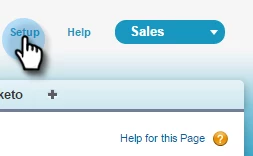
1. Log into Salesforce and click Setup.
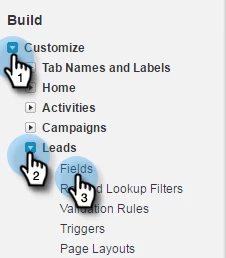
2. In the Build menu on the left, click Customize and select Leads. Click Fields.
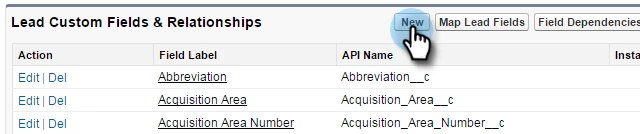
3. Click New in the Custom Fields & Relationships section at the bottom of the page.
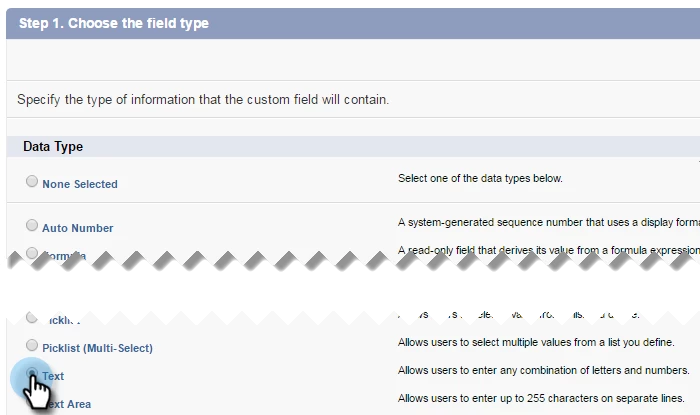
4. Choose the appropriate field type (for Lead Score — number; Acquisition Program — text; Acquisition Date — Date/Time).
5. Click Next.
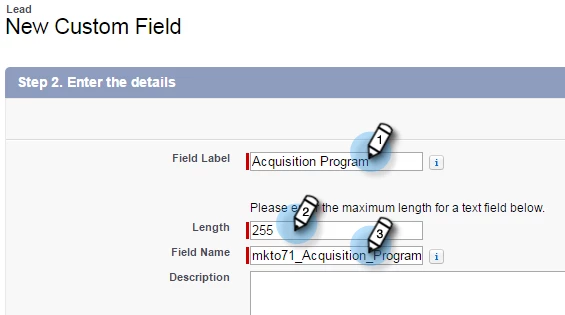
6. Enter the Field Label, Length, and Field Name for the field, as shown in the table below.

Field Label

Field Name

Data Type

Field Attributes

Lead Scoremkto71_Lead_ScoreNumberLength 10
Decimal Places 0
Acquisition Datemkto71_Acquisition_DateDate/Time
Acquisition Programmkto71_Acquisition_ProgramTextLength 255

7. Click Next.

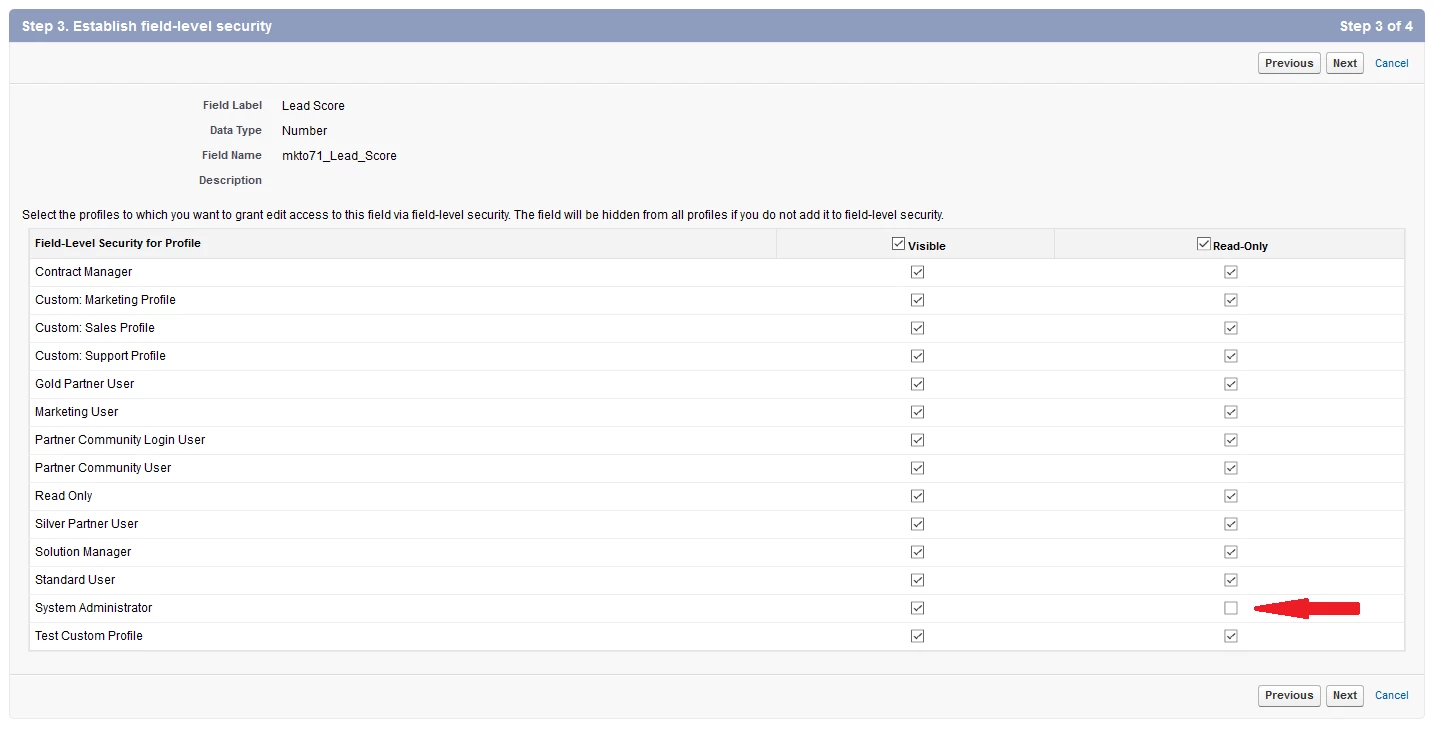
8. Specify the access settings and click Next:

  • Set all profiles to Visible and "Read-Only".
  • Uncheck "Read Only" for the profile of your sync user.
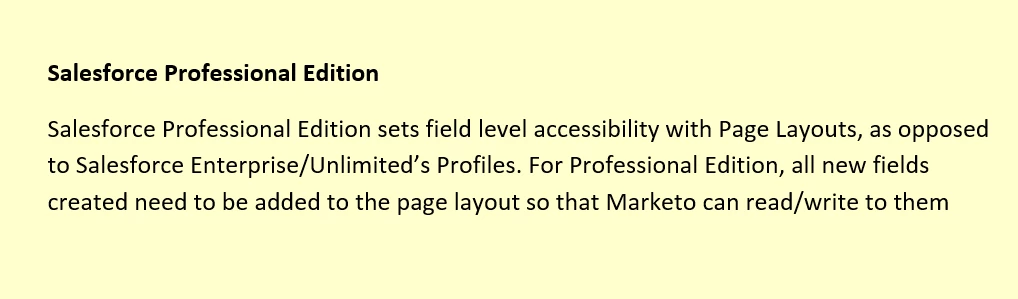
  • Often customers have a user with the profile of a System Administrator as the sync user. If that's the case with you, then uncheck “Read Only” for the System Administrator profile as shown in the picture below.

  • If you have created a custom profile for the sync user, then uncheck "Read-Only" for that custom profile
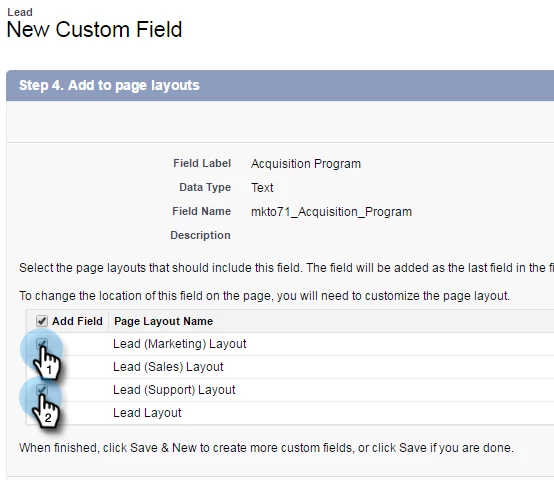
9. Choose the page layouts that should display the field.
10. Click Save & New to go back and create each of the other two custom fields. Click Save when you're done with all three.
11. In the Build menu on the left, click Customize and select Contacts. Click Fields.

12. Perform steps 3 through 10 for the Lead Score, Acquisition Date, and Acquisition Program fields on the contact object, just as you did for the lead object.

13. Optionally, use the above procedure for any additional custom fields from this table.

     NOTE: These fields are additional optional fields you may choose to add as well. The Lead Score, Acquisition Date and Acquisition Program fields      are detailed above

Field Label

Field Name

Data Type

Field Attributes

Acquisition Program Idmkto71_Acquisition_Program_IdNumberLength 18
Decimal Places 0
Original Referrermkto71_Original_ReferrerTextLength 255
Original Search Enginemkto71_Original_Search_EngineTextLength 255
Original Search Phrasemkto71_Original_Search_PhraseTextLength 255
Original Source Infomkto71_Original_Source_InfoTextLength 255
Original Source Typemkto71_Original_Source_TypeTextLength 255
Inferred Citymkto71_Inferred_CityTextLength 255
Inferred Companymkto71_Inferred_CompanyTextLength 255
Inferred Countrymkto71_Inferred_CountryTextLength 255
Inferred Metropolitan Areamkto71_Inferred_Metropolitan_AreaTextLength 255
Inferred Phone Area Codemkto71_Inferred_Phone_Area_CodeTextLength 255
Inferred Postal Codemkto71_Inferred_Postal_CodeTextLength 255
Inferred State Regionmkto71_Inferred_State_RegionTextLength 255

Map Custom Fields for Conversions

A custom field on the lead object in Salesforce should be mapped to a contact field on the contact object so that data is carried over when a conversion occurs. 

1. In the top right corner, click Setup.
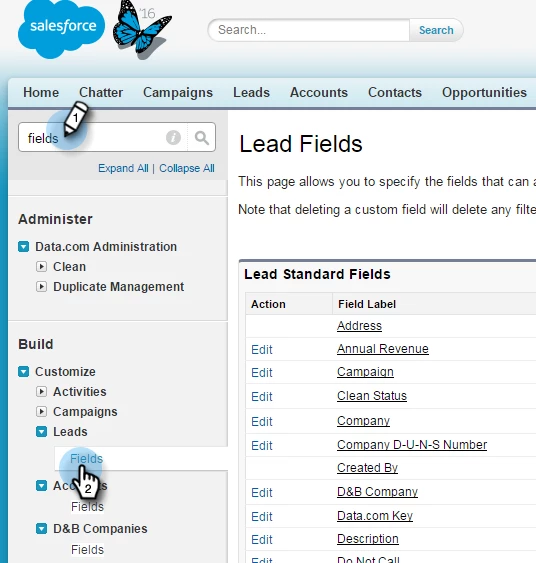
2. Type "Fields" into the Nav Search without pressing Enter. Fields appears under different objects; Click Fields under Leads.
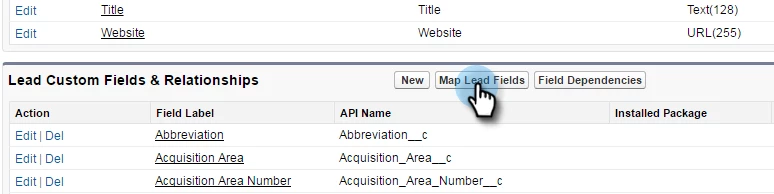
3. Go to the Lead Custom Fields & Relationships section and click Map Lead Fields.
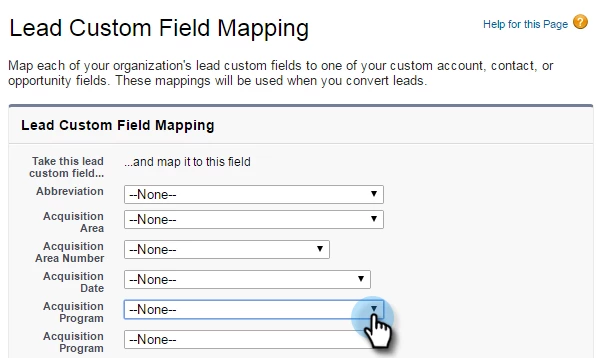
4. Click the drop-down next to the field you want to map.
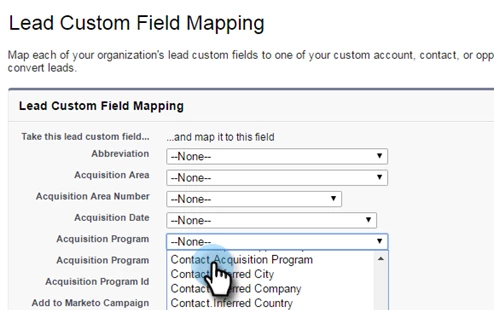
5. Select the corresponding contact custom field.
6. Repeat the above steps for any other fields you've created.

7. Click Save when you're done.

Here's a video of the entire process that should make it easy to follow along: Salesforce Connector Setup

This post is no longer active and is closed to new replies. Need help? Start a new post to ask your question.

53 replies

August 24, 2016

I created a string field in Marketo called "Package" that I want to also sync to Salesforce as part of the lead profile; it has already been created in Marketo (I know best practice is to create in Salesforce first :/).

When I'm following the steps to add the field to Salesforce Lead & Contact, do I add "mkto71_" to the start of field label (e.g. mkto71_package), or do I just enter "package," which is its SOAP API name?

Mike_Reynolds2
Level 10
August 24, 2016

Hi @Paige Dearing​,

Creating the field in SFDC first is a little more than just a best practice. If you create it in Marketo first, there's no way to create the same field in SFDC from that field being created in Marketo. That said, if you manually create the SFDC field and then open a case with Marketo Support, we'll be able to manually remap the fields together for you, but it becomes an entirely manual process when creating the field in Marketo first. It can definitely be done that way, but it's just more work for you.

As for the fields being creating here, the directions are specifically for these fields called out in this doc. "Package" isn't one of those fields, so you definitely wouldn't want to use one of the API names listed here for the "Package" field in Marketo - there's a process in place currently that will automatically map those API names to specific Marketo fields, so if you want it to map to the "Package" field in Marketo, don't use one of the API names listed here.

As far as creating API names, adding "mkto71_" to the start of the API name is not required. It's what was used in the examples here specifically to connect them to these other fields in Marketo to match the names in this document.

Hope this helps!

August 31, 2016

Hi - After we have created these fields. Do we need to delete the existing fields from the previously installed packages?

Mike_Reynolds2
Level 10
August 31, 2016

Hi @Daniel Jue​

You can delete them, or you can leave them there. It's up to you. They'll be obsolete, so many customers will want to remove them to clean up their SFDC instance. The fields can be removed by uninstalling the MLM package from SFDC, but keep in mind that if you have any workflows or reports or anything else that reference these fields, you'll have to remove those references to the fields before SFDC will let you uninstall it. All of the fields and connections in SFDC that were made by the MLM package will be removed by uninstalling it, but custom ones you've created will need to be manually removed.

Hope that answers your question!

Thanks,

Mike

August 31, 2016

Hi Mike,

If we delete the existing fields, will the custom fields be populated for all leads/contacts that we currently have in our system? For example if John Doe is a lead in our system and I delete the old Lead Score field and create this custom Lead Score field, will the information from the old Lead Score somehow we moved to the new Lead Score field? Thanks.

Mike_Reynolds2
Level 10
September 1, 2016

Yes, as soon as the new custom fields are created, that kicks off a backfill process that will automatically update all leads and contacts in the database. It starts on the next sync cycle automatically as soon as the fields are recreated.

An important thing to note here is that creating the new custom fields is what starts the backfill process, so please be sure to only do that during the Group's window when scheduled. Since the backfill process also initiates a global resync of leads with SFDC, we want to avoid any traffic jams of data passing through in order to minimize the impact on other customers (and also to keep your resync moving quickly).

Thanks,

Mike

September 1, 2016

Where are the contact fields required?

Mike_Reynolds2
Level 10
September 1, 2016

The Contact fields would be created with the same process as the Lead fields, but just on the Contact object instead. It's not required to create the fields on both Lead and Contact, but it is highly recommended.

September 16, 2016

Is the prefix "mkto71_"  as shown in the example required?

By default, Salesforce creates it's own API name, which doesn't have this prefix.

Mike_Reynolds2
Level 10
September 16, 2016

Hi @David Howard​,

The goal here is to get these new custom fields to match up to the existing Marketo fields. Those API names are what the sync cycle is looking for in order to know to map the fields together, so the specific API name in the doc does need to be entered as it is there in order for that mapping to take place.

Marketo actually does the same thing when creating a new field - it enters a default value just so that there's something in place for the API name in the right formatting it needs for use with APIs, but it can be edited as needed while being created. So, best thing to do is to enter the API name into SFDC as it's listed here (including that prefix) so that all the fields match up the way they should.

Hope that helps!

-Mike