
Toggle WebFonts on/off in Email Editor to simulate different mail clients
💡This solution uses the same tech as toggling images in Email Editor. I’ll omit some details you can read about over there.
You might be surprised that WebFonts (via CSS @font-face) are supported in Apple Mail for desktop and mobile. Those apps comprise at least 20% of email opens; using some methodologies, as much as 60%. Even the low end, IMO, doesn’t match the common take that “few” end users will see your fancy fonts!
Yes, you must fallback forcefully for Outlook. But it’s totally doable: this month (August 2026) I’ve seen WebFont-enabled emails from CDW, Dolby, London Review of Books, Malwarebytes, Mural, Salesforce, Verizon, and Zapier.
As with toggling images, you can easily add a WebFonts toggle to Email Editor 2.0:
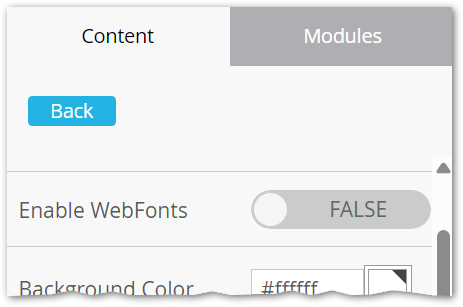
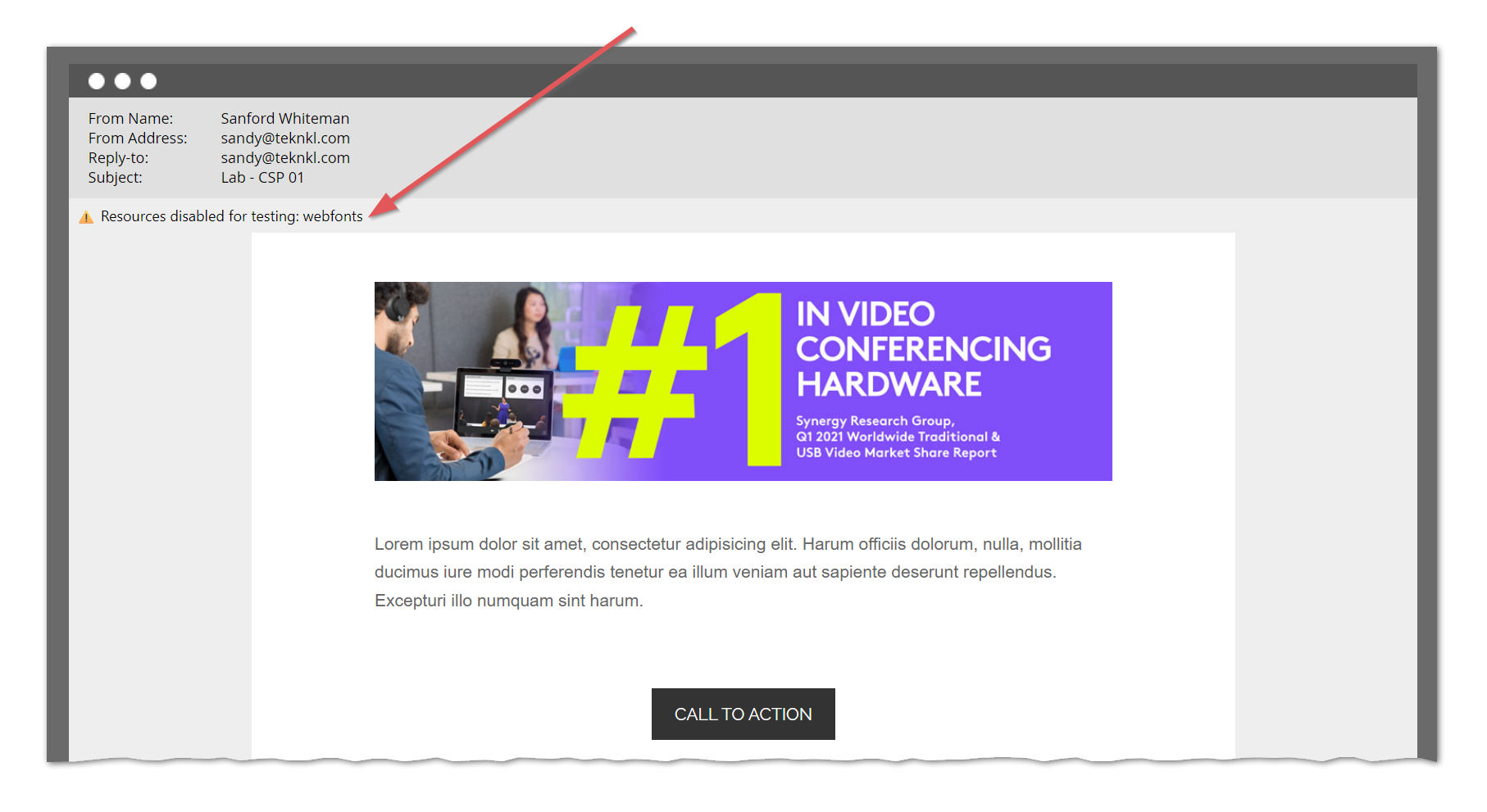
A little Email 2.0 template code high up in <head>:
<meta class="mktoBoolean" id="enableImages" mktoname="Enable WebFonts" true_value="http:" false_value="'none'" default="true" />
<meta http-equiv="Content-Security-Policy" content="font-src ${enableWebFonts}">
And this <style> right after:
<style>
:root:has(meta[http-equiv="Content-Security-Policy"][content="img-src 'none'"]) {
  --images-disabled: "images";
}
:root:has(meta[http-equiv="Content-Security-Policy"][content="font-src 'none'"]) {
  --webfonts-disabled: "webfonts";
}
:root:has(meta[http-equiv="Content-Security-Policy"][content="img-src 'none'"]),
:root:has(meta[http-equiv="Content-Security-Policy"][content="font-src 'none'"]) {
  body:before {
    font: small-caption;
    display: inline-block;
    padding: 6px;
    content: "⚠️ Resources disabled for testing: " var(--images-disabled,) " " var(--webfonts-disabled,);
  }
}
</style>
(Same <style> used for the image toggle — no need to add it twice!)
How it works
Same as the image toggle.😉
Something similar in Email Editor 3.0
Still disappointing that the new editor doesn’t yet support variables yet. Meantime, create a custom String field Test Lead for Mail Client. For a dedicated test lead, set it to “Apple Mail”.
Put this Velocity {{my.token}} high up in the template <head>:
#if( $lead.testLeadForMailClient.equals("Apple Mail") )
<meta http-equiv="Content-Security-Policy" content="img-src 'none'" />
#elseif( !$lead.testLeadForMailClient.isEmpty() )
<meta http-equiv="Content-Security-Policy" content="img-src http:" />
#end
Add the same <style> tag as in the Editor 2.0 version:
<style>
:root:has(meta[http-equiv="Content-Security-Policy"][content="img-src 'none'"]) {
  --images-disabled: "images";
}
:root:has(meta[http-equiv="Content-Security-Policy"][content="font-src 'none'"]) {
  --webfonts-disabled: "webfonts";
}
:root:has(meta[http-equiv="Content-Security-Policy"][content="img-src 'none'"]),
:root:has(meta[http-equiv="Content-Security-Policy"][content="font-src 'none'"]) {
  body:before {
    font: small-caption;
    display: inline-block;
    padding: 6px;
    content: "⚠️ Resources disabled for testing: " var(--images-disabled,) " " var(--webfonts-disabled,);
  }
}
</style>
And preview by your test lead:
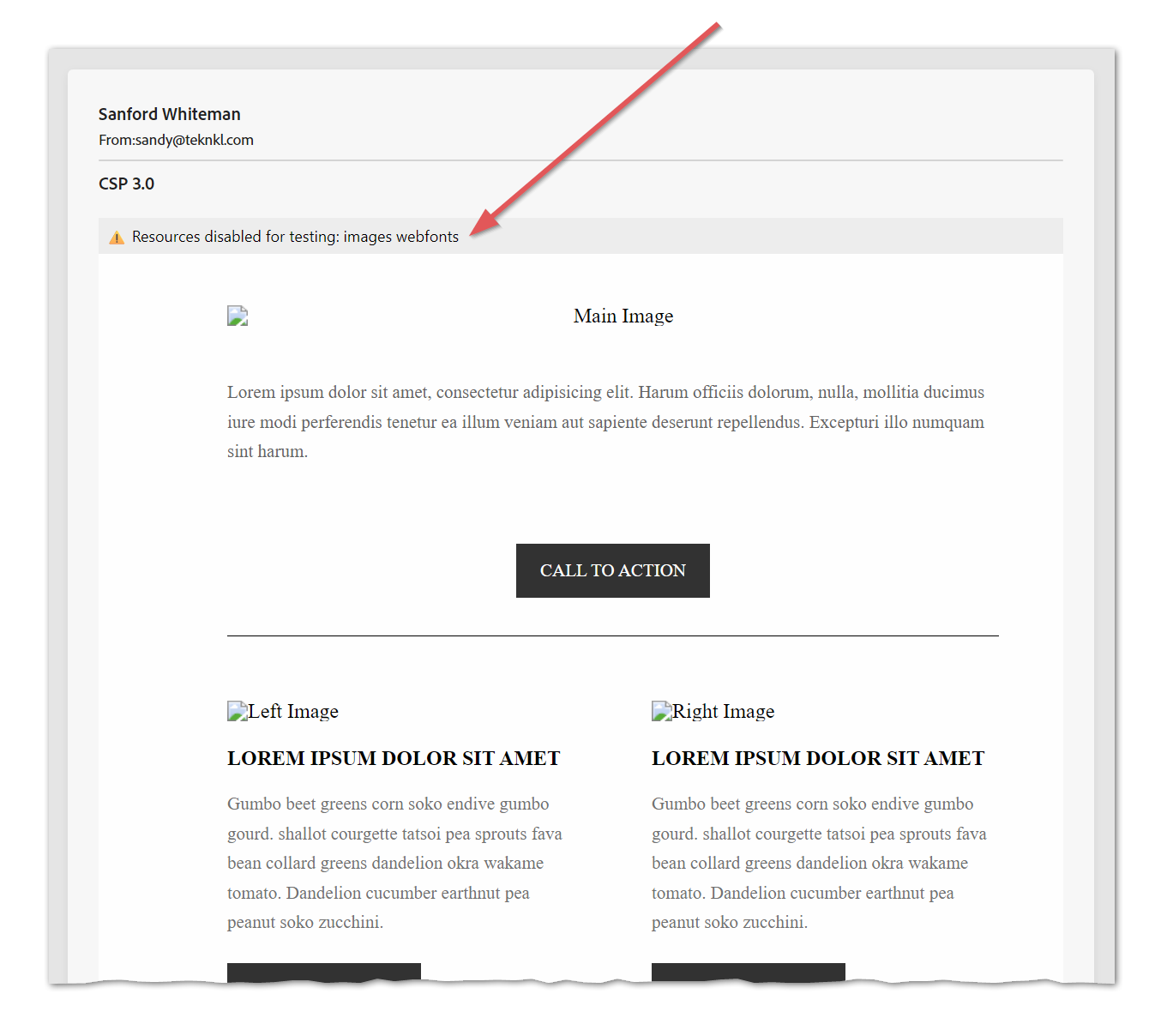
That’s it!