
Toggle images on/off in Email Editor to simulate different mail clients
We all know Outlook blocks images by default, yet there’s no native way to preview without images in the Marketo UI. Turns out it’s super-easy to add a toggle to Email Editor 2.0:
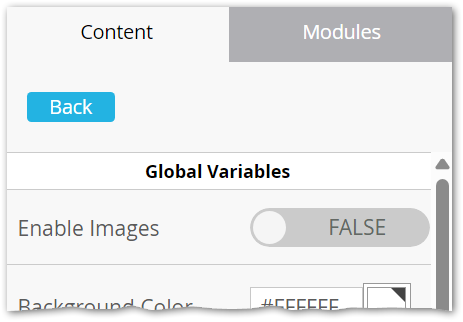
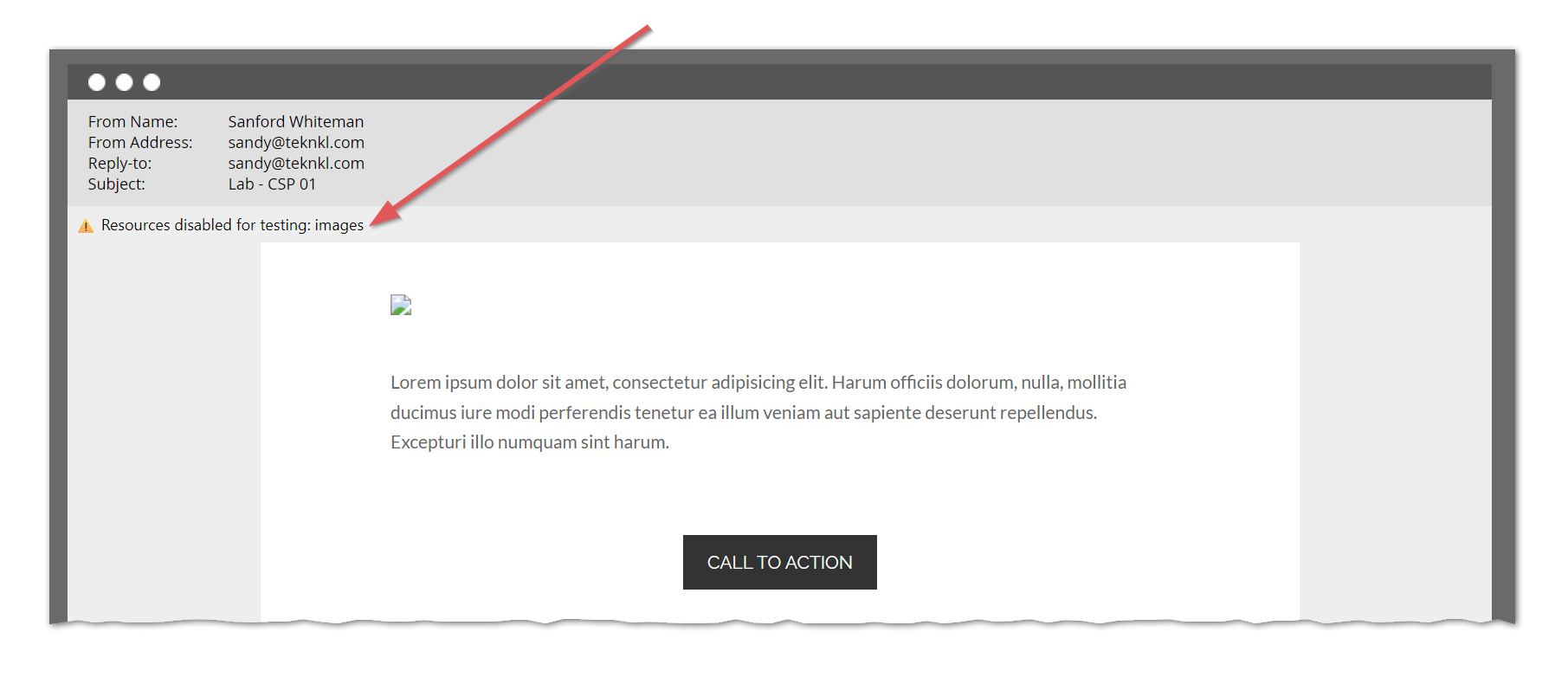
Only takes a little Email 2.0 template code high up in <head>:
<meta class="mktoBoolean" id="enableImages" mktoname="Enable Images" true_value="http:" false_value="'none'" default="true" />
<meta http-equiv="Content-Security-Policy" content="img-src ${enableImages}">
And this <style> right after:
<style>
:root:has(meta[http-equiv="Content-Security-Policy"][content="img-src 'none'"]) {
  --images-disabled: "images";
}
:root:has(meta[http-equiv="Content-Security-Policy"][content="font-src 'none'"]) {
  --webfonts-disabled: "webfonts";
}
:root:has(meta[http-equiv="Content-Security-Policy"][content="img-src 'none'"]),
:root:has(meta[http-equiv="Content-Security-Policy"][content="font-src 'none'"]) {
  body:before {
    font: small-caption;
    display: inline-block;
    padding: 6px;
    content: "⚠️ Resources disabled for testing: " var(--images-disabled,) " " var(--webfonts-disabled,);
  }
}
</style>
(As you might’ve figured, this <style> is also used in the companion post on disabling WebFonts, which is why I separated it out.)
How it works
<meta class="mktoBoolean"> creates a switch widget for a global Marketo variable.
That variable ${enableImages} is used in a Content-Security-Policy <meta> tag that controls allowed image URLs, flipping between 'none' (uh, none) and https: (implicitly allowing all).
The <style> adds a visual reminder that images aren’t accidentally broken, they’re deliberately disabled. Shockingly simple, right?
(You should know much of CSP can be implemented via HTML <meta> tags, not just via HTTP headers. Support isn’t as broad as with HTTP, but it works fine for img-src as long as the <meta> is parsed before images.)
Something similar in Email Editor 3.0
The newer editor doesn’t yet support variables, an oversight I assume will be corrected soon. Meantime, create a custom String field Test Lead for Mail Client. It’s empty by default, but for a dedicated test lead, set it to “Outlook”.
Put this Velocity {{my.token}} high up in the template <head>:
#if( $lead.testLeadForMailClient.equals("Outlook") )
<meta http-equiv="Content-Security-Policy" content="img-src 'none'" />
#elseif( !$lead.testLeadForMailClient.isEmpty() )
<meta http-equiv="Content-Security-Policy" content="img-src http:" />
#end
Add the same <style> tag as in the Editor 2.0 version:
<style>
:root:has(meta[http-equiv="Content-Security-Policy"][content="img-src 'none'"]) {
  --images-disabled: "images";
}
:root:has(meta[http-equiv="Content-Security-Policy"][content="font-src 'none'"]) {
  --webfonts-disabled: "webfonts";
}
:root:has(meta[http-equiv="Content-Security-Policy"][content="img-src 'none'"]),
:root:has(meta[http-equiv="Content-Security-Policy"][content="font-src 'none'"]) {
  body:before {
    font: small-caption;
    display: inline-block;
    padding: 6px;
    content: "⚠️ Resources disabled for testing: " var(--images-disabled,) " " var(--webfonts-disabled,);
  }
}
</style>
And preview by your test lead:
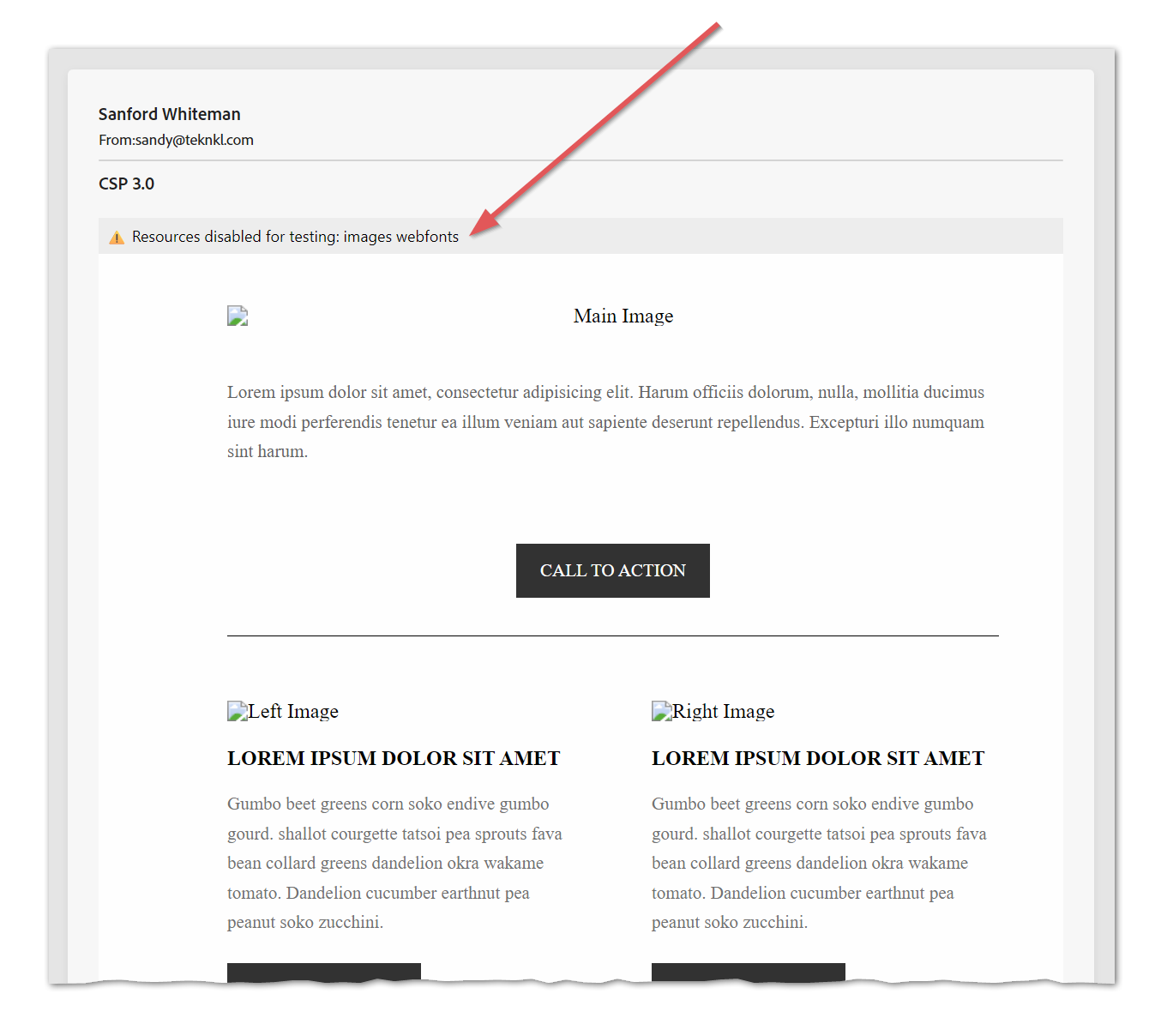
Same underlying use of CSP <meta>; not as pretty as the Email Editor 2.0 solution, but it works!