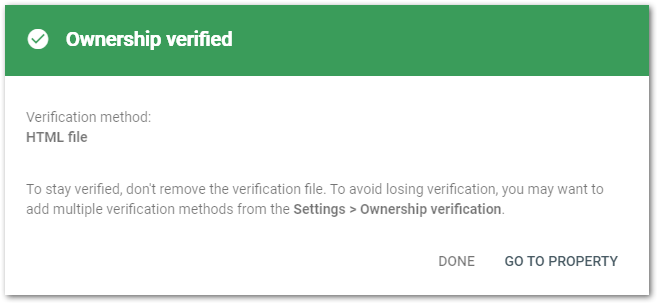
When you add a property to Google Search Console, you’ve got to verify you own the corresponding domain — or at least that you sufficiently control the webserver bound to https://pages.example.com.
Domain-wide verification requires a ticket opened with IT, which is best avoided. But verification of a Marketo LP domain or domain alias is something you can do yourself. There’s just one a little trick to it.
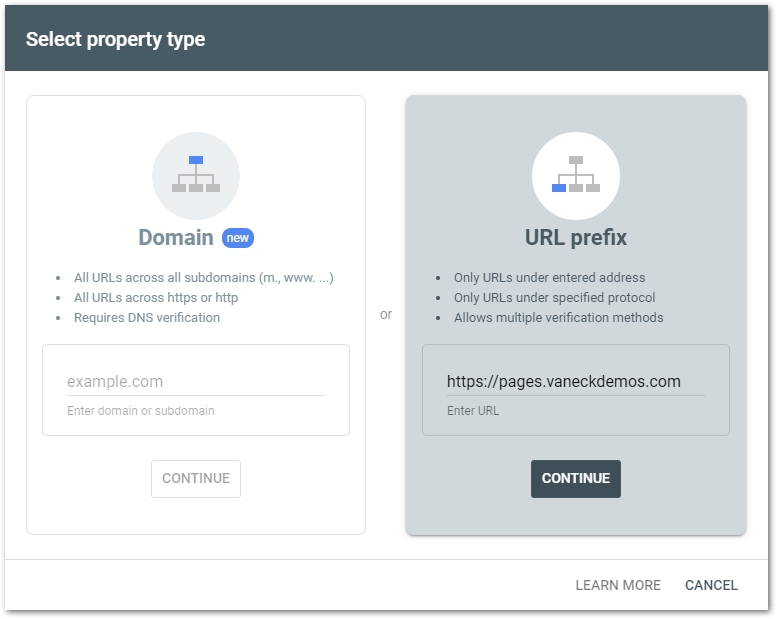
First, choose the URL Prefix option:
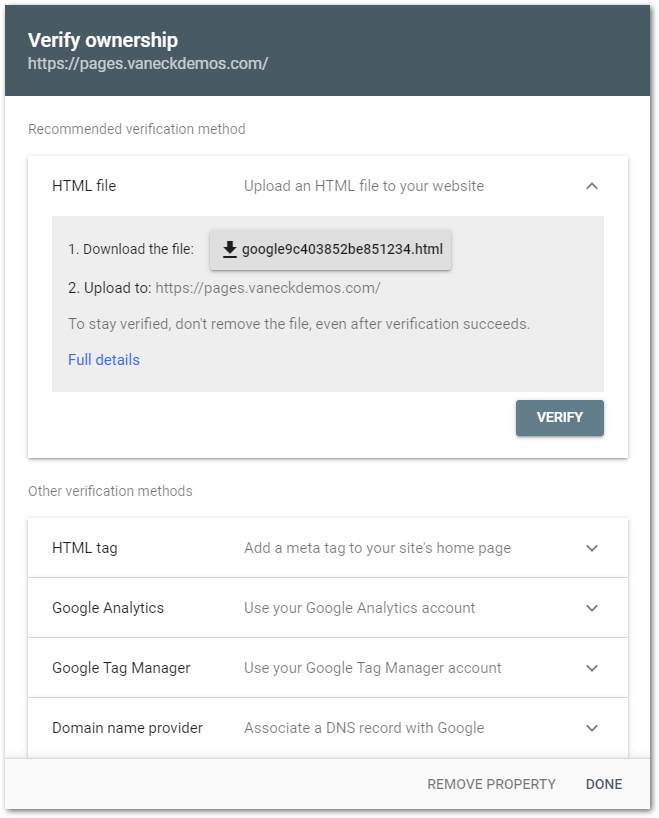
Next, choose use the HTML file option (recommended by Google) and they’ll generate a file with the extension .html that you need to serve right under https://pages.example.com:
I purposely wrote “file with the extension .html” instead of writing “HTML document.” That’s because it isn’t a valid HTML document. In fact it’s just a plain text file with one line:
google-site-verification: google9c403852be851234.html
And they really mean that exact file needs to be served.
Problem is, a Marketo LP Template can’t be approved if it doesn’t at least have minimal HTML5 markup. Conversely, you can’t simply surround it with valid markup like so —
<!DOCTYPE html>
<html>
<head>
<meta charset="utf-8">
<title>Title</title>
</head>
<body>
google-site-verification: google9c403852be851234.html
</body>
</html>
— because Google will barf and say the file is incorrect.
Design Studio to the rescue
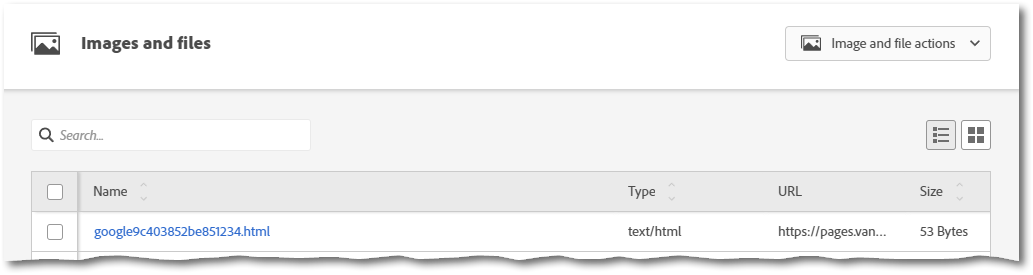
The fix is pretty easy. Instead of creating a Marketo LP Template + LP, upload the file to Design Studio » Images and Files:
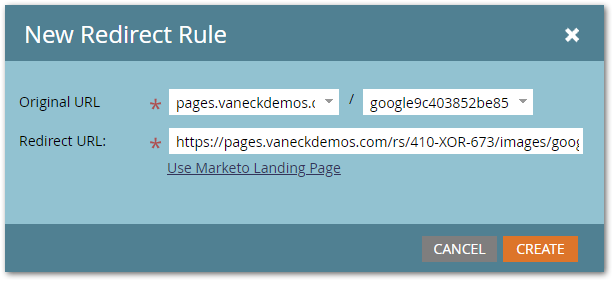
Then create a Redirect Rule in Admin » Landing Pages so the file appears to hang right off the LP domain root:
Presto: