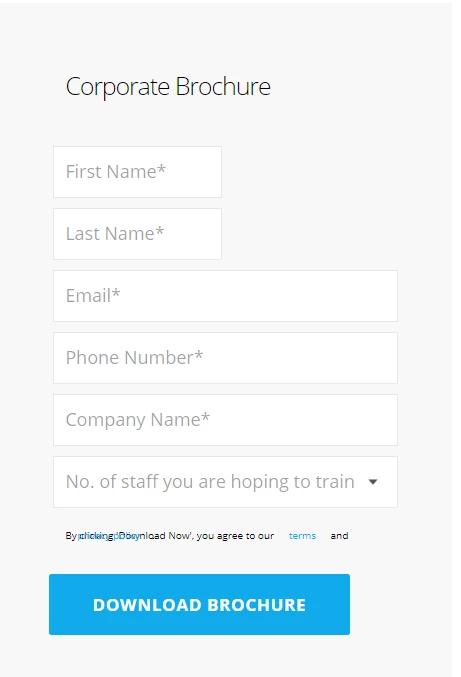
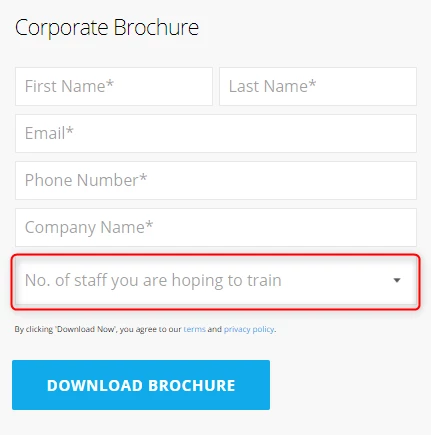
Hey Callum, I've got a few ideas for this-
As an aside, but food for thought:
I've had issues in the past targeting the <option> elements inside a <select> element (dropdown).
One method that did work for me to color that text was to target anything whose parent is a select element:
select > * { color: red !important; }
to the point....
here's a snapshot of the CSS that's active (bold) on the select element. You can find this by using the "inspect" option in Chrome on any element on the page. This shows the different things that are going on in the page - in this case the rendered CSS. This is my best friend when debugging forms b/c you can see the "output" and source of things easily. The way this CSS is written, it's targeting the parent element (container) of the <form class="mktoForm" ..> element which contains the <select> element. Good news is that it looks like these styles are written into the custom CSS on your form. If you wanted to change just the select padding, you could use this code at the bottom of the Custom CSS on your form to override the padding (dont forget the !important flag).
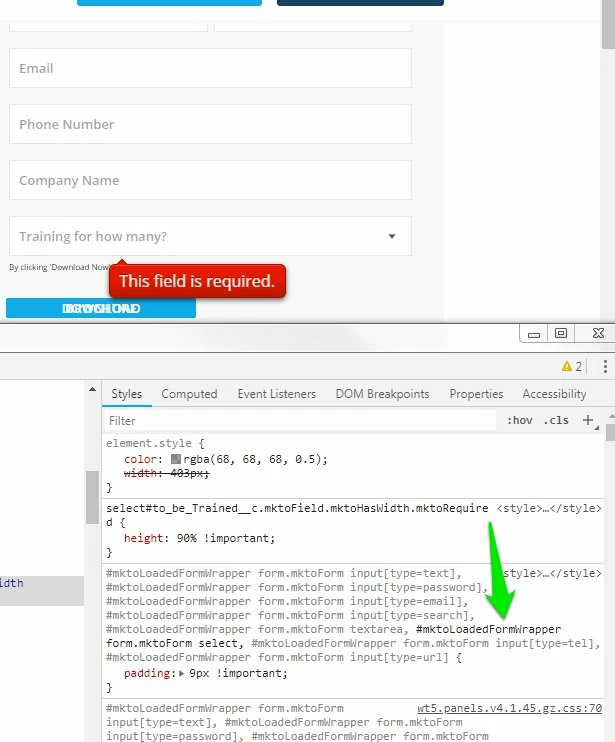
While it makes sense in some cases to use the #mktoLoadedFormWrapper as the 'high-level' target for the CSS, it also creates a constraint that these styles will only apply to forms which are placed into that container. If that's the only form container you use, it shouldn't matter -- but if you wanted to override those styles, they'd have to be "more descriptive" (i.e. even higher-level container at the front) than the highlighted CSS rule OR they could have the exact same selector (#mktoLoadedFormWrapper form.mktoForm select) but the new CSS rule would have to be written after (below) this on the stylesheet.
I prefer to have the "form.mktoForm" be the leading selector so that the forms styles are more portable and would probably remove the #mktoLoadedFormWrapper target unless there was some specific reason to have it (i.e. if it's not on-purpose or functional, I'd ditch it all together). Always good to back-up your stylesheet before making changes like this, but you should be able to copy/paste all the code out of the Custom CSS editor within the form editor and safely save that somewhere else. Alternately, you can clone the form and adjust the styles on the new form -- that way you've got some before/after to compare.
In any case...
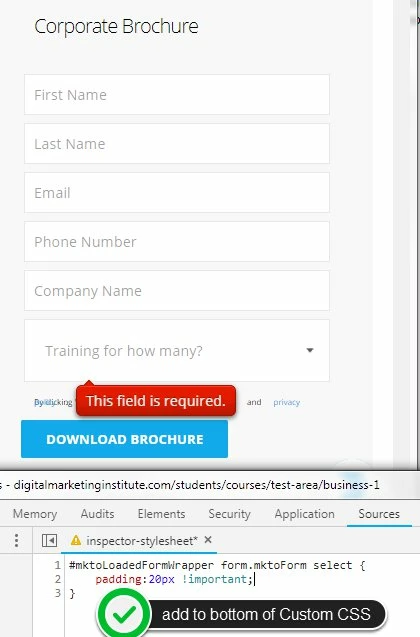
Here's a look at the select element with 20px of padding using the method above for reference:
Hopefully this covers the bases, let me know if there's anything else I missed here that'd be helpful?