Marketo Form alignment not consistent between form and LP for checkboxes | Community
Skip to main content
Level 2
October 28, 2025
Question

Marketo Form alignment not consistent between form and LP for checkboxes

  • October 28, 2025
  • 2 replies
  • 755 views

Hi,

I currently have a form made and aligned like this: 
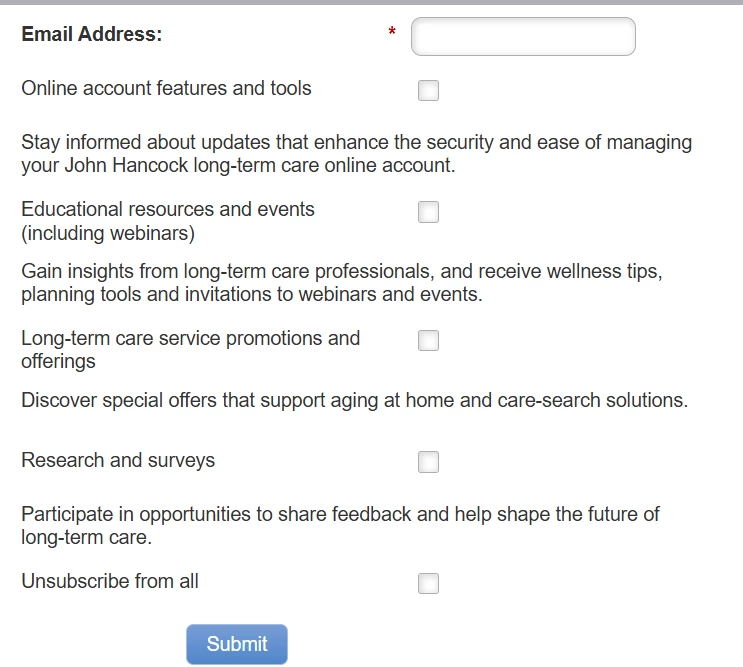
However, when i insert the form into my landing page, the formatting gets messed up, and everything seems to be stacked: 
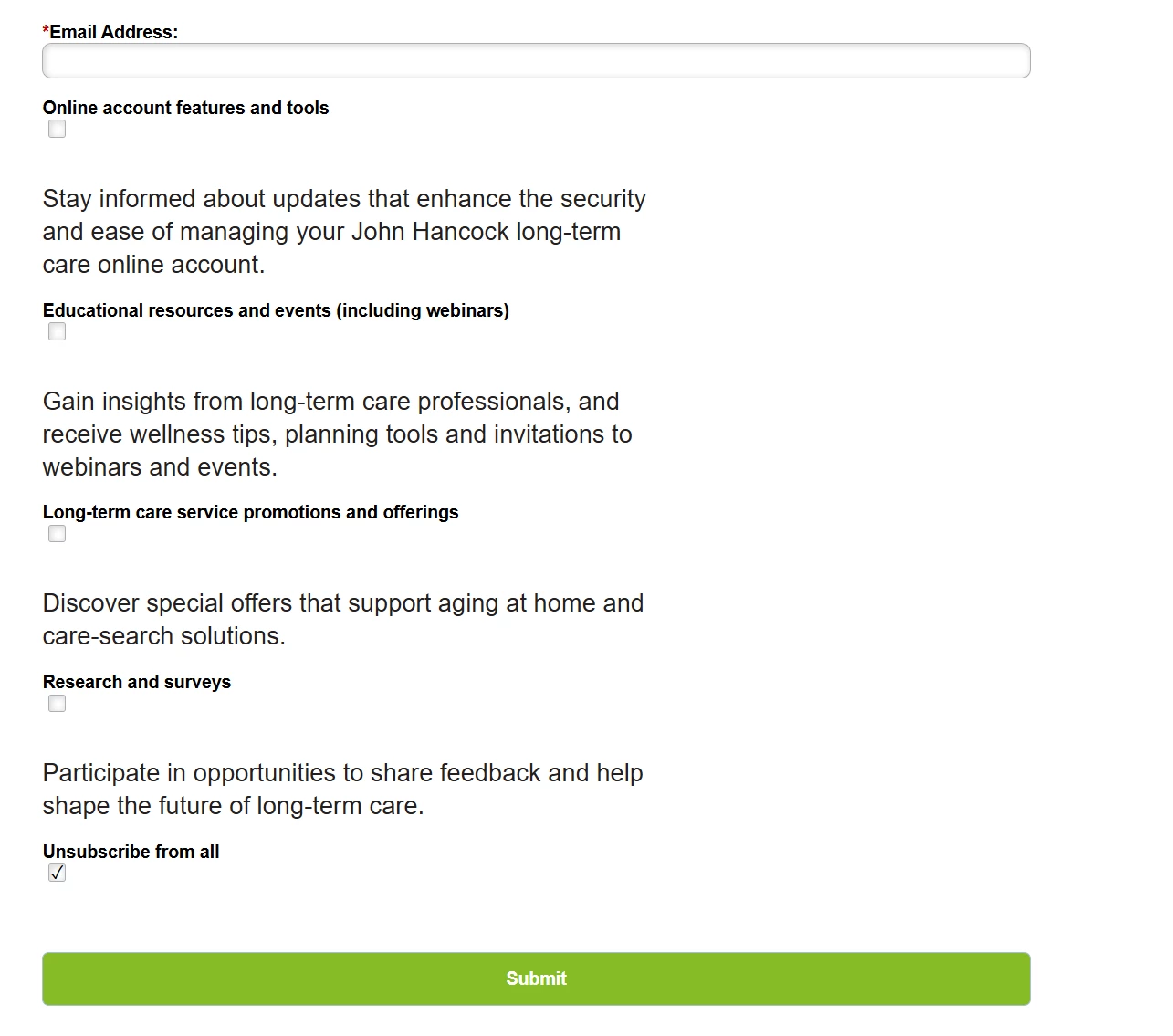
Does anybody know why the alignment is changed in the landing page? Here is a preview URL for my landing page if there's something within the inspect elements that I am missing: 925-OPE-062.mktoweb.com/lpeditor/devicePreview?p=1173&t=sVt4qRXPhq5SK2tvX6dQdg,,&m=925-OPE-062

2 replies

SanfordWhiteman
Level 10
October 29, 2025

The preview link you posted has expired. Please publish a real LP we can access.

aayushp20Author
Level 2
October 29, 2025

Apologies. Does this link work correctly? I just went to my LP and clicked "Generate Preview URL": 925-OPE-062.mktoweb.com/lpeditor/devicePreview?p=1173&t=JcrYy5T2pqMmMRoGDkysSQ,,&m=925-OPE-062 


edit: this might be what you meant actually: http://925-OPE-062.mktoweb.com/lp/925-OPE-062/AD-OPS-2022-10-10-Preference-Center-Management-1133_PreferenceCenterLP.html

SanfordWhiteman
Level 10
October 29, 2025

You have an inline <style> on that LP with many overrides for .mktoForm elements. A form will never look the same way it does in Form Editor if you have additional CSS.


(You absolutely should use external CSS for manageability, by the way. Binding styles to the form itself is a recipe for disaster. But your design needs to be done holistically at the LP level.)


Two of the rules affecting the checkbox layout are here:

.mktoForm .mktoLabel, .mktoForm .mktoTextField, .mktoForm .mktoEmailField, .mktoForm .mktoTelField, .mktoForm .mktoCheckboxList { width: 100% !important; } /* Ensure checkbox container doesn't interfere */ .mktoForm .mktoCheckboxList { display: block !important; width: 100% !important; }

But those rules intersect with others, there’s not just one offending rule.


Dave_Roberts
Level 10
October 31, 2025

Technically, it is possible to change the position of the labels from the LP Editor level but this is not an "out of the box" feature with Marketo. You can toggle the label position from the Form Editor under the Settings menu. It looks like you currently have your labels set to "Left" - the other choice is "Above". As others have mentioned, it's the CSS that's causing an issue here, not the position setting for your labels, but there is one in the Form Editor for future reference.


It also looks like you're using the "checkboxes" field types for your checkboxes. Those have a "label" (which in this case displays to the left of the input, and alternately to above the input based on the form settings) and a "display value" (which can be found under the "Values" link in the form editor when the field is selected). Using the Display Value will add a label to the right of the input rather than above or to the left. I realize this isn't consistent with your design, but might be helpful to understand for another situation and/or if you wanted to take a more modern approach and display your field labels above the inputs and still have the checkbox labels flow out from the right of the checkboxes.


While poking around on the page, I noticed that there's some HTML and JS you've added into the Custom CSS input on the form itself - see the screenshot from the inspector tool below. Please notice that this HTML and JS isn't going to work when placed into a <style> tag, so maybe you were looking to try and accomplish something different there too?


The solution that @disha_goyal6 proposed should work b/c it uses the display: flex property to align the child elements of the field wrapper (.mktoFieldWrap) into a "row" rather than in a column. If you'd like to use the Label input rather than the Display Value so that your labels show up to the left of your inputs on the form, this is a good way to change the orientation of the child elements to display left-to-right rather than top-to-bottom.