Issues adding custom css to form theme | Community
Skip to main content
August 27, 2014
Solved

Issues adding custom css to form theme

  • August 27, 2014
  • 13 replies
  • 2912 views
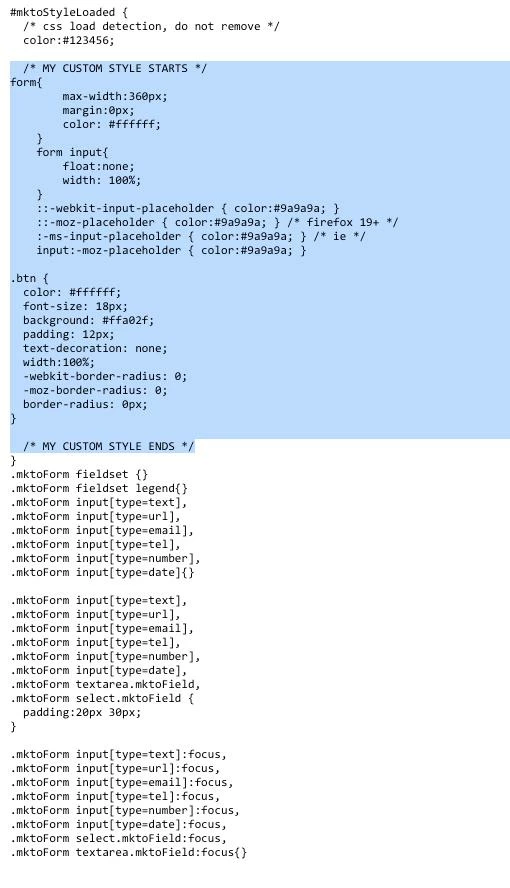
Using forms 2.0, I selected the form theme "simple" and all I wanted to do is change the button style and change the font color to white since my background color is blue. I followed the instructions "edit the css of a form theme" tutorial and I copied the code and pasted it in the "edit custom css" field. Still no luck.

Not sure if it makes a difference but I am embeding the code into my custom css landing page.

Thanks in advance.

See attached added code in blue. Thank you in
This post is no longer active and is closed to new replies. Need help? Start a new post to ask your question.
Best answer by
By using the WYSIWYG button style, the style is overriding the ones I provided. You can either revert back to the original button or add !important tags at the end of each one of my properties (i.e. font-size:18px !important).

13 replies

August 27, 2014
You'll need to be more specific with your CSS selectors. Try this code:

label{
      color: #fff;
}

.mktoButton{
     * Your Button Code *
}
August 27, 2014
Jason,
that did not work. see attached. thank you for responding
August 27, 2014
Richard,

Can you share a link to the page? Always easier to work with the actual code in question. Thanks!
August 27, 2014
https://app-sj03.marketo.com/m#FOP1047

Let me know if the link above is what you are looking for. thanks
Corey_Bethel
Level 4
August 27, 2014
Richard,

I use this to custom syle my buttons. Hopefully it'll work for your buttons.

.mktoForm .mktoButtonWrap.mktoSimple .mktoButton {
    color:#FFFFFF !important;
    //Place property and styles here.
}

I put !important after each style to make sure the browser uses my styles instead of Marketo's. 
Corey BethelConsultant | Etumos
August 27, 2014
Was looking for the form on a publicly accessible page if possible. Give Corey's code a try and if it doesn't work we'll try again :)
August 27, 2014
Jason, below is a link to the page.

http://info.cnlsecurities.com/formtest3.html

I was hopefull with Corey's but that didnt change anything. see attached. thanks again
Corey_Bethel
Level 4
August 27, 2014
Richard,

You need to add a period before mktoForm. That should fix it!

Corey BethelConsultant | Etumos
Corey_Bethel
Level 4
August 27, 2014
Also, the closing bracket "}"directly above /*MY CUSTOM STYLE ENDS */ should be moved to right above /* MY CUSTOM STYLE STARTS */

Make sense?
Corey BethelConsultant | Etumos
August 27, 2014
I'm guessing you want the bottom form to look like the top? Here's some code to get you going:

label.mktoLabel {
    color: #fff;
}
button.mktoButton {
    color: #fff;
    font-size: 18px;
    background: #ffa02f;
    padding: 12px;
    text-decoration: none;
    width: 100%;
    border: none;
    border-radius: 0px;
    -webkit-border-radius: 0;
    -moz-border-radius: 0;
}
span.mktoButtonWrap {
    margin-left: 0 !important;
}
.mktoButtonRow {
    width: 100%;
}