How to Maintain Intelligence for the Comments Field
How do you maintain the intelligence of a field like Comments or Description that keeps getting overwrittten?
For example, let’s say you get in this new trade show list with a Comments field filled values like “Hot lead at Miami event, has budget and wants demo.” Later on, one of those folks fills out your Contact Us form with a Comments value of “I spoke w your rep Ken at the show and need pricing.”
The problem is that every time the Comments field is populated, it overwrites the previous value, thus losing intelligence for the Sales team. In other instances, these values are maintained in different fields causing an ongoing data management nightmare.
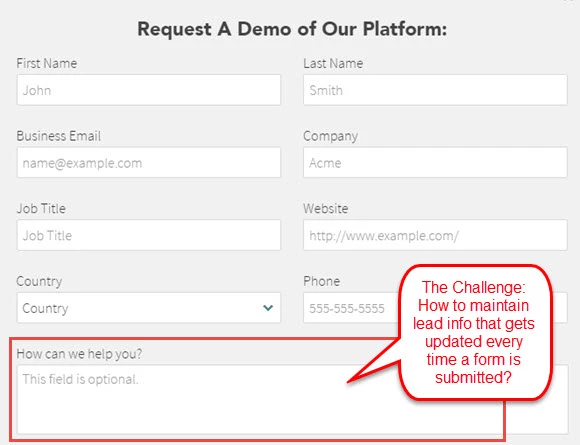
The Solution---Merge the Data. To summarize, this solution involves creating a field that temporarily stores the latest comments information. Every time that value is updated, it will prepend the Comments field with the new data.
The end result is a Comments field that is continually updated while maintaining historic intelligence. This process allows Sales and Marketing to easily view ongoing comments from multiple marketing initiatives.
Let’s Dive in with a 4-Step Process
Follow this approach for concatenating the Comments field.
Step 1 - Standardize on a single field for comments collection across forms, imports etc. Use Description, Comments or whatever other field syncs between your Marketo and your Salesforce Lead/Contact objects. I’ve seen different companies use all kinds of varying fields to collect data like comments or descriptions. As a recommendation, choose one and standardize.
Step 2 - Create a matching field called something like Comments Temp. Feel free to make this a Marketo only field as its only purpose is to temporarily capture the latest comments.
Step 3. Leverage all the new Comments Temp field across all appropriate forms. Also, when you get in data from trade shows, make sure to use the Comments Temp field upon import for the appropriate field. You do NOT want to use the standard Comments field as you will overwrite that data. 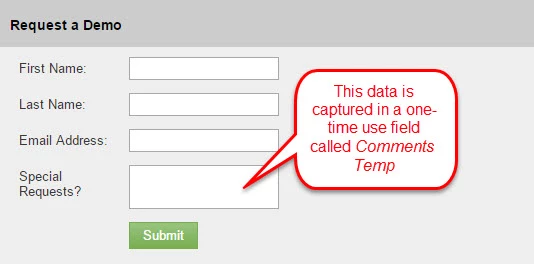
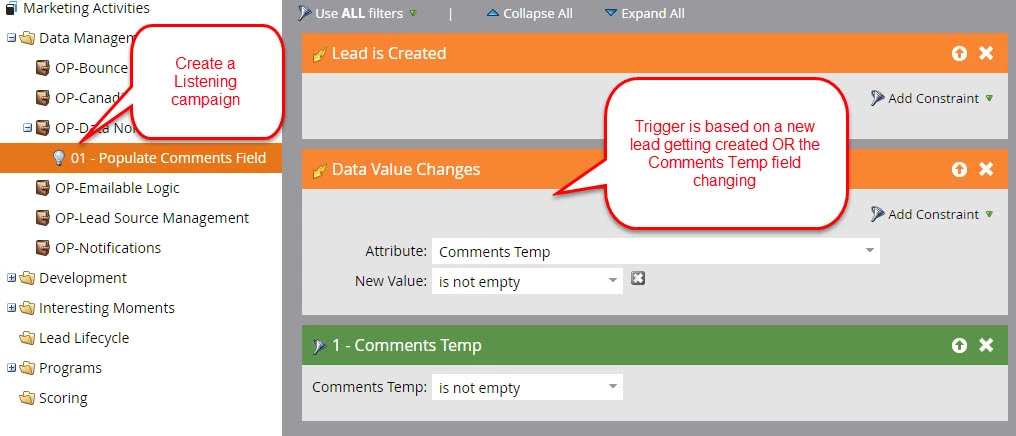
Step 4. Create a data updating campaign that makes all the magic happen.
When: The campaign fires upon any of the updates you made in step 3--for example, when a new lead is created and the Comments Temp field is populated. It also fires when there is a change in value to the Comments Temp field.
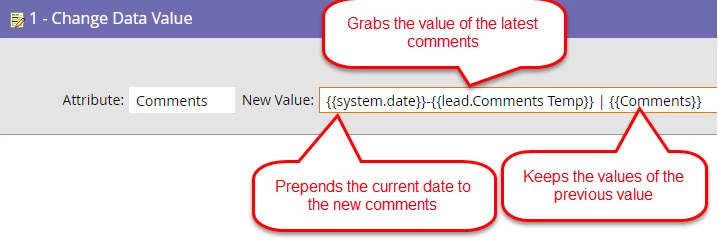
The Flow: This is the special sauce that leverages tokens to populate the values the way you want. In this example, the current date and Comments Temp values will get prepended to existing value in the Comments field.
You may also elect to nullify the value in the Comments Temp after 20 or so minutes in the event you use that field for alerts or other workflows.
The Final Product - Ongoing Intelligence
This Comments field will grow with ongoing intelligence every time the Comments Temp field is updated. The process will keep a running history of your intelligence for your Sales team to view. Let's look at the below examples.
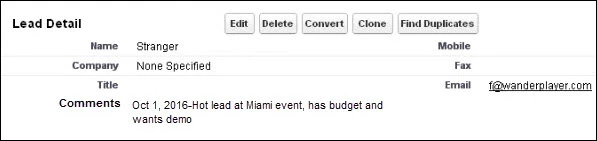
The Comments field is populated on 10/1/2016 when the lead is created from a trade show import.[/caption]
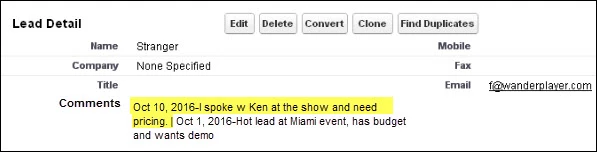
Here, the Comments field is prepended with new information after the person fills out a Contact Us form. The previous intelligence is maintained instead of overwritten.
Other Alternatives to Field Merging
An acceptable alternative is to log an Interesting Moment using the Comments Temp values. The issue here is the interesting moment might be too long to read in Salesforce. However, you might want to try that out.
An unrecommended approach is to create comment fields for various marketing initiatives (EventA Comments, EvalRequest Comments, etc.). This strategy doesn’t scale too well and creates extra fields to manage. Salesforce Administrators generally put marketers who want too many fields in the doghouse so I recommend avoiding this process if possible.
How are you Merging Data?
I hope you've seen the power of concatenating data to keep an ongoing record of your Comments field--it's also pretty easy to set up. Concatenating provides a lot of flexibility for marketers to enhance intelligence. The above is just one of many examples. I’d love to hear how others are experiencing success with this method. Please share below in the Comments.
A few other examples we've seen leveraging the data merging method.
- Bring together the latest activity and date: Latest Activity = {{lead.lead source details}} on {{system.date}}
- Example: Google Web Referral on January 12, 2017
- Enrich the Lead Source with UTM values: Lead Source = {{lead.utm_source}} via {{lead.utm_medium}} for {{lead.utm_content}}
- Example: Search engine via CPC for Spring Sale
- Create Name: Full Name = {{lead.firstname}} {{lead.lastname}}
- Example: Jon Scott
Enrich Lead Source Details with Referral info = Web via {{lead.original referer}}
Example: Web via cnn.com
More information in the Marketo docs.
A similar version is posted on the RevEngine Insider blog.