
How to change the color of Hint Text/Default Value in "Select" field? | Community
Skip to main content
Souvik_Debnath
Level 2
April 7, 2020
Question

How to change the color of Hint Text/Default Value in "Select" field?

  • April 7, 2020
  • 3 replies
  • 5790 views

Hi,

I am working on this form. I want to have the color of Select field "Company Size" same as the hint texts above. This shouldn't change the color of dropdown values.
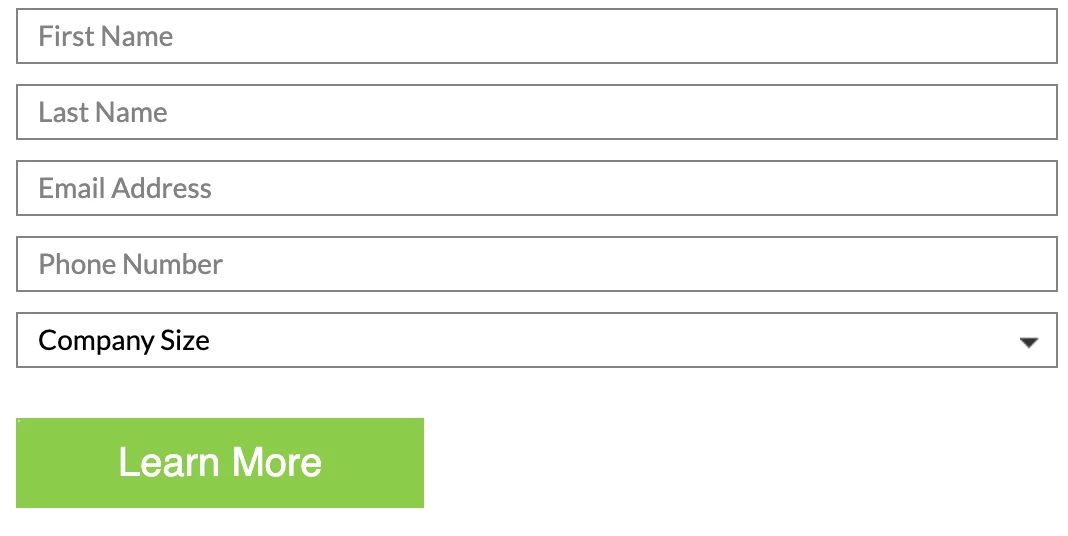
I have tried the following:
option:first-child{

color: #828282 !important;

}
It seemed to overwrite the other CSS, but not acting on screen.


Can anyone please help me out on this?


This post is no longer active and is closed to new replies. Need help? Start a new post to ask your question.

3 replies

SanfordWhiteman
Level 10
April 7, 2020

Provide a link to your page. We cannot know what your current styles are without inspecting the form.

SanfordWhiteman
Level 10
April 8, 2020

Also, to always style the first  (zero-th) <option> as if it's a placeholder, but style the <select> differently once a non-placeholder value is selected, you cannot use only CSS. You need to use a little bit of JS as well so that the <select> is tagged with the current selected index.


This demo shows the setup: https://codepen.io/figureone/pen/2cb02a771b11f4ed675a8895e7414864


You should not expect the styles of individual <option>s — when the popup/dropdown is shown — to work on mobile, as mobile browsers typically have a fixed widget for that.


And in future, please highlight your CSS using the syntax highlighter, so it's readable.

Souvik_Debnath
Level 2
April 13, 2020

Thanks. 
I'm sorry that I forgot to mention that I was looking for a CSS based solution, as there's no scope for JS.

SanfordWhiteman
Level 10
April 13, 2020
I'm sorry that I forgot to mention that I was looking for a CSS based solution, as there's no scope for JS.

No such thing.


How could there be no scope for JS? You figure out required technologies based on reality, not the other way around.

Dave_Roberts
Level 10
April 8, 2020

Hey Souvik,


The way I tackle this is to leverage the ".mktoValid" class on the <select> element which appears after the input is interacted with on the page (and the validation returns valid/invalid). Before the field is interacted with, it'll lack both the .mktoValid and .mktoInvalid classes, so you can style the "placeholder" version of the select element by using the ":not()" CSS selector and targeting the .mktoValid field. 


EXAMPLE:

/* |>> Select element, not-valid state ..... */ form.mktoForm select.mktoField:not(.mktoValid){ color: #ddd !important; }


I'll use this in conjunction with CSS that targets the valid and invalid states as well (select.mktoValid | select.mktoInvalid).


Let me know if this works in your situation or if there's anything else I can help out with here.


SanfordWhiteman
Level 10
April 8, 2020

Almost. But that doesn't accomplish everything my code does. 


Your CSS — which is of course backed by JS too, it's just the built-in Forms 2.0 JS, so this is clear to the OP — will work if the field is only interacted with once


But it doesn't work if the field is not required and is set back to the placeholder. The not required field will keep being .mktoValid even if it's actually on the pseudo-placeholder <option>.


In contrast, my code deliberately doesn't care about required/not required. It will style the first/0th/pseudo-placeholder <option> a certain way, all the time.