
Drop down titles within email template variables | Community
Skip to main content
Josh_Pickles
Level 5
September 8, 2019
Solved

Drop down titles within email template variables

  • September 8, 2019
  • 4 replies
  • 8989 views

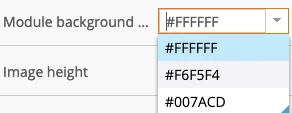
Our email template uses a number of drop down menus - which are super helpful - however, a HEX code doesn't really mean much to a number of users. I haven't really spotted anything that allows me to have a displayed value (e.g. Orange) that, when selected, applies the relevant stored variable when selected (e.g. #F3632D).

So, my question is - is it possible to set up display/store picklist values within the variables section on a module, and if so, how can it be done?
This post is no longer active and is closed to new replies. Need help? Start a new post to ask your question.
Best answer by Dave_Roberts

Hey Josh,

I think there's an "idea" going for this already somewhere, I remember it coming up a few times after they released EM 2.0 a while back. 

As Jay pointed out, you could use "words" (as classes) instead of the hex-value, but that really limits the functionality of your template b/c there are some email clients that won't respect classes written into your <style> element -- so this'll lead to some emails coming thru with default colors (they'll probably inherit the colors from their parent element). 

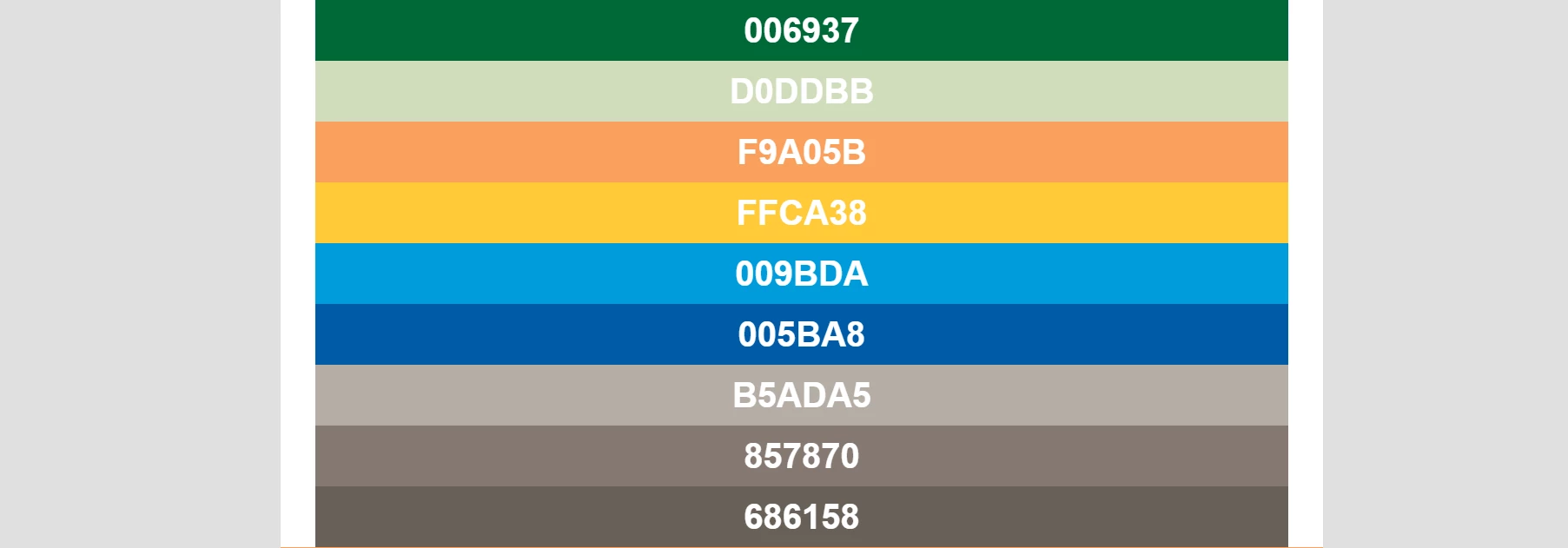
One thing that we setup to kinda of work around this is a "color palette" module that you can drag into the template as a reference while you're building and then remove it once you're ready to ship your email. This helps to visually match the hex-codes with the colors so it's a little easier to get familiar with them. Here's an example of one of those modules from a recent project:

4 replies

Jay_Jiang
Level 10
September 9, 2019

One idea is to use the picklist for classes instead of the inline colours, obviously you might run into compatibility issues.

<html>
<head>
<meta class="mktoList" id="bgColour" mktoName="Colour for Background" default="White" values="White,Grey,Blue" mktoModuleScope="true"/>
<style>
.White { background-color:#ffffff; }
.Grey { background-color:#f6f5f4; }
.Blue { background-color:#007acd; }
</style>

</head>
<body class="${bgColour}">
</body>
</html>
Dave_Roberts
Dave_RobertsAccepted solution
Level 10
September 10, 2019

Hey Josh,

I think there's an "idea" going for this already somewhere, I remember it coming up a few times after they released EM 2.0 a while back. 

As Jay pointed out, you could use "words" (as classes) instead of the hex-value, but that really limits the functionality of your template b/c there are some email clients that won't respect classes written into your <style> element -- so this'll lead to some emails coming thru with default colors (they'll probably inherit the colors from their parent element). 

One thing that we setup to kinda of work around this is a "color palette" module that you can drag into the template as a reference while you're building and then remove it once you're ready to ship your email. This helps to visually match the hex-codes with the colors so it's a little easier to get familiar with them. Here's an example of one of those modules from a recent project:

Josh_Pickles
Level 5
September 10, 2019

Thanks for your insight @Jay Jiang‌ and @Dave Roberts‌. 

I think for now the template module palette is a good measure to make things a bit easier for our users. Thanks again!

SanfordWhiteman
Level 10
September 10, 2019

Hey guys, there's a super-obscure way to actually mark up the dropdown in the way Josh was asking about. Though I think Dave's answer is more correct in terms of not-insane, I'll throw it up on the blog at some point.

Dave_Roberts
Level 10
September 10, 2019

I'd love to see how this works Sanford, thanks for ear-marking this for the blog - I look forward to it!

Jo_Pitts1
Community Advisor
Community Advisor
January 30, 2020

Josh,

I dreamed up a solution that is hacky but is pretty universal.

in my use case, I have created a global variable

<meta class="mktoList" id="ButtonStyle" mktoName="Button Style" default="/*Gold-Button*/ border-color:#A18458; background-color:#ffffff; color:#A18458; text-decoration:none;" values="/*Gold-Button*/ border-color:#A18458; background-color:#ffffff; color:#A18458; text-decoration:none;, /*Blue-Button*/ border-color:#2d3871; background-color:#2d3871; color:#ffffff; text-decoration:none;" mktoModuleScope="false"/>

The key here is to prefix the CSS stuff with a CSS comment which gives a human readable selector in the list box.

then as needed put in the variable swapout into your template code

<tr style="${ButtonStyle} line-height:23px; font-family:${TextFontFamily}; font-size: 15pt; mso-line-height-rule: exactly; ">

Because it is inline CSS it is pretty universal for compatibility.

Because it starts with the comment, 


It is pretty user friendly.  So, not a perfect solution, but possibly as good as can be gotten right now?


Cheers

Jo

SanfordWhiteman
Level 10
January 30, 2020

Nice one Jo!


How about a custom CSS --property instead of a comment, since it might be more readable?


values="--Style: Gold--; border-color:#A18458; text-decoration:none;, --Style: Blue--; border-color:#2d3871; text-decoration:none;"


(Yes, that's a valid inline style.)

Jo_Pitts1
Community Advisor
Community Advisor
February 4, 2020

@sanfordwhiteman ,

Given the width of the Marketo Drop Down list for variables is quite narrow, I wonder if losing so much space to '--style..' isn't less usable??

Probably six of one half a dozen of the other 🙂

Cheers

Jo