


From Chaos to Clarity: Visualize & Manage Journeys Better with AJO Views
🚦🚦
Planning customer journeys isn’t just about creating a flow—it’s about seeing the big picture, identifying overlaps, and ensuring your journeys hit the mark. Adobe Journey Optimizer (AJO) empowers marketers, journey planners, and support teams with intuitive views designed to streamline journeys oversight.
Let’s walk through how AJO’s Calendar View, Dashboard and Browse List each solve distinct challenges—paired with real-life use cases to inspire you to use them smartly.
Calendar View – Plan Strategically with Visual Clarity
📍Use Case: Journey planner aligning journey timelines
You’re launching a weeklong journey and want to avoid audience fatigue. Use Calendar View to:
- 📅See what’s live or scheduled across the current week
- ⏱️Identify overlaps that may overload specific segments
- 👁️Click on any journey block to see its audience and scheduling logic
- 📎Easily distinguish journeys running across multiple days
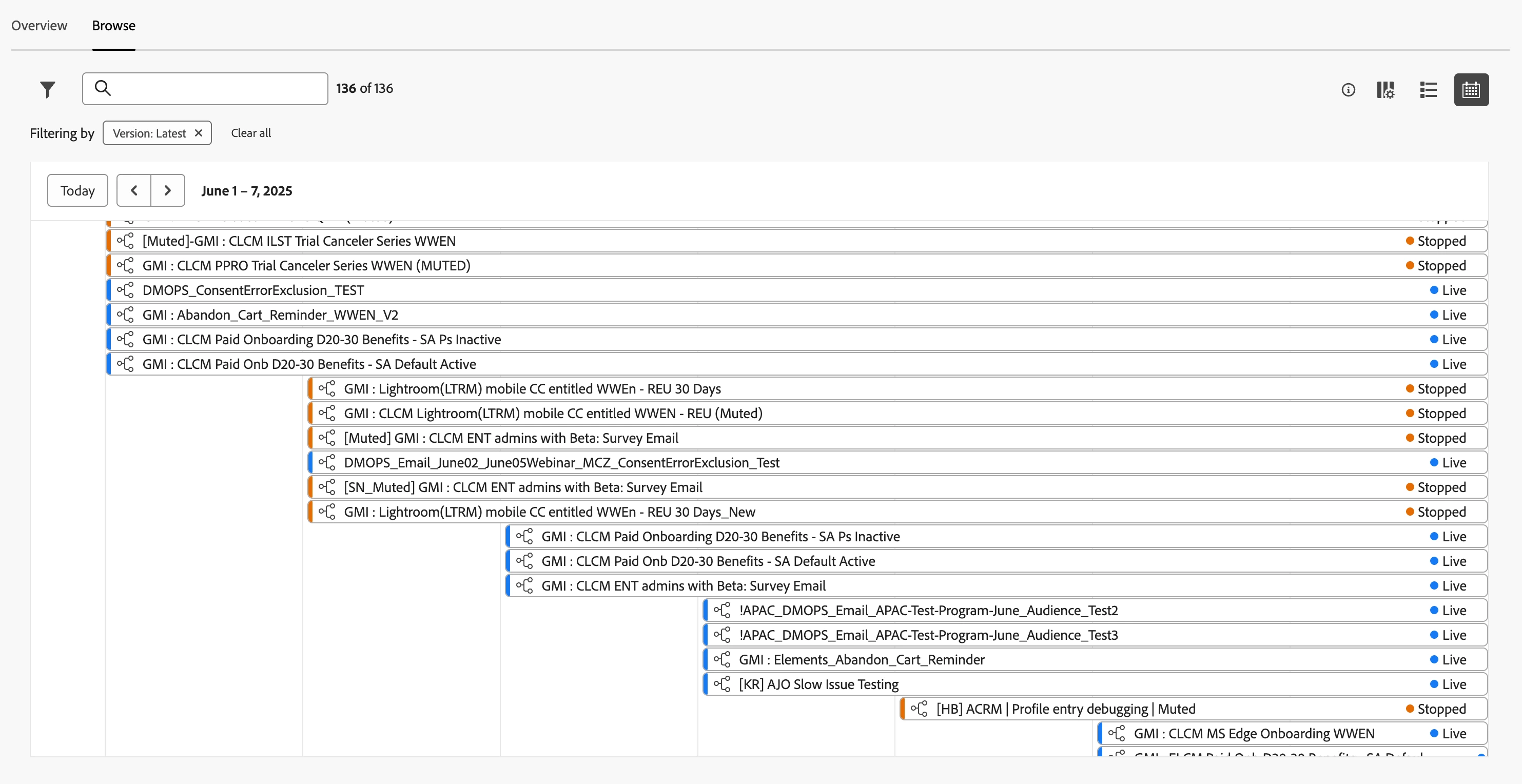
“I spotted two overlapping journeys targeting the same segment. With a few clicks, we rescheduled one to avoid over-messaging.”
Journey Dashboard – Monitor Health in Real Time
📍Use Case: Daily health checks by journey or support leads
Each morning, your support or operations team needs to scan for journey issues without opening every journey. The Dashboard (Overview tab) gives a 24-hour snapshot that highlights operational anomalies:
- 📌Profiles Processed: Gauge journey volume at a glance
- ⚠️Error Rate: Spot journeys failing due to bad data or actions
- 🚫Discard Rate: Identify profile rejections due to targeting mismatches
- 🔄Live Journeys: Track journeys currently driving traffic
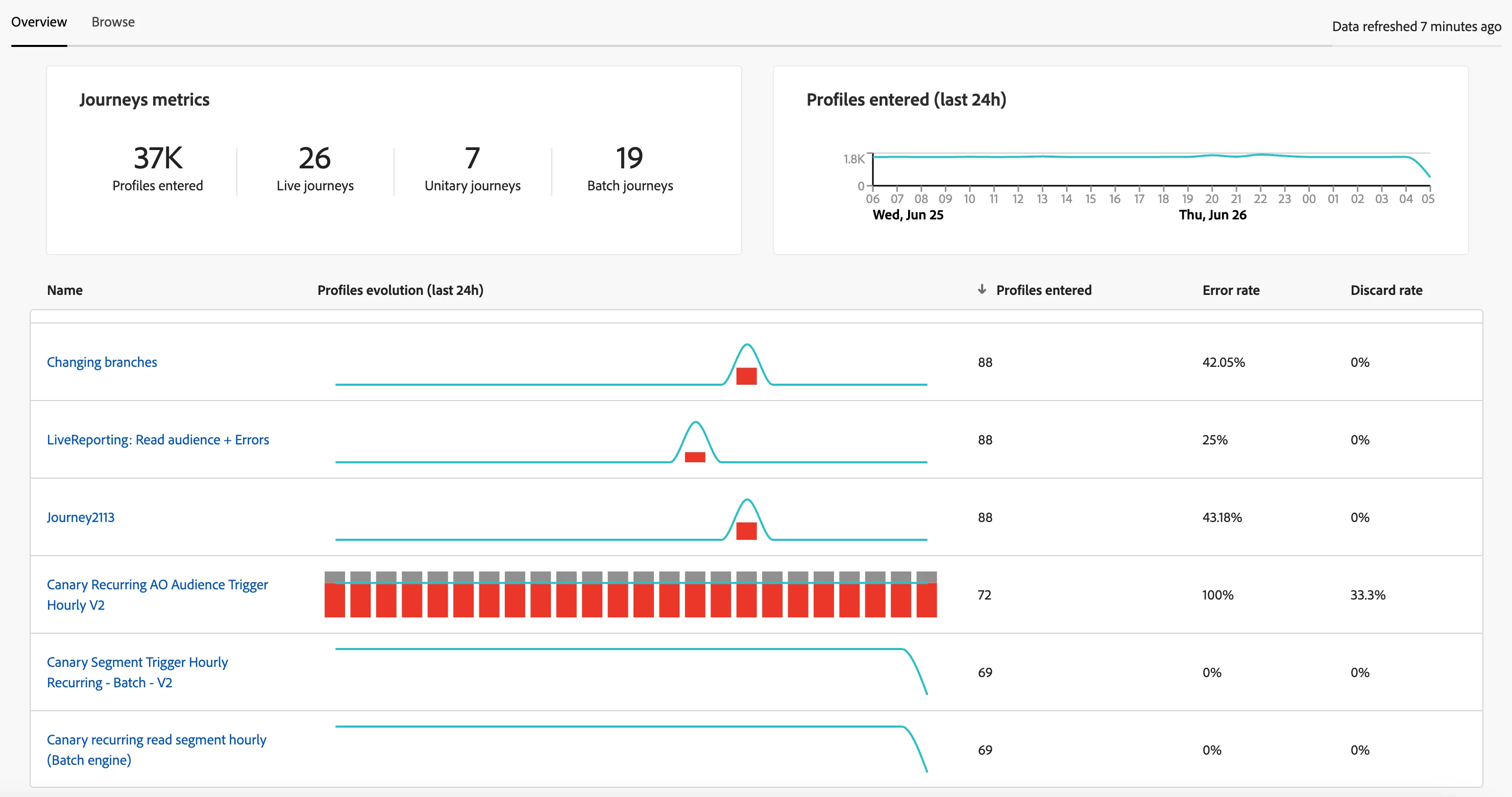
“This dashboard helps me quickly detect journey failures or configuration gaps—without diving into the canvas.”
Browse View – Audit, Filter & Take Action
📍Use Case: QA reviewer validating recent publications
You need to find all journeys published yesterday by your team and validate the logic before they go live.
The Browse tab is your best friend:
- 🔍Filter by publish date, creator, version, or status
- 🛠️Perform actions: duplicate, delete, or open the journey
- 👥Check usage of events, actions, or fieldgroup in the “Used in” section
- Identify journeys using a specific shared tags
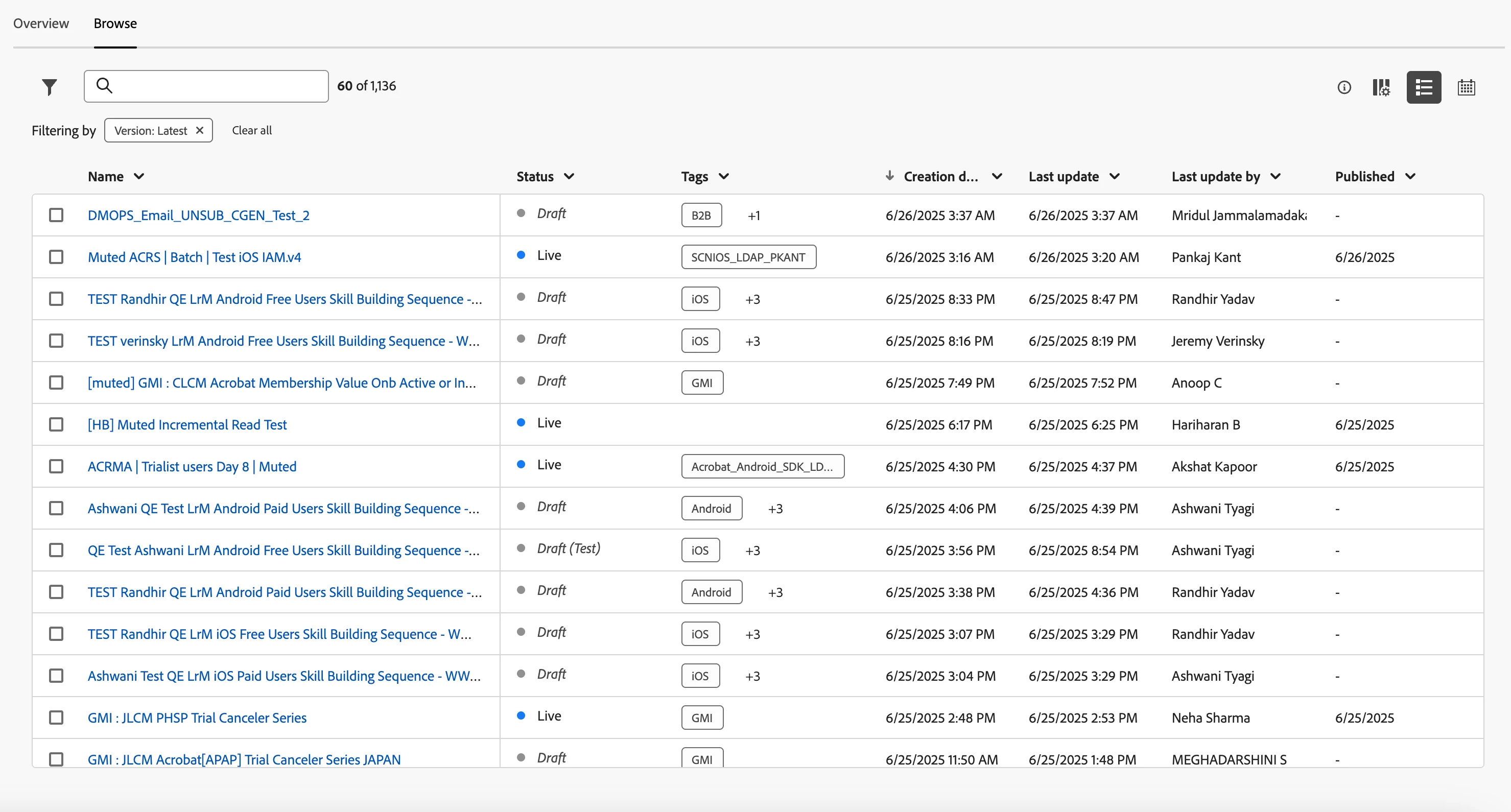
“Before changing any core field group, I use Browse filters to see which journeys it impacts.”
📊Quick Comparison: When to Use Each View
| Calendar View | Visualizing schedules & spotting journeys overlaps | Navigate timelines, click for details | Planner avoids overlapping journeys to same segment |
| Dashboard (Overview) | Monitoring system health and KPIs over 24 hrs | Spot high error/discard rates | Ops team does a morning journey health check |
| Browse List | Filtering, auditing, and managing journeys | Filter by creator/date/type duplicate/delete | QA lead finds all journeys published yesterday |
🔚Wrapping Up: From View to Value
No more spreadsheets, sticky notes, or blind guesses.
Adobe Journey Optimizer gives you the tools to:
-
📉Prevent journey misfires before they escalate
-
Align teams on what’s live, what’s coming, and what overlaps
-
🔄React fast with filters and visual tools, not manual digging
Think of these views as more than navigational aids—they're your tactical dashboard for better orchestration and smarter planning.