


AJO Enhanced Customer Alerts
Introducing Journey Alerts: Precise visibility at sandbox and journey level
Adobe Journey Optimizer now includes Journey Alerts—a new capability that delivers faster visibility into journey health and performance. Journey Alerts provide focused, actionable notifications that detect and surface anomalies in near real time, helping teams respond before issues impact delivery, spend, or customer experience. With subscription controls available at both the sandbox and journey levels, Journey Alerts make monitoring proactive, precise, and effortless.
What’s included
We’ve introduced six out-of-the-box alerts that monitor key operational signals across journey performance and lifecycle events, notifying you when conditions exceed configured thresholds or key status changes occur. No more manual polling or dashboard detective work—alerts come to you.
- Performance Alerts
-
Profile Discard Rate Exceeded – Triggers when the number of profiles discarded after entering a journey exceeds the configured threshold. This helps identify upstream data or eligibility issues that can quietly reduce reach.
-
Profile Error Rate Exceeded – Detects increases in profiles encountering errors within a journey, surfacing systemic execution issues early so you can take corrective action quickly.
-
Custom Action Error Rate Exceeded – Flags elevated failure rates when calling downstream systems via custom actions. This helps spot integration or endpoint regressions before they affect delivery.
- Custom Action Capping Activated – Alerts when capping is activated on a host endpoint, indicating that the allowed call volume has been reached. This helps teams identify throughput or scaling limits that may impact journey performance.
-
- Lifecycle Alerts
- Journey Published – Notifies when a journey is successfully published, confirming it’s ready to run and begin processing audiences.
- Journey Finished – Triggers when a journey completes its lifecycle, ensuring visibility into the completion of one-time journeys.
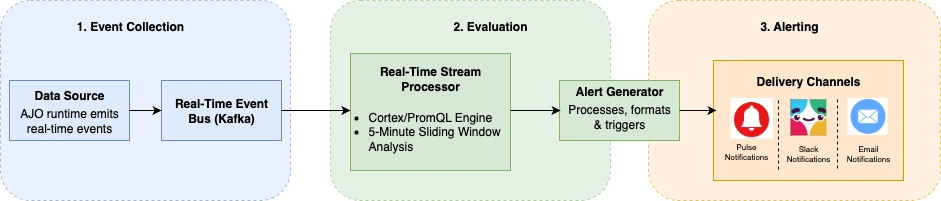
Each alert evaluates journey events over a rolling 5-minute window — Performance Alerts auto-clear once conditions return to normal (a resolution alert is sent one hour after stability is restored), while Lifecycle Alerts trigger on key status changes and remain informational.
How it works
-
Event Collection: Journey runtime emits Journey Step Events that capture health and outcomes in real time.
-
Evaluation: Events are analyzed in a sliding window to detect anomalies and surface meaningful changes.
-
Delivery: Notifications are sent through standard AEP channels so teams can react quickly without needing to monitor dashboards:
-
Pulse notifications
-
Slack notifications
-
Email notifications
-
Subscription granularity
We have introduced flexible subscription controls to help teams stay informed while minimizing noise:
-
Sandbox-level subscription:
Subscribe once to receive alerts for all journeys within a sandbox—ideal for team-wide operational awareness. Manage these from the AEP Alerts page. -
Journey-level subscription:
Subscribe to individual journeys that matter most to you. Perfect for journey owners who need high-signal, targeted notifications. Manage these from the Journey Inventory page.
You can also review all alert instances in the Alerts page for deeper visibility.
Getting started
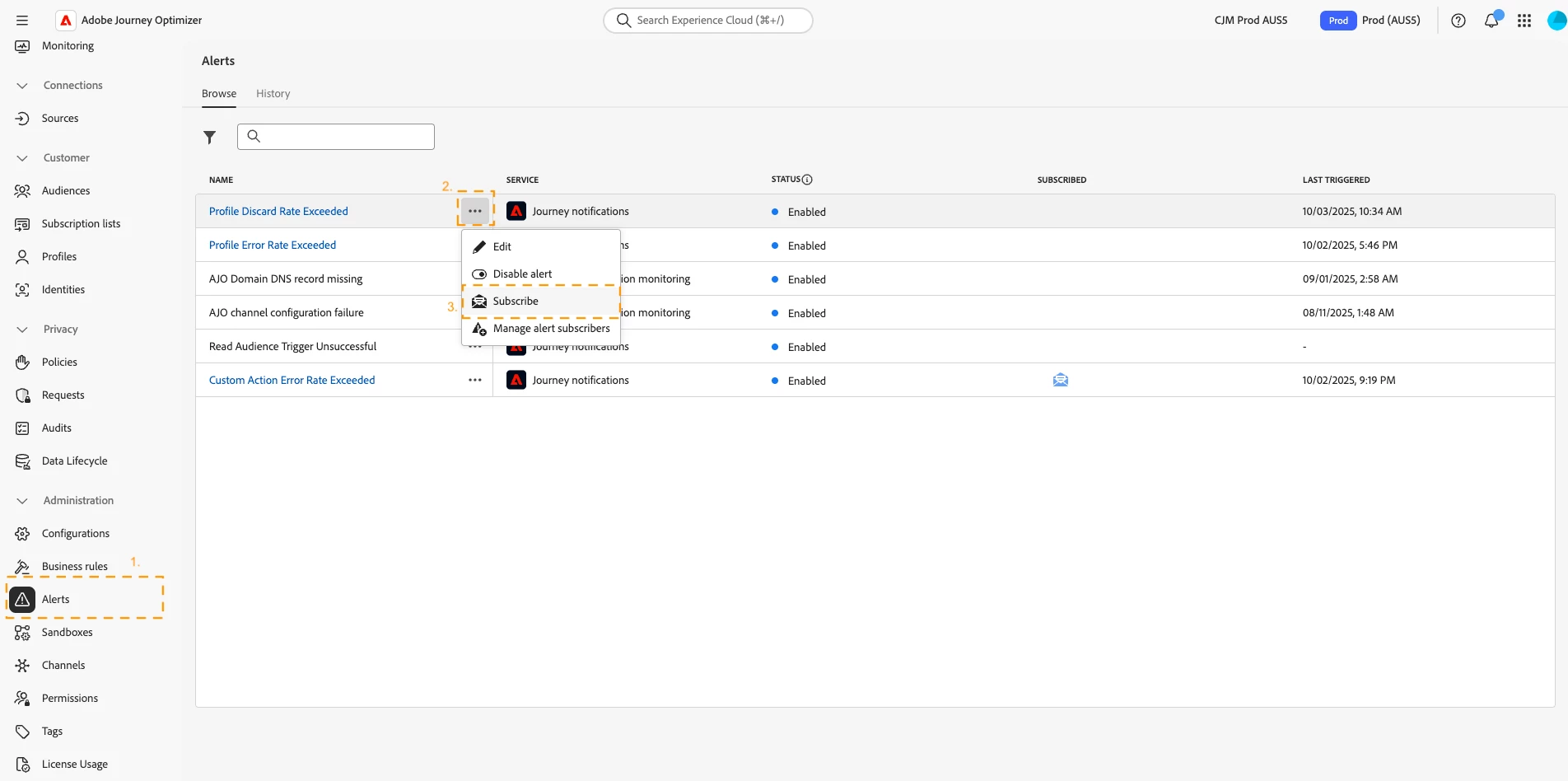
To subscribe at the sandbox level:
-
Go to the Alerts page in Adobe Experience Platform.
-
Open the menu for an alert and select Subscribe to alerts.
-
(Optional) Adjust thresholds to align with your environment and sensitivity.
Once subscribed, alerts will automatically trigger for all journeys in that sandbox when conditions are met.
To subscribe at the journey level:
-
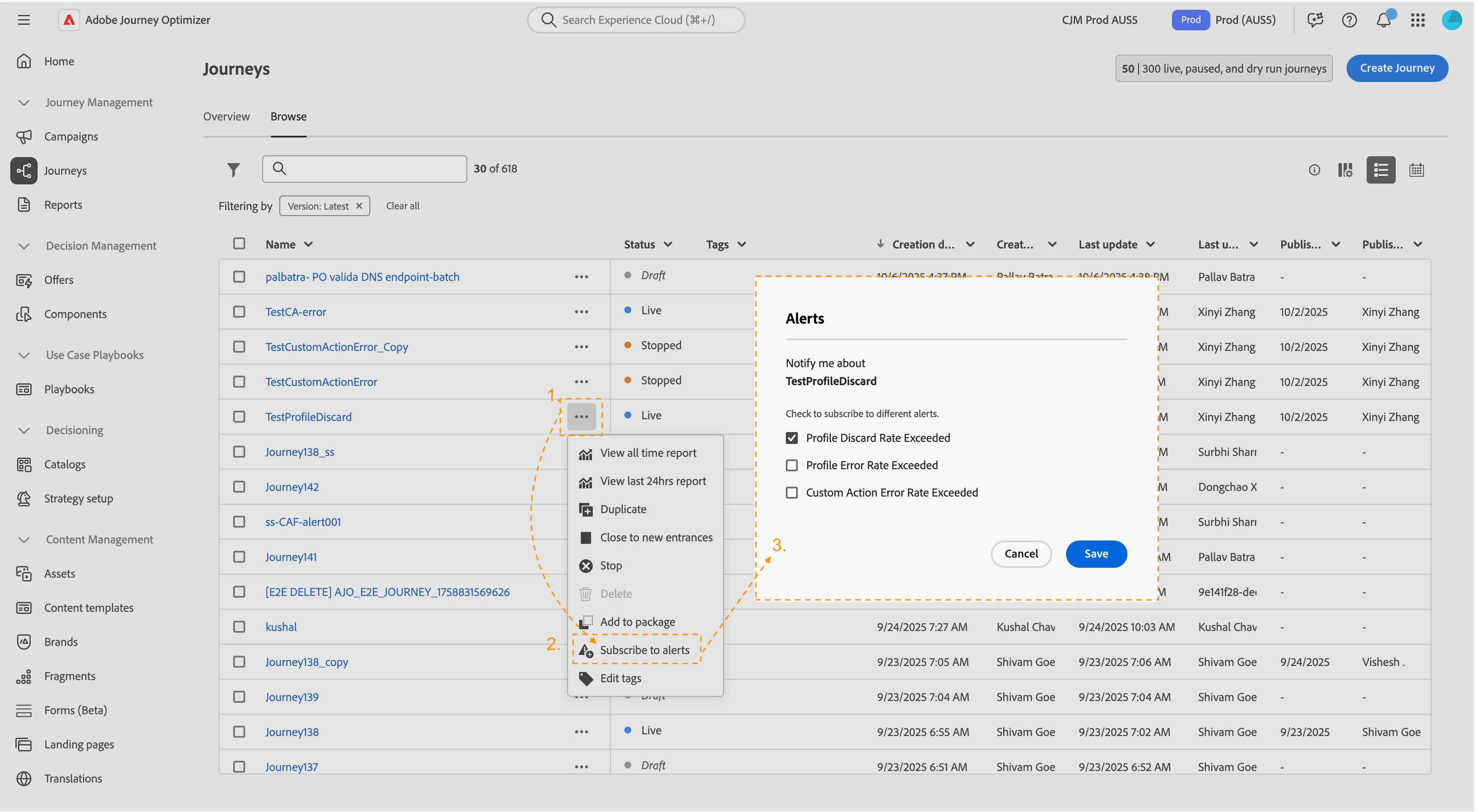
Navigate to Journeys Inventory Page.
-
Open the menu for the journey you want to monitor.
-
Select Subscribe to alerts, choose the desired alert types, and adjust thresholds as needed.
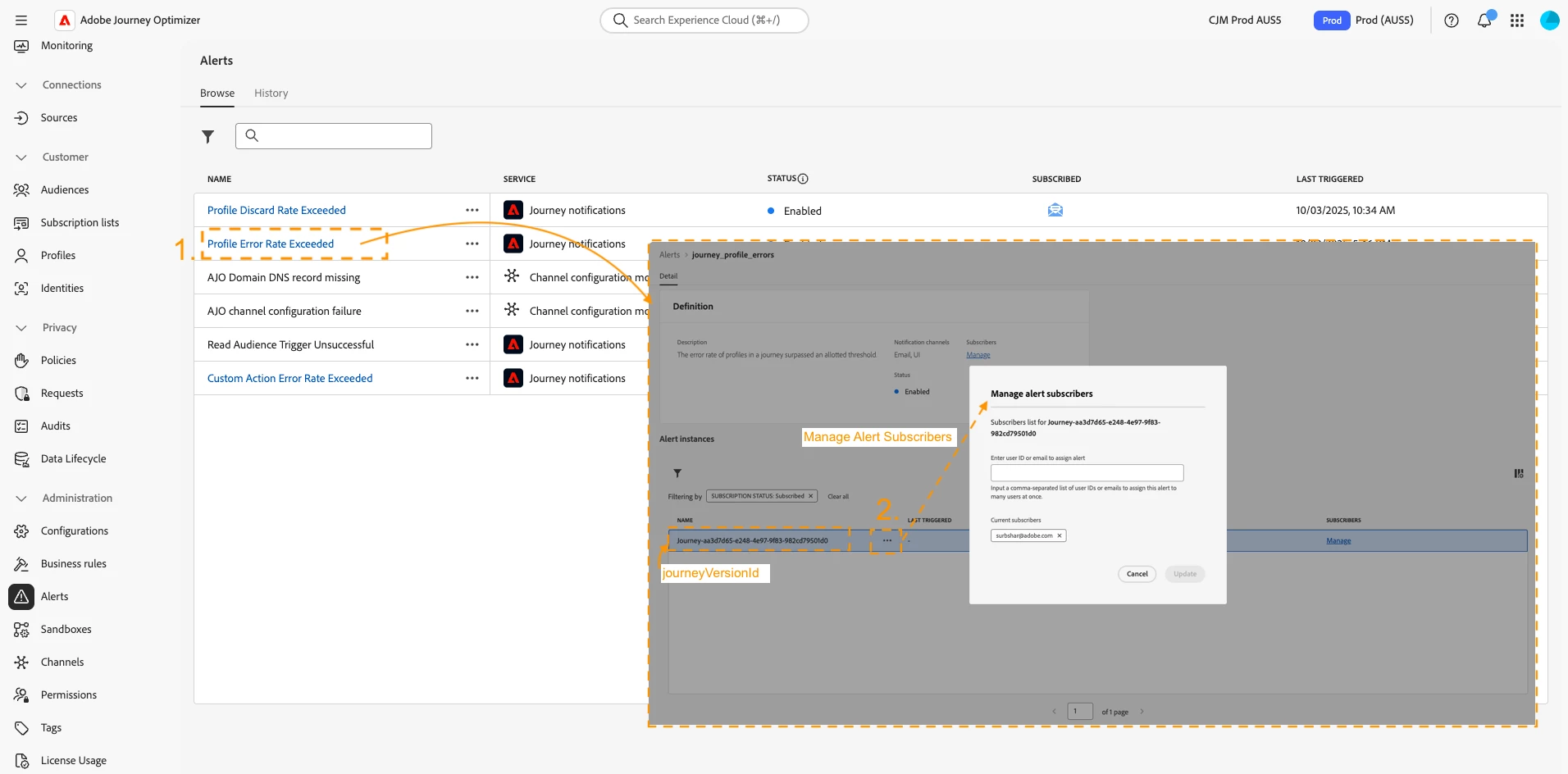
- Review all alert instances in the Alerts page > select the alert > review the alert instance showing journey-<journeyVersionId> for specific journey details.
You’ll start receiving notifications as soon as alert conditions are met.
Tip: Manage who should receive the notifications by managing users in alert instances.
Why it helps
- Faster time-to-detection: You’re alerted to meaningful deviations without manual checks.
- Focused signal: Subscriptions at sandbox and journey levels keep notifications relevant.
- Operational confidence: Teams can triage issues earlier and preserve delivery SLAs.