Switch the main picture on the website | Community
Skip to main content
This post is no longer active and is closed to new replies. Need help? Start a new post to ask your question.
Best answer by daniel-strmecki

Hi @bartgr1,

it is certently possible to show more images. Simplest way is to create a Carousel component in AEM that will automatically switches the images after X seconds. You can see an example on https://www.amarr.com/us/en.

However, if you want to display not only more images, but also different images to different end users, then a Personalization tool like Adobe Target is the usual way to go.


@narendiran_ravi- I wouldn't go with the client-side handling example you shared, as this would have very bad consequences for your site mobile performance and Google Lighthouse score.


Hope this helps,

Daniel
4 replies

daniel-strmecki
Community Advisor and Adobe Champion
September 27, 2024

Hi @bartgr1,

possible yes, but to answer if its possible OOTB or you would need to integrate with a Personalization tool please share some more details on what exactly you want to achieve?

Do you aim to display different images to different customers based on some customer traits or segments? Do you have the customer data tracked and stored somewhere?

BartGr1Author
September 27, 2024

Hi Daniel,


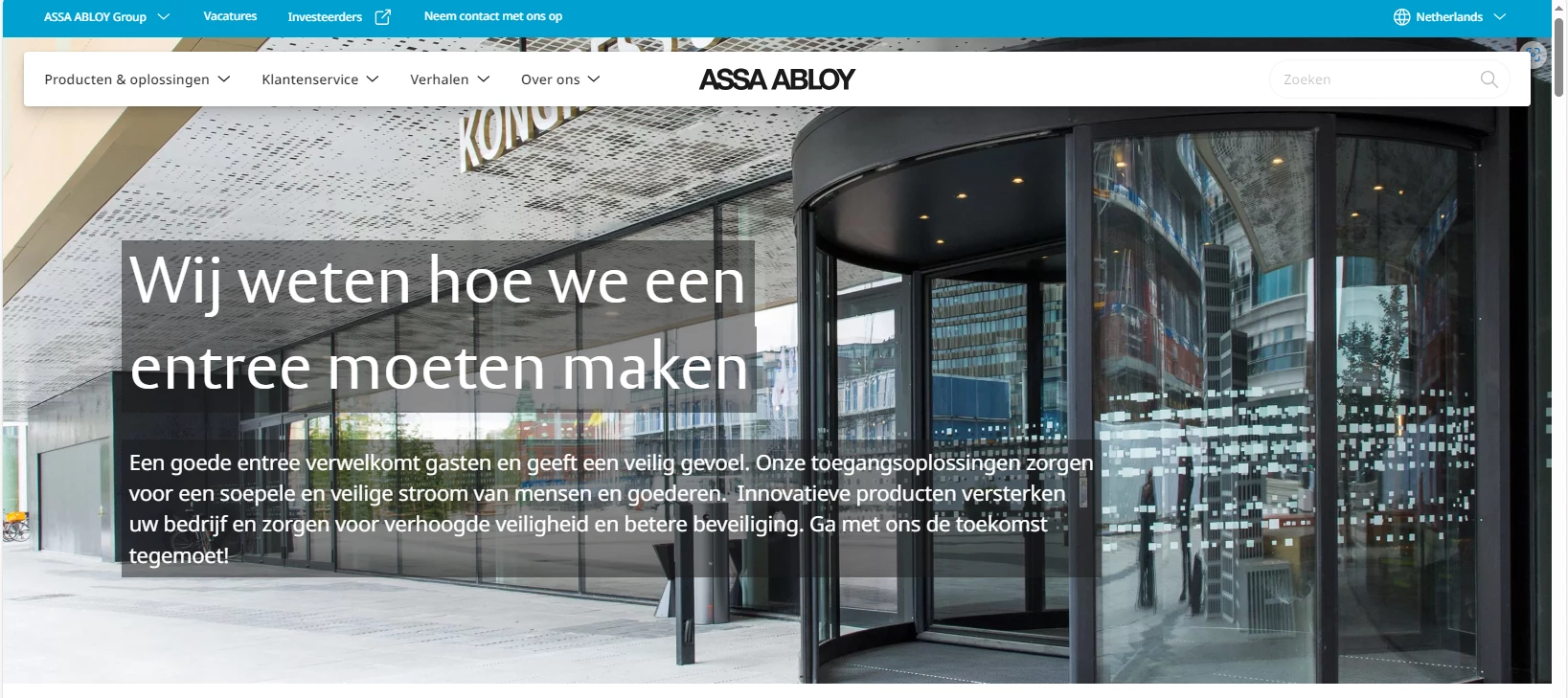
When a customer (no matter which) comes to our main page, the image remains the same. So I was wondering if it is possible to make this image change.


Now you only have a sliding door, but is there also the possibility to have, for example, an image of a mega door, rapid roll door, overhead door.


Hope this gives you some more clarity.

daniel-strmecki
Community Advisor and Adobe Champion
daniel-strmeckiCommunity Advisor and Adobe ChampionAccepted solution
Community Advisor and Adobe Champion
September 27, 2024

Hi @bartgr1,

it is certently possible to show more images. Simplest way is to create a Carousel component in AEM that will automatically switches the images after X seconds. You can see an example on https://www.amarr.com/us/en.

However, if you want to display not only more images, but also different images to different end users, then a Personalization tool like Adobe Target is the usual way to go.


@narendiran_ravi- I wouldn't go with the client-side handling example you shared, as this would have very bad consequences for your site mobile performance and Google Lighthouse score.


Hope this helps,

Daniel

narendiran_ravi
Level 6
September 27, 2024

Assuming no personalization is needed, we can create a multifield for image paths in your AEM component. The image list can be retrieved in the Sling Model, and you can create logic to randomly select an image path from the list.

Drawback

One drawback of this approach is that if the page is cached for a longer time in the CDN or Dispatcher, it will continue to show the same image due to caching.

Client-Side Handling

To handle this from the client side, follow these steps:

  1. Multifield Image Paths: Populate all image paths received from the multifield in a data attribute.
  2. HTML Placeholder: Add a placeholder <img> tag in the Sightly (HTL) code.
  3. JavaScript Logic: Write the JavaScript logic to pick a random image from the dataset and replace the src attribute of the placeholder <img> tag.

This approach offers flexibility, as the client-side logic will ensure a random image is selected each time the page is loaded, avoiding caching issues at the CDN or Dispatcher level.

kautuk_sahni
Community Manager
Community Manager
October 9, 2024

@bartgr1 Did you find the suggestions helpful? Please let us know if you require more information. Otherwise, please mark the answer as correct for posterity. If you've discovered a solution yourself, we would appreciate it if you could share it with the community. Thank you!

Kautuk Sahni
AmitVishwakarma
Community Advisor
Community Advisor
January 17, 2025

Hi @bartgr1 

  • To show more images: The simplest way is to create a Carousel component in AEM that automatically switches images after a set interval (X seconds). This can be achieved by dynamically adding multiple images to the component and using JavaScript for automatic image switching.

  • To display different images to different users: If you want to show personalized images based on user behavior or characteristics, the recommended approach is to use a personalization tool like Adobe Target. Adobe Target allows you to deliver tailored content, including images, based on user segments or conditions, making it the ideal solution for personalized experiences.

In summary:

  • For more images: A simple carousel with JavaScript.
  • For different images for different users: Use Adobe Target or AEM Personalization for targeted content delivery.

This approach provides both flexibility and a personalized user experience.