No save and close option on asset | Community
Skip to main content
Level 2
May 30, 2025
Solved

No save and close option on asset

  • May 30, 2025
  • 4 replies
  • 807 views

Hi,


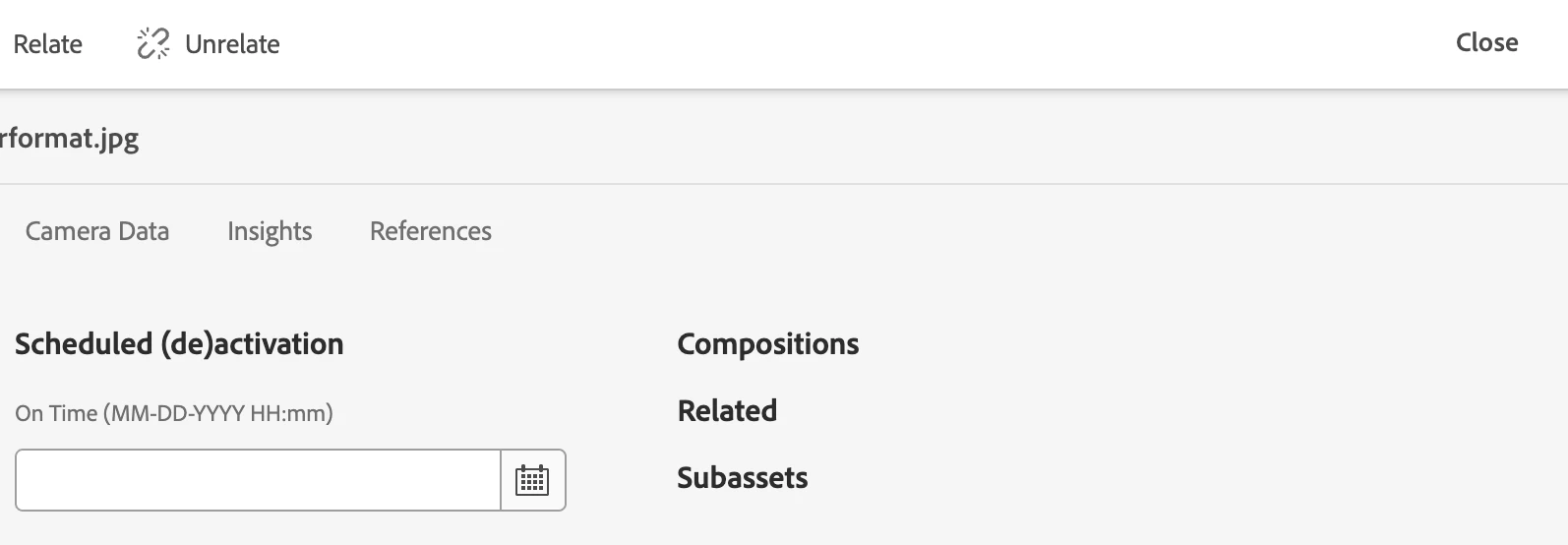
there is no "Save and close" option in editing the properties for an AEM asset (image). Some images in the same folder do have this option to "Save and close" whereas images like below only have "Close"


Is there any reason why it could be? Thank you


Best answer by AmitVishwakarma

Hi @aa_w ,

The following could be potential causes; kindly verify each to identify the issue:  

1. Missing or Read-only Metadata Schema

If the asset doesn’t have an editable metadata schema applied, the form becomes read-only hence no "Save and Close".

This happens especially with custom asset types, or if metadata schema mapping is broken.

Solution:

  - Go to: Tools > Assets > Metadata Schemas

  - Check if a schema is assigned to that asset MIME type (e.g., image/jpeg).

Assign the correct schema in:
  - Tools > Assets > Metadata Schema Forms > Apply to Folder

  - Ensure fields like dc:title, jcr:description, etc., are marked as editable.


2. User Lacks Write Permissions

If your user/group only has read permissions on the asset or metadata nodes, you won’t see "Save and Close".

Solution:

  - Go to: Tools > Security > Permissions

  - Ensure your user/group has modify, create, and delete permissions for:

     - /content/dam/... (asset path)

     - /conf/global/settings/dam/... (metadata schema path)

     - /var/dam/... if workflows are involved


3. Asset Locked or Inactive Workflow

If the asset is part of an active workflow, or locked by another user/session, you’ll be unable to save changes.

Solution:

  - Check in CRXDE Lite:

  - Open /content/dam/.../your-asset

  - If there is cq:lockOwner or cq:lockIsDeep, remove those properties.

  - Also verify there’s no cq:workflowInstanceId lingering under the asset node.


4. UI Customization or Overlay Conflicts

Some custom AEM overlays or broken clientlibs may interfere with rendering of the "Save and Close" UI.

Solution:

  - Check if any custom overlay exists under:

  - /apps/dam/gui/coral/components/admin

  - /apps/dam/content/metadataeditor

  - Temporarily rename the custom overlay folders and see if the Save button reappears.

  - Also check browser console for JS errors related to missing fields or buttons.


5. Asset Is Not the Original (e.g., Rendition or Subasset)

If you are editing a rendition or subasset rather than the main asset, saving may be disabled.

Solution:

  - Ensure you’re editing the original asset (/content/dam/.../filename.jpg) and not a generated rendition (e.g., /jcr:content/renditions/original).


6. Asset Corrupted or Missing jcr:content

If jcr:content/metadata is missing from the asset node, the form won’t function.

Solution:

  - In CRXDE, check:

/content/dam/path-to-asset/jcr:content/metadata

If this node or its properties are missing, you can manually add them or reprocess the asset by reuploading it.

Note:
Compare two assets:
  - One with "Save and Close".
  - One without.
In CRXDE, compare:
  - Node types and structure.
  - Metadata node presence.
  - Permissions and ownership.
  - Applied metadata schema.
  - Use this to isolate the anomaly quickly.
Regards,
Amit
4 replies

Nitesh-Chavan
Level 3
May 30, 2025

Hello @aa_w , 

Good Day!

It seems it is a anomaly, Let us know which AEM Service Pack you are using and if the asset which do not have Save option is tagged for a specific tag. 

Compare the CRX properties of the asset under question with the asset you are able to edit.

This will help us to find a solution for the mentioned issue.

SantoshSai
Community Advisor
Community Advisor
May 30, 2025

Hi @aa_w,

Below might be possible reasons, please double check:

  1. Read-Only Permissions – You don’t have write access to the asset.

  2. Locked/Published Asset – The asset is locked or published; can't be edited.

  3. Missing Metadata Schema – No editable metadata form applied to that asset.

  4. Rendition or Corrupt File – It’s not the original asset or is malformed.

  5. Custom UI/Overlay Issue – Customizations may block the button.

Santosh Sai
AmitVishwakarma
Community Advisor
AmitVishwakarmaCommunity AdvisorAccepted solution
Community Advisor
May 31, 2025

Hi @aa_w ,

The following could be potential causes; kindly verify each to identify the issue:  

1. Missing or Read-only Metadata Schema

If the asset doesn’t have an editable metadata schema applied, the form becomes read-only hence no "Save and Close".

This happens especially with custom asset types, or if metadata schema mapping is broken.

Solution:

  - Go to: Tools > Assets > Metadata Schemas

  - Check if a schema is assigned to that asset MIME type (e.g., image/jpeg).

Assign the correct schema in:
  - Tools > Assets > Metadata Schema Forms > Apply to Folder

  - Ensure fields like dc:title, jcr:description, etc., are marked as editable.


2. User Lacks Write Permissions

If your user/group only has read permissions on the asset or metadata nodes, you won’t see "Save and Close".

Solution:

  - Go to: Tools > Security > Permissions

  - Ensure your user/group has modify, create, and delete permissions for:

     - /content/dam/... (asset path)

     - /conf/global/settings/dam/... (metadata schema path)

     - /var/dam/... if workflows are involved


3. Asset Locked or Inactive Workflow

If the asset is part of an active workflow, or locked by another user/session, you’ll be unable to save changes.

Solution:

  - Check in CRXDE Lite:

  - Open /content/dam/.../your-asset

  - If there is cq:lockOwner or cq:lockIsDeep, remove those properties.

  - Also verify there’s no cq:workflowInstanceId lingering under the asset node.


4. UI Customization or Overlay Conflicts

Some custom AEM overlays or broken clientlibs may interfere with rendering of the "Save and Close" UI.

Solution:

  - Check if any custom overlay exists under:

  - /apps/dam/gui/coral/components/admin

  - /apps/dam/content/metadataeditor

  - Temporarily rename the custom overlay folders and see if the Save button reappears.

  - Also check browser console for JS errors related to missing fields or buttons.


5. Asset Is Not the Original (e.g., Rendition or Subasset)

If you are editing a rendition or subasset rather than the main asset, saving may be disabled.

Solution:

  - Ensure you’re editing the original asset (/content/dam/.../filename.jpg) and not a generated rendition (e.g., /jcr:content/renditions/original).


6. Asset Corrupted or Missing jcr:content

If jcr:content/metadata is missing from the asset node, the form won’t function.

Solution:

  - In CRXDE, check:

/content/dam/path-to-asset/jcr:content/metadata

If this node or its properties are missing, you can manually add them or reprocess the asset by reuploading it.

Note:
Compare two assets:
  - One with "Save and Close".
  - One without.
In CRXDE, compare:
  - Node types and structure.
  - Metadata node presence.
  - Permissions and ownership.
  - Applied metadata schema.
  - Use this to isolate the anomaly quickly.
Regards,
Amit

Nitesh-Chavan
Level 3
June 1, 2025

Detailed information with nice explanation 🙂 

Shashi_Mulugu
Community Advisor
Community Advisor
June 4, 2025

@aa_w please check below answers and mark the answer which helped you to identify and resolve issue. It helps community members get motivated and help more people. Thanks for understanding in advance.