no option to open the Classic View on a page in AEM 6.3 | Adobe Higher Education
Skip to main content
Level 3
October 26, 2017
Risolto

no option to open the Classic View on a page in AEM 6.3

  • October 26, 2017
  • 3 risposte
  • 2087 visualizzazioni

Hi All,

We don't see an option  "Open in Classic UI" no more in drop-down; was this removed in AEM 6.3? If Yes, is there any workaround to show that option? Thanks
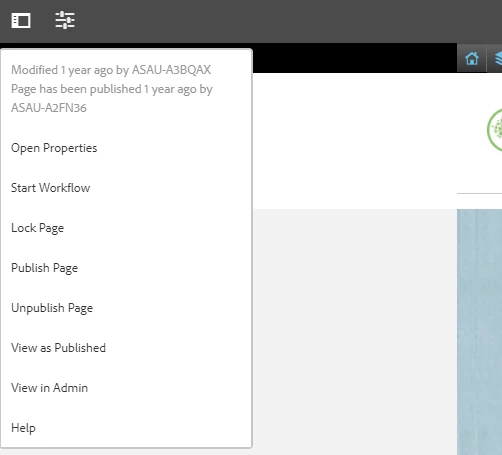
Regrads,
Aman

Questo argomento è stato chiuso alle risposte.
Migliore risposta di Naresh_Katkam

Hi Agarwal,

It' Simple follow below steps.
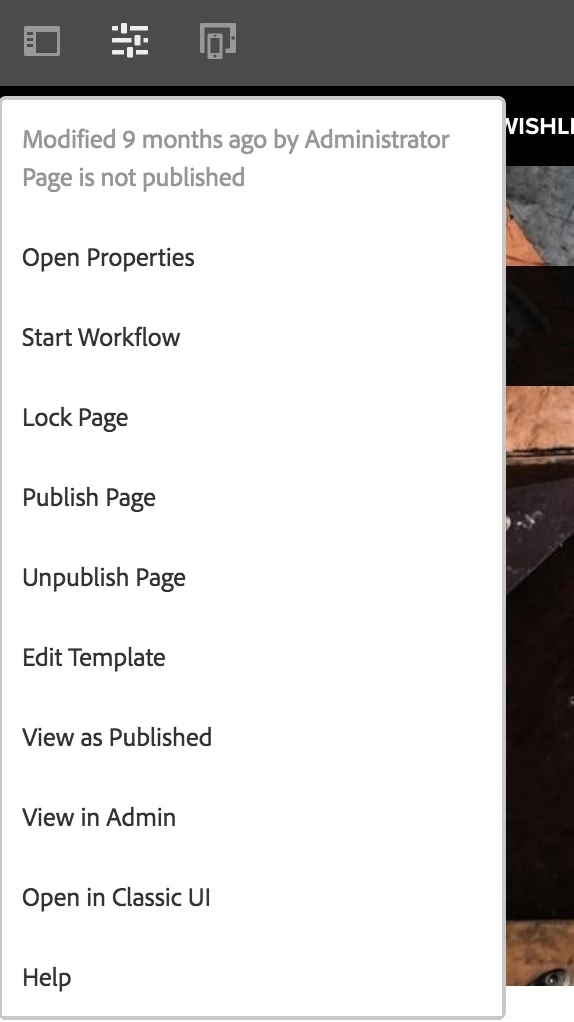
To re-enable the option Open in Classic UI in the Page Information menu, follow these steps.
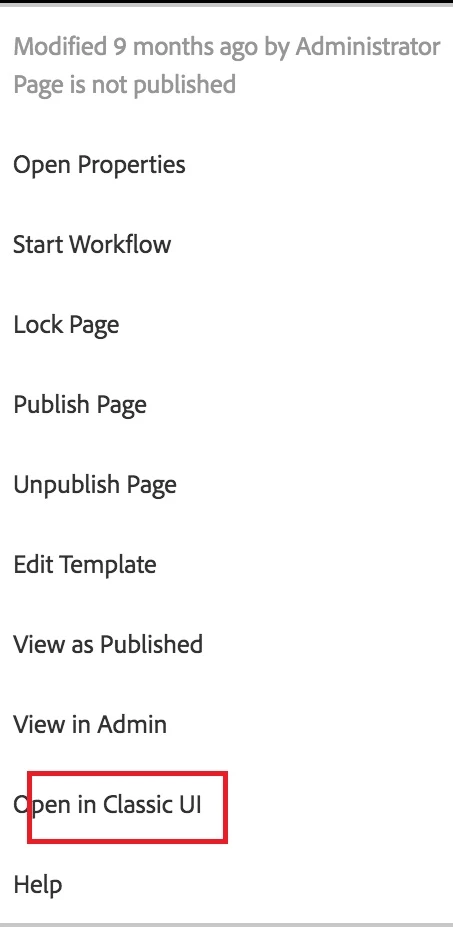
  1. Using CRXDE Lite, find the following node: /libs/wcm/core/content/editor/jcr:content/content/items/content/header/items/headerbar/items/pageinfopopover/items/list/items/classicuiFor examplehttp://localhost:4502/crx/de/index.jsp#/libs/wcm/core/content/editor/jcr%3Acontent/content/items/content/header/items/headerbar/items/pageinfopopover/items/list/items/classicui
  2. Using the Overlay Node option, create an overlay under /apps as follows:/apps/wcm/core/content/editor/jcr:content/content/items/content/header/items/headerbar/items/pageinfopopover/items/list/items/classicui
  3. Add the following multi-value text property to the overlaid node:sling:hideProperties = ["granite:hidden"]
  4. The Open in Classic UI option is again available in the Page Information menu when editing pages.

3 risposte

smacdonald2008
Level 10
October 26, 2017

Correct - AEM Is moving away from Classic UI. Therefore the option was removed the drop-down.

Adobe recommends that you start using AEM Touch UI in 6.3.

It has improved a lot since it was 1st released back in 5.6.

If you really want to keep using it - modify editor.html in the URL to cf#.

Hope this helps....

Level 2
October 26, 2017

Hi Agarwal,

It' Simple follow below steps.

To re-enable the option Open in Classic UI in the Page Information menu, follow these steps.

  1. Using CRXDE Lite, find the following node: /libs/wcm/core/content/editor/jcr:content/content/items/content/header/items/headerbar/items/pageinfopopover/items/list/items/classicuiFor examplehttp://localhost:4502/crx/de/index.jsp#/libs/wcm/core/content/editor/jcr%3Acontent/content/items/content/header/items/headerbar/items/pageinfopopover/items/list/items/classicui
  2. Using the Overlay Node option, create an overlay under /apps as follows:/apps/wcm/core/content/editor/jcr:content/content/items/content/header/items/headerbar/items/pageinfopopover/items/list/items/classicui
  3. Add the following multi-value text property to the overlaid node:sling:hideProperties = ["granite:hidden"]
  4. The Open in Classic UI option is again available in the Page Information menu when editing pages.

smacdonald2008
Level 10
October 26, 2017

Nice detailed response.