Hello @tenu
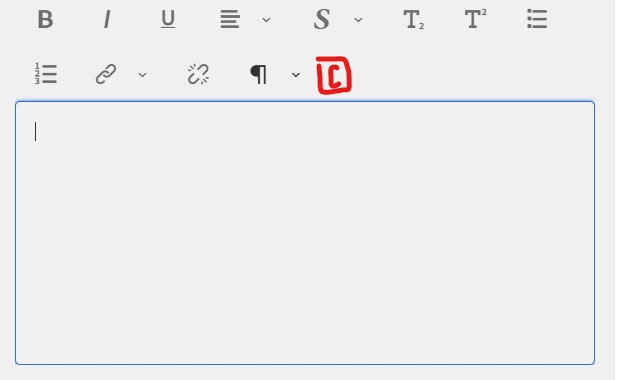
To get your custom RTE plugin (select + text field + new property) working across components, you need three things wired correctly:
1. Clientlib with plugin JS
Create a clientlib under /apps with:
categories="[rte.coralui3]" (so Touch UI RTE loads it).
Your JS file that:
- Registers the plugin:
CUI.rte.plugins.PluginRegistry.register("mycustom", MyCustomPlugin);
- Registers the command:
CUI.rte.commands.CommandRegistry.register("mycustom#edit", MyCustomCommand);
This JS:
- Adds a toolbar button.
- On click, opens a dialog (select + text field).
- Writes something into the RTE HTML (e.g. wraps selection in <span data-my-type="X" data-my-text="Y">…</span>).
2. RTE XML config to activate the plugin
In each RTE dialog config (e.g. under your text node):
<rtePlugins jcr:primaryType="nt:unstructured">
<!-- your plugin -->
<mycustom
jcr:primaryType="nt:unstructured"
features="[edit]"/>
</rtePlugins>

<uiSettings jcr:primaryType="nt:unstructured">
<cui jcr:primaryType="nt:unstructured">
<inline
jcr:primaryType="nt:unstructured"
toolbar="[format#bold,format#italic,mycustom#edit]"/>
<dialogFullScreen
jcr:primaryType="nt:unstructured"
toolbar="[format#bold,format#italic,mycustom#edit]"/>
</cui>
</uiSettings>
Names must line up:
Plugin ID in JS and XML: mycustom.
Feature in JS getFeatures() = "edit".
Toolbar string = mycustom#edit.
3. How the “new property” is stored
Easiest: store it as attributes in the RTE HTML (e.g. data-my-type, data-my-text) as the link plugin does with href, target, etc.
Your rendering code (HTL/Sling Model) can then read those attributes if needed.
No extra JCR property is required unless you explicitly want one.