Hi @shankar_k ,
Try below steps:
1. Ensure Directory & Domain Status
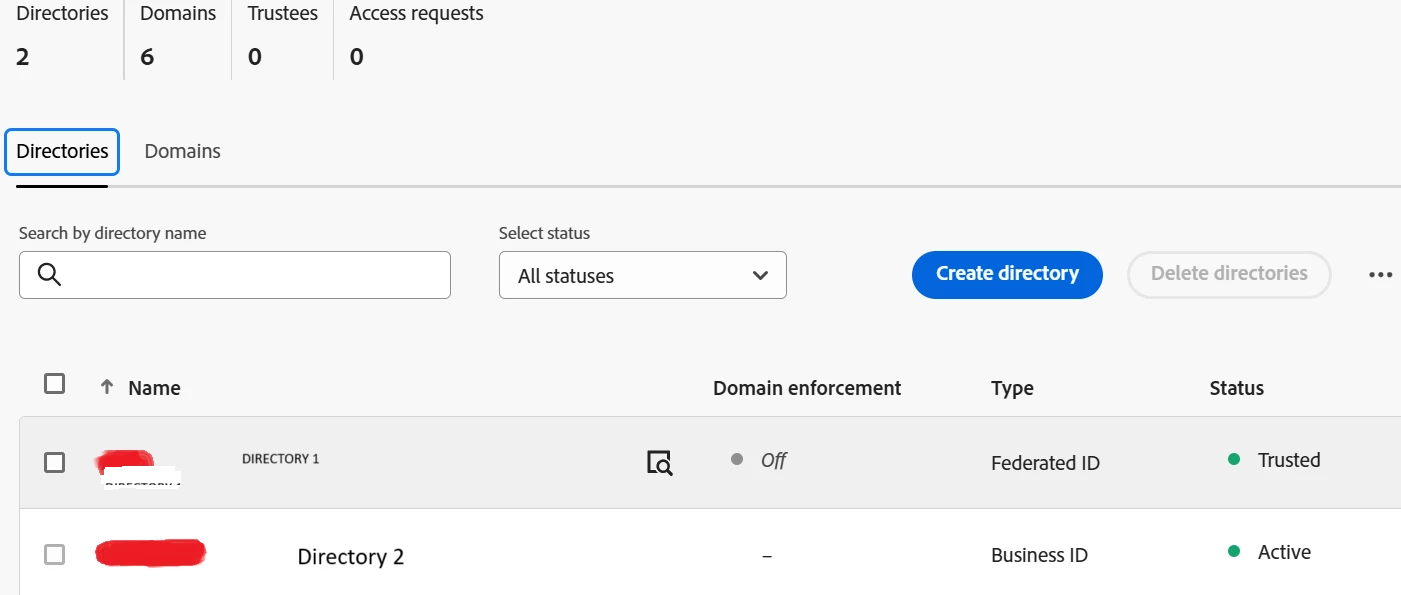
- Your directories are set to Federated ID and Trusted/Active — correct.
- Your domains are Approved and Active — good to go.
- Note: Make sure “Domain Enforcement” is enabled if you want users under that domain to be forced to use SSO.
2. Set Up SAML for the Directory (if not done yet)
If Adobe Support hasn’t already configured SAML:
- Go to Admin Console > Settings > Identity.
- Select your Federated Directory.
- Click on "Set up SAML".
- Upload your IdP metadata file (from Azure AD, Okta, or any other SAML provider).
- Adobe will verify it and enable the integration.
3. Enable Domain Enforcement
This step ensures SSO is enforced:
- In Admin Console, go to Identity > Directories.
- Select your directory > Edit.
- Toggle Domain Enforcement to On for required domains.
4. Assign Users to Directory
Ensure users are assigned under the Federated ID directory:
- Go to Admin Console > Users.
- Add users using their email in the federated domain.
- Assign roles or product profiles (e.g., AEM Author access).
5. Configure AEM Cloud Author with Adobe IMS
To enable SSO for AEM Author:
- Go to Admin Console > Products > AEM.
- Assign users/groups to the correct product profile for the Author instance.
- Ensure your AEM project uses Adobe IMS authentication:
- Verify IMS config in AEM’s /libs/granite/security/useradmin or via Cloud Manager deployment.
- Adobe will provide the IMS configuration during project setup. You can request their assistance via a support ticket if not already done.
6. Validate SSO Works
- Try logging into AEM Author at your cloud author URL.
- You should be redirected to your IdP login.
- Once authenticated, you should land in AEM with the assigned access.
- Also verify login via adminconsole.adobe.com using SSO.
Note:
Use private/incognito mode to avoid cached sessions.
Try logging in with a test user under the federated domain.
Check Admin Console > Audit Logs for login attempts and failures.
Regards,
Amit