
Sandeep_Danny95
Level 2
May 21, 2026
Question

Table Break Behavior

  • May 21, 2026
  • 1 reply
  • 4 views

Hi, we are using AEM Guides Native PDF for publishing PDFs, and I wanted to check if others have encountered issues with table break behavior.

Current behavior:

  • Tables that begin and end on the same page render correctly.
  • When a table spans across multiple pages:
    • The portion on the next page starts directly with the table header.
    • The table continues from where it was split, without any indication that it is continued.

Expected behavior:

  • Tables that begin and end on the same page should continue to work as expected.
  • When a table spans multiple pages:
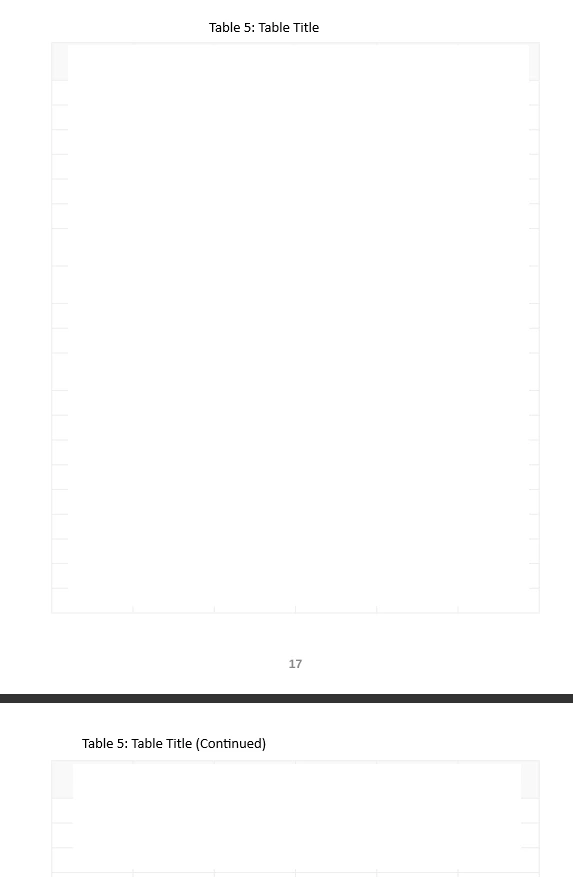
    • The table portion on subsequent pages should display a label such as:
      "Table #: Table Title (continued)"
    • This should be followed by the table header and the remaining table content.


      Example image: 
       

1 reply

chaudharynick
Level 4
May 21, 2026

Hi ​@Sandeep_Danny95 

By default, the print engine handles the standard HTML-to-PDF conversion via W3C Paged Media standards. This ensures that table headers () repeat automatically on subsequent pages, but it won't append text like (continued) out of the box because the static HTML structure doesn't inherently know where the page breaks will fall.

To achieve your expected behavior, you need to leverage CSS Paged Media pseudo-elements (-ro-table-completed, ::after) and counter variables within your Native PDF template's custom stylesheet.

Here is the exact approach and code to configure this in your environment:

Step 1: Target the Template CSS

  1. Open the AEM Guides Web Editor.

  2. Navigate to your Output Presets and open the configuration for your Native PDF template.

  3. Open the custom template's CSS file (typically found under your PDF template layout paths, e.g., /resources/styles/template.css or via the template configuration UI).

Step 2: Add the CSS Rules for Table Continuation Labels

The Native PDF rendering engine supports specific extensions to handle multi-page split elements. Add the following CSS block to your stylesheet to cleanly append a dynamic "(continued)" string only when a table overflows onto a new page:


/* Target the repeating header specifically on split pages */
thead {
display: table-header-group;
}

/*
Utilize the table continuation selector supported by the PDF engine
to append the suffix only on subsequent pages.
*/
table:not(:first-of-type) thead::after {
content: " (continued)";
font-style: italic;
font-size: 0.9em;
font-weight: normal;
}

/* Alternative approach using standard string variables if you want it aligned with the table title */
@page {
@top-left-corner {
content: string(table-title-string);
}
}

caption {
string-set: table-title-string content();
}

Step 3: Handle Complex Table Header Labels (Advanced)

If your PDF template requires the label format to look strictly like "Table 1: Title (continued)" wrapped as an independent line right above the repeating header columns, you can handle it by injecting a pseudo-element directly attached to the thead container when it registers a split view state:

/* 
Detects a broken table fragment inside paged media and
prepends a block level notification above the column headers
*/
tr.table-header-row {
break-inside: avoid;
}

table {
-ro-table-wrapper: true; /* Ensures the engine treats the structure cleanly across margins */
}

/* Injects the continuation text as a block line spanning across the top of the split table */
table:not([data-first-fragment="true"]) thead::before {
content: "Table: " attr(data-title) " (continued)";
display: block;
padding-bottom: 5px;
font-weight: bold;
color: #333333;
}

Note on DITA Map Generation: Ensure that your DITA components map output properties natively cleanly; the AEM Guides publishing engine converts DITA and blocks into semantic HTML and structures before passing them to the PDF generator.

Step 4: Verify the Break Settings

To make sure the table doesn't break awkwardly across rows (leaving single lines of text cutoff), ensure your table cell and row break configurations are explicitly declared alongside your new layout properties:


table, tr {
break-inside: auto;
}

tr {
break-inside: avoid; /* Prevents an individual row from splitting in half across pages */
}

thead {
break-inside: avoid;
display: table-header-group;
}

Once you save the template stylesheet and rerun your Native PDF generation preset, the engine will dynamically evaluate your layout constraints and apply the (continued) notation exclusively to pages where the table splits.