Rotated table not working | Community
Skip to main content
Level 3
September 15, 2022
Solved

Rotated table not working

  • September 15, 2022
  • 1 reply
  • 1256 views

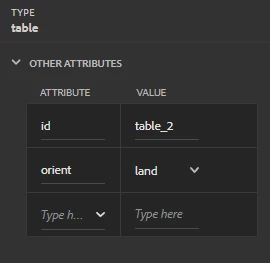
I am trying to rotate a table in our documentation and cannot get it to work. I have set the orient attribute on the table element to "land", but it is not showing up when I preview the document in the XML Editor or when I generate a PDF output. 


This post is no longer active and is closed to new replies. Need help? Start a new post to ask your question.
Best answer by GunjanK

Hi Nicole,

The landscape table needs a new vertical landscape PDF page layout.

Steps to create vertical landscape PDF page layout:

  1. Create a new PDF page layout ("VerticalLandscape") by duplicating the "Landscape" layout.
  2. Open Page Properties right panel. 
  3. Add view rotation properties with anticlockwise 90 degree 
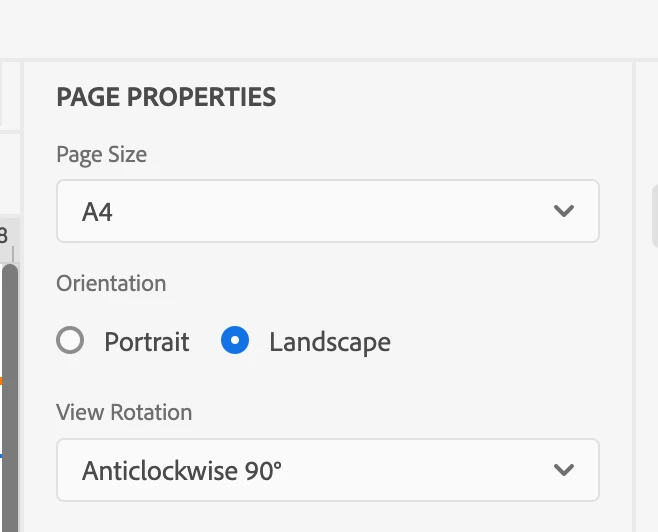
  4. Save the page layout file.

Steps to link new page layout via CSS:

  1. Create a style 'orient-land' in content.css 
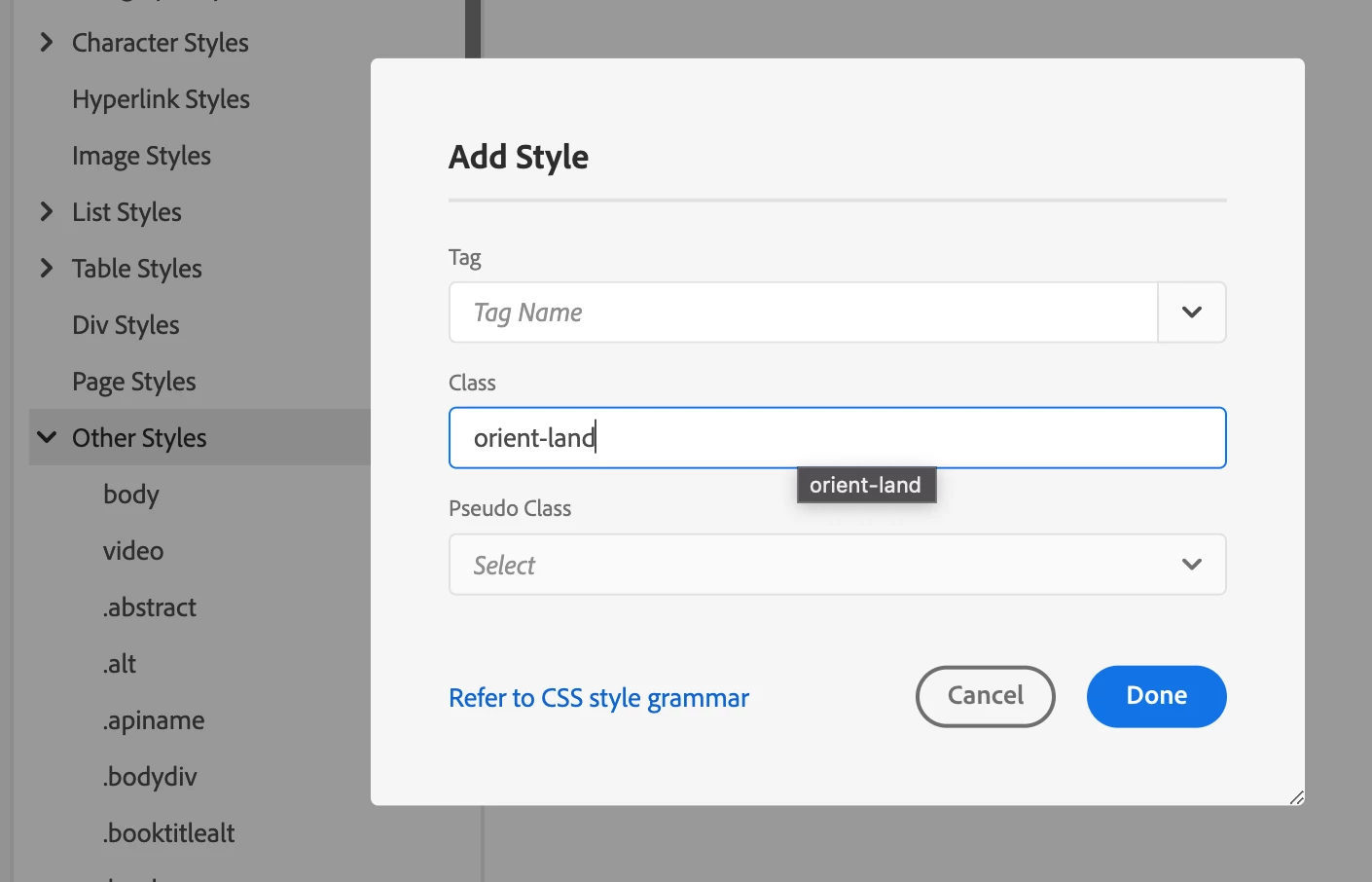
  2. Add the newly created page "VerticalLandscape" to page properties
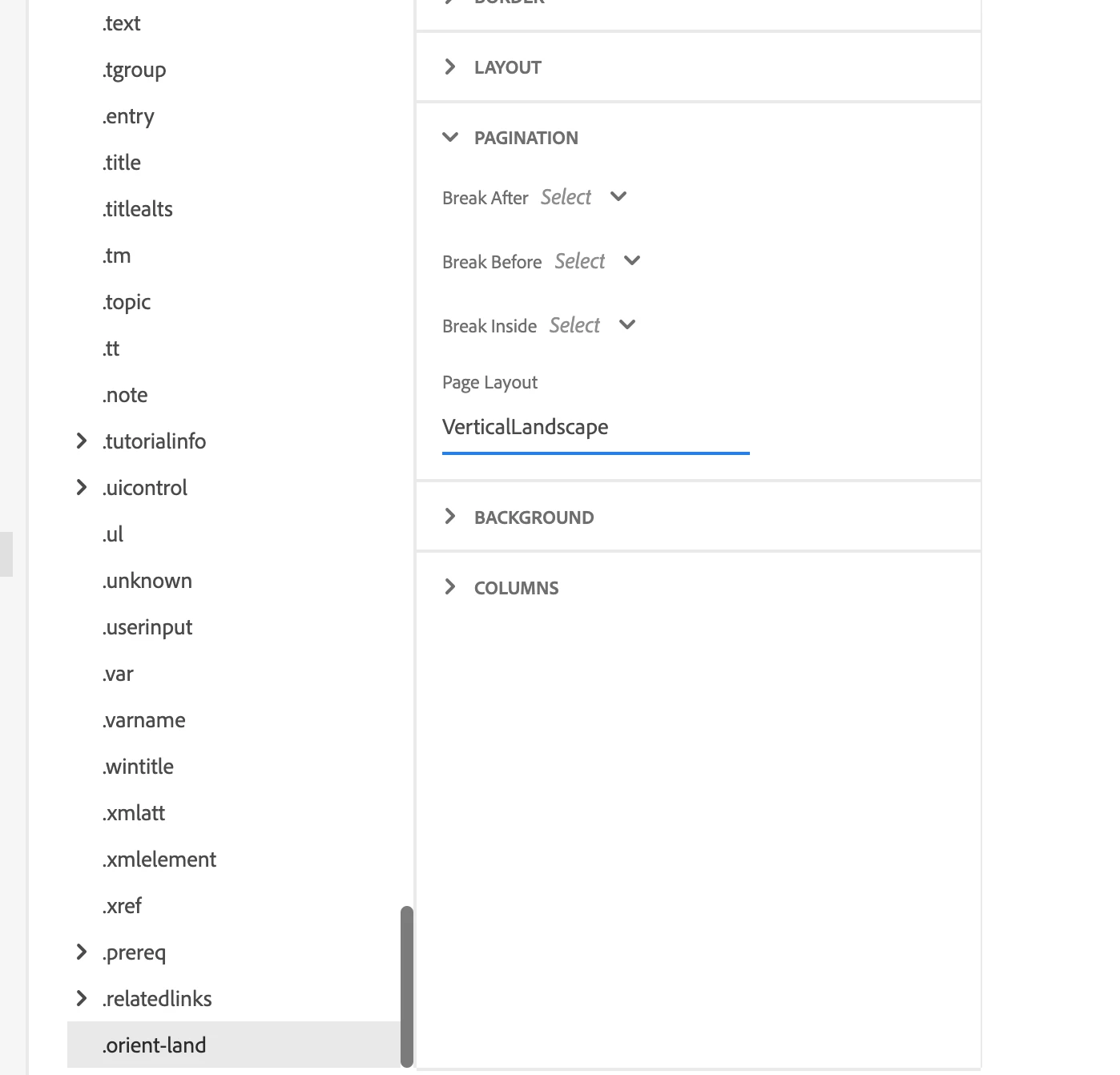
  3. Save the content.css file.


Now generate the PDF. It will create a separate page for orient="land" tables.


Regards,

Gunjan Kumar
1 reply

GunjanKAdobe EmployeeAccepted solution
Adobe Employee
September 19, 2022

Hi Nicole,

The landscape table needs a new vertical landscape PDF page layout.

Steps to create vertical landscape PDF page layout:

  1. Create a new PDF page layout ("VerticalLandscape") by duplicating the "Landscape" layout.
  2. Open Page Properties right panel. 
  3. Add view rotation properties with anticlockwise 90 degree 
  4. Save the page layout file.

Steps to link new page layout via CSS:

  1. Create a style 'orient-land' in content.css 
  2. Add the newly created page "VerticalLandscape" to page properties
  3. Save the content.css file.


Now generate the PDF. It will create a separate page for orient="land" tables.


Regards,

Gunjan Kumar

ndlholm1Author
Level 3
September 19, 2022

Thanks, Gunjan. I can now get the table to show up in landscape orientation. However, the topic title doesn't stay with the landscape table. The topic title stays by itself on the previous page, as if there's a page break between the topic title and the landscape table. How can I get the topic title to stay with the landscape table?


Nicole

Adobe Employee
September 20, 2022

Hi Nicole,


You can move any DITA content block to a different PDF page layout. Here you can add an output class (say "vertical-topic") to the topic containing the landscape table. Then instead of adding "orient-land", add "vertical-topic" in the CSS file. And add page "VerticalLandscape" to page properties of "vertical-topic".


Now generate the PDF. It will create a separate page for topics having outputclass="vertical-topic".


Regards,

Gunjan Kumar