
Native PDF - Heavy Footer Customization
I had a need to create a custom footer for the last page in a Native PDF, without creating a new page. I have fulfilled 90% of what I need to do but the last part I am unable to figure out.
I followed many steps from this post: Solved: Re: Native PDF: Last page content overlap - Adobe Experience League Community - 671193
Here is what I did:
1. Created a new page layout called Last_Page with the following code:
<?xml version="1.0" encoding="utf-8" ?>
<!DOCTYPE html>
<html xmlns="http://www.w3.org/1999/xhtml">
<head>
  <meta http-equiv="Content-Type" content="text/html; charset=utf-8" />
  <title>Common Page Layout</title>
  <meta name="page-style" content="size:Letter portrait;" />
  <meta name="footnote-style" content="" />
  <link rel="stylesheet" type="text/css" href="content.css" />
</head>
<body>
  <div data-region="footer">
    <table class="MetadataTable">
      <tbody>
        <tr>
          <td><b>Document ID:</b> <span data-field="metadata" data-format="default" data-subtype="$docID">Doc ID</span></td>
          <td><b>ECN:</b> <span data-field="metadata" data-format="default" data-subtype="$ecn">ECN</span></td>
          <td><b>Version:</b> <span data-field="metadata" data-format="default" data-subtype="$version">$version</span></td>
          <td><b>Revised Date:</b> <span data-field="metadata" data-format="default" data-subtype="$revisedDate">Revised Date</span></td>
        </tr>
        <tr>
          <td colspan="4"><b>Change Description:</b> <span data-field="metadata" data-format="default" data-subtype="$changeDesc">Change Description</span></td>
        </tr>
      </tbody>
    </table>
    <span data-field="metadata" data-format="default" data-subtype="//critdates/revised/@golive" style="position: absolute;margin-right: 0px;margin-left: auto;right: 30px;margin-top: 34px">//critdates/revised/@golive</span> <span data-field="page-number" data-format="default" style="position: absolute;margin-right: 0px;margin-left: auto;right: 12px;margin-top: 34px">1</span><img src="FOOTER3.svg" />
  </div>
</body>
</html>
2. Set up the Page Layout Order in the template like this:
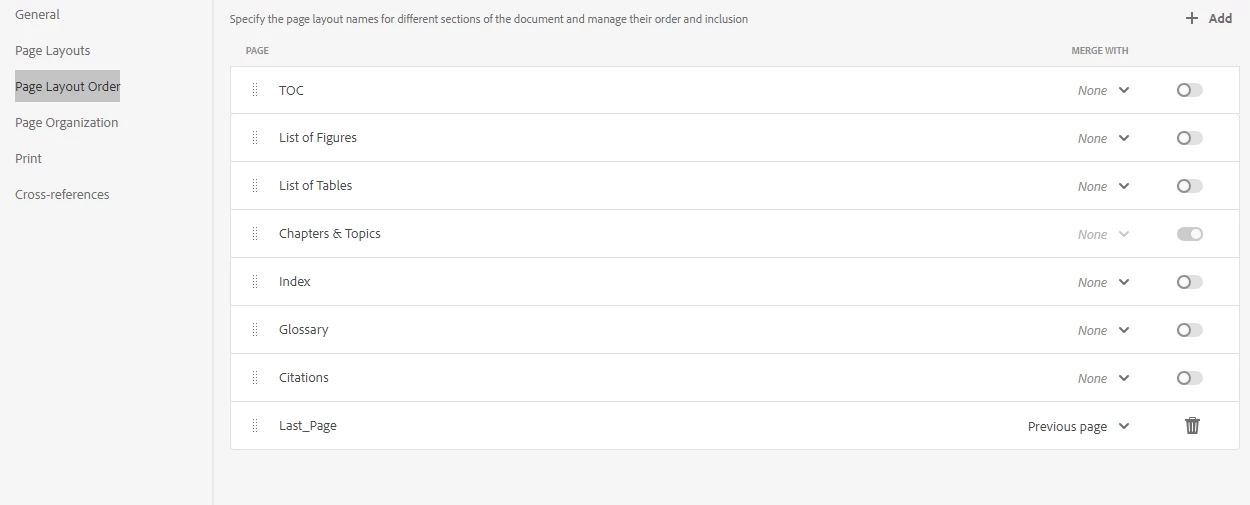
3. Added CSS code to get the final pages footer to be the correct content:
@page Common:-ro-last {
  @bottom-left {
    content: element(Last_PageFooter);
  }
}
footer.Last_Page {
  position: running(Last_PageFooter);
}
Now these steps make it so that the last page has the proper footer content, but as you can see from my page layout, the content could be longer or shorter due to a metadata table that is populated by variables. So, I need to have the final footer fit the content size. Based on this documentation Native PDF Publish Feature | Design a page layout | Adobe Experience Manager I should be able to edit the footer size by changing the margin in the page layout page properties, but I have not had success.
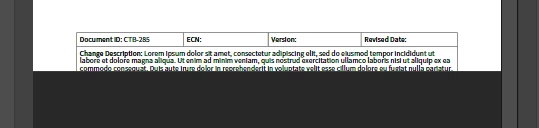
As you can see the table is cut off in the pdf. Changing the margin bottom to auto does nothing. Changing all my page layouts to auto makes the footer disappear entirely. Also, changing the margin bottom to 2in does nothing unless I add that to all my page layouts, and then it's too tall on all the other pages. I feel like I am missing something simple.
How can I make the footer fit the variable content I need there?