Not able to see Asset bulk import under Tools--> Assets for AEM as cloud | Community
Skip to main content
Vigin_George
May 6, 2022
Solved

Not able to see Asset bulk import under Tools--> Assets for AEM as cloud

  • May 6, 2022
  • 1 reply
  • 1530 views

HI Everyone,


I am trying to use "Asset Bulk import" inside my local AEM set up with sdk installation (Used sdk : aem-sdk-2022.4.7138.20220427T075748Z-220400.zip). But when I am going inside Tools --> Assest, I am unable to see the Bulk Asset Importer mentioned in the below thread,


https://experienceleaguecommunities.adobe.com/t5/adobe-experience-manager/adobe-developers-live-october-2021-session-aem-s108-how-to/m-p/423032#M29955


Please suggest if I miss anything or if I need to install any package separately.


Thanks in Advance.

This post is no longer active and is closed to new replies. Need help? Start a new post to ask your question.
Best answer by lukasz-m

Hi @vigin_george,

In general you will need 2 things to see Bulk Asset Importer option:

  1. Login as an admin user.
  2. You need properly configure OSGi Adobe Granite Access Token.

If above configuration is not present on your instance you will see below message while your instance is starting.

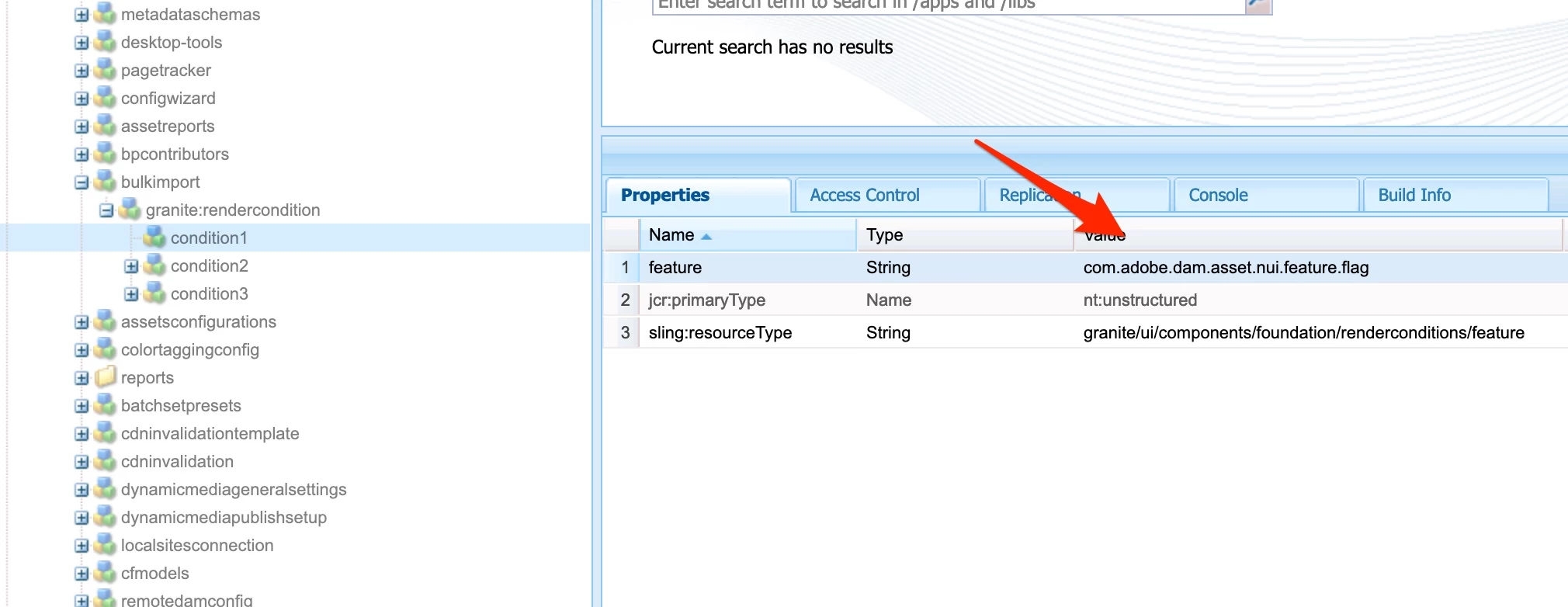
*INFO* [FelixStartLevel] com.adobe.cq.assetcompute.impl.NuiFeatureFlag No Nui config found for com.adobe.dam.asset.nui.feature.flag

In crx you can also observer that Bulk Asset Importer has some render conditions, that needs to be meet to see this option under Tools.


Solution

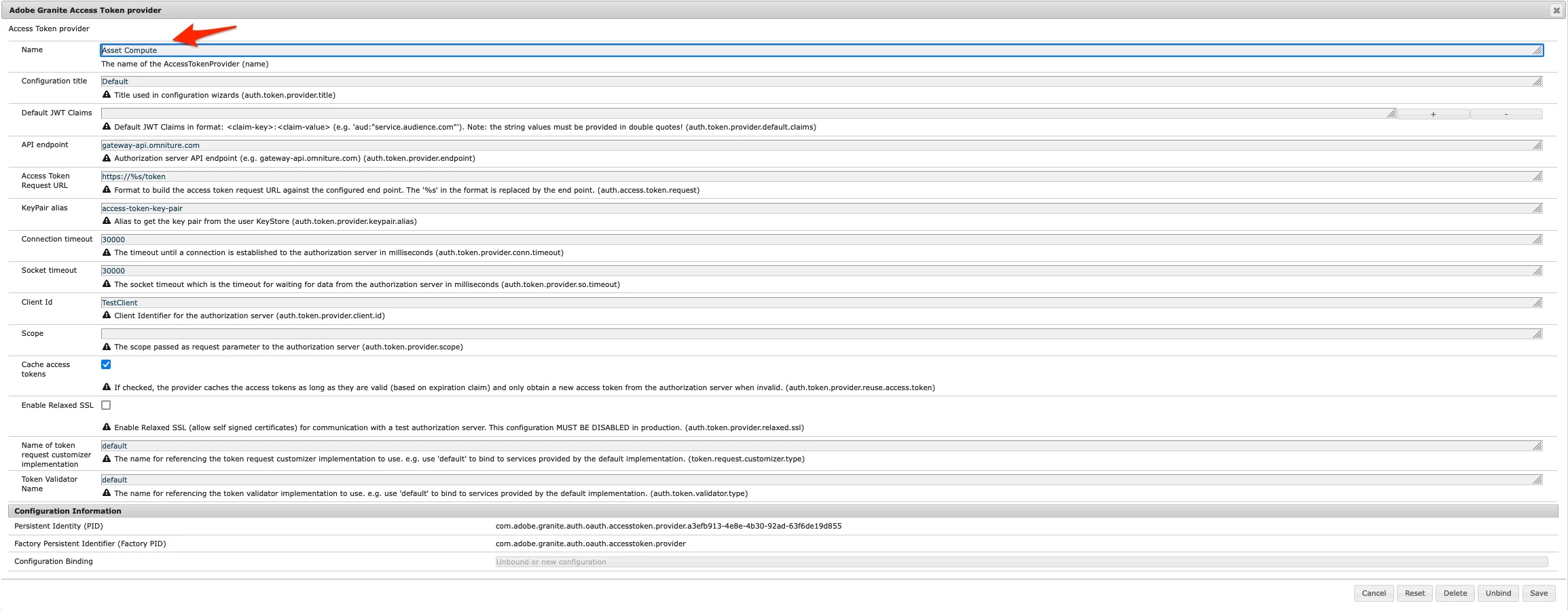
  1. Got to OSGi console (/system/console/configMgr), and find Adobe Granite Access Token provider and click on plus button on the right side to add new configuration.


  2. Create new configuration, please note that even if you do not now what data should be set, the main thing is to set proper Name, which in this specific scenario needs to start with Asset Compute phrase. You can try below configuration. In general I left all values as default except Name.


  3. Click Save and restart your instance.

After restart Bulk Asset Importer and few other options will be available.

Alternatively you can try to access Bulk Asset Importer directly using following url /mnt/overlay/dam/gui/content/bulkimport/list.html


1 reply

lukasz-m
Community Advisor
lukasz-mCommunity AdvisorAccepted solution
Community Advisor
May 9, 2022

Hi @vigin_george,

In general you will need 2 things to see Bulk Asset Importer option:

  1. Login as an admin user.
  2. You need properly configure OSGi Adobe Granite Access Token.

If above configuration is not present on your instance you will see below message while your instance is starting.

*INFO* [FelixStartLevel] com.adobe.cq.assetcompute.impl.NuiFeatureFlag No Nui config found for com.adobe.dam.asset.nui.feature.flag

In crx you can also observer that Bulk Asset Importer has some render conditions, that needs to be meet to see this option under Tools.


Solution

  1. Got to OSGi console (/system/console/configMgr), and find Adobe Granite Access Token provider and click on plus button on the right side to add new configuration.


  2. Create new configuration, please note that even if you do not now what data should be set, the main thing is to set proper Name, which in this specific scenario needs to start with Asset Compute phrase. You can try below configuration. In general I left all values as default except Name.


  3. Click Save and restart your instance.

After restart Bulk Asset Importer and few other options will be available.

Alternatively you can try to access Bulk Asset Importer directly using following url /mnt/overlay/dam/gui/content/bulkimport/list.html