Countdown Timer in Adobe Dynamic Media Template: One Template for Every Campaign
A deadline isn’t a design. It’s a value, and a countdown timer lets you treat it that way.
With a countdown timer in AEM Dynamic Media Template, marketers can add a live countdown directly to campaign creative. Instead of producing a new asset whenever a deadline changes, teams can build a template and adapt its timing and message for different campaigns.
The value extends beyond urgency. Countdown timers bring relevance, personalization, and scalable content production together—while helping each recipient see a message that reflects the campaign moment when the content is opened.

What is a Countdown Timer in AEM Dynamic Media Template?
A countdown timer is a configurable layer within a Dynamic Media Template. Like image, text, and shape layers, it can be positioned and styled as part of the overall creative:
- Appearance: font, size, color, opacity, alignment, and position.
- Time units: days, hours, minutes, and seconds, with labels and separators that fit your layout.
- End time: the deadline that drives the clock. Passable as a parameter.
- Fallback text: what customers see after the deadline has passed. Also passable as a parameter.
Parameterization makes the feature especially useful for campaign production. The countdown end time and fallback text can be passed as parameters, allowing teams to personalize the countdown for each recipient or audience.
One thoughtfully designed template can therefore support different campaign dates, messages, offers, and audience experiences. The AEM Dynamic Media Template documentation explains how countdown settings and parameters are configured for delivery.
When Should You Use a Countdown Timer?
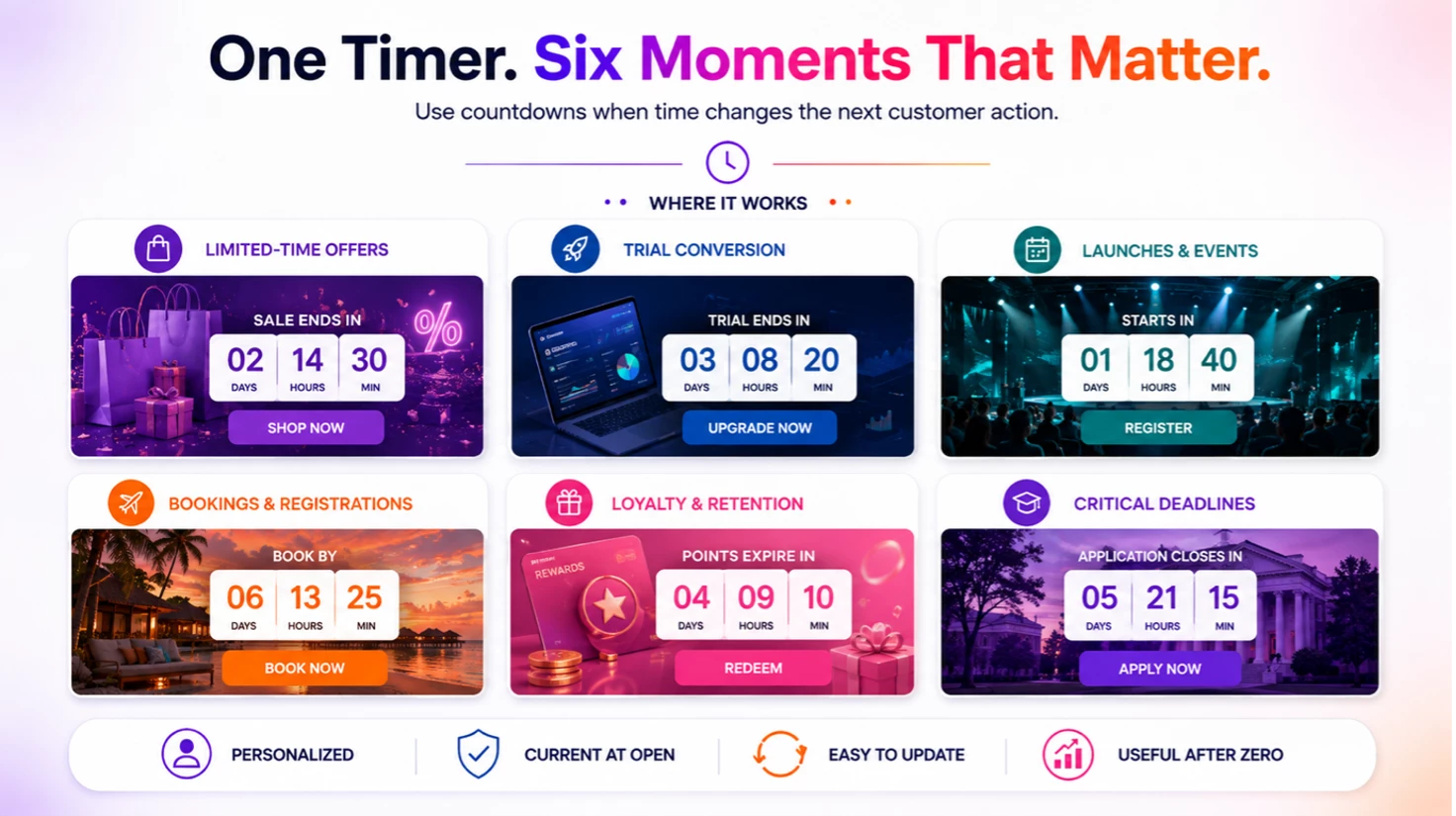
Use a countdown timer when a real and meaningful deadline directly influences the customer’s next action. The most effective countdown timer use cases include:
- Limited-time sales and promotional offers: Highlight flash sales, abandoned-cart incentives, temporary pricing, or benefits that are approaching expiration.
- Trial conversion and renewal windows: Clarify free-trial expiration, upgrade periods, subscription renewals, and introductory-offer deadlines.
- Product launches, webinars, and events: Build anticipation for a product launch, webinar, live event, or the debut of a new experience.
- Bookings and registrations: Create a clear reason to act during early-bird windows, limited-availability periods, registration cutoffs, or time-bound travel offers.
- Loyalty and retention campaigns: Prompt relevant action around points expiration, exclusive-access periods, personalized offers, win-back incentives, and renewal reminders.
- Important customer deadlines: Make application windows, rate-lock expirations, and other deadlines easier to notice and understand.
The principle is simple: use urgency to clarify a genuine time constraint, not to manufacture pressure. A countdown should help customers make a timely decision with confidence.
How to Add a Countdown Timer to a Dynamic Media Template
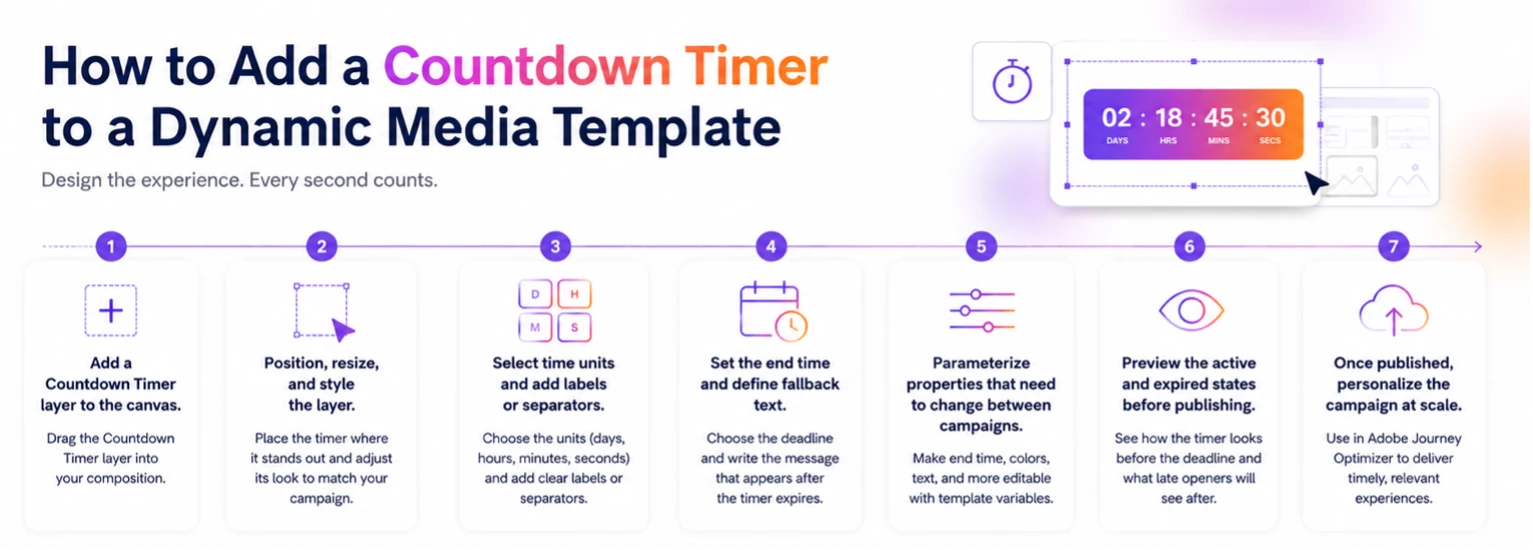
The countdown timer is created as part of the template composition. A typical setup includes the following steps:
- Add the countdown timer layer. Place a Countdown Timer layer on the template canvas.
- Position and style the timer. Adjust its size, placement, font, color, opacity, and alignment so it fits naturally within the creative.
- Choose the displayed time units. Select the appropriate units and add labels or separators that make the remaining time easy to understand.
- Set the campaign deadline. Define the end date and time, including the time zone, that will control the countdown.
- Add fallback text. Specify the text that replaces the active countdown after it expires.
- Parameterize changing properties. Expose the deadline and fallback text—or other appropriate fields—as parameters when they need to vary between campaigns or audience.
- Preview and publish. Check both the active countdown and expired state before publishing, then use the template in campaign content.
The essential work is not simply setting the clock. It is designing the complete experience around it: what customers see before the deadline, what changes at zero, and what a late opener should see next.
One template, personalized at scale
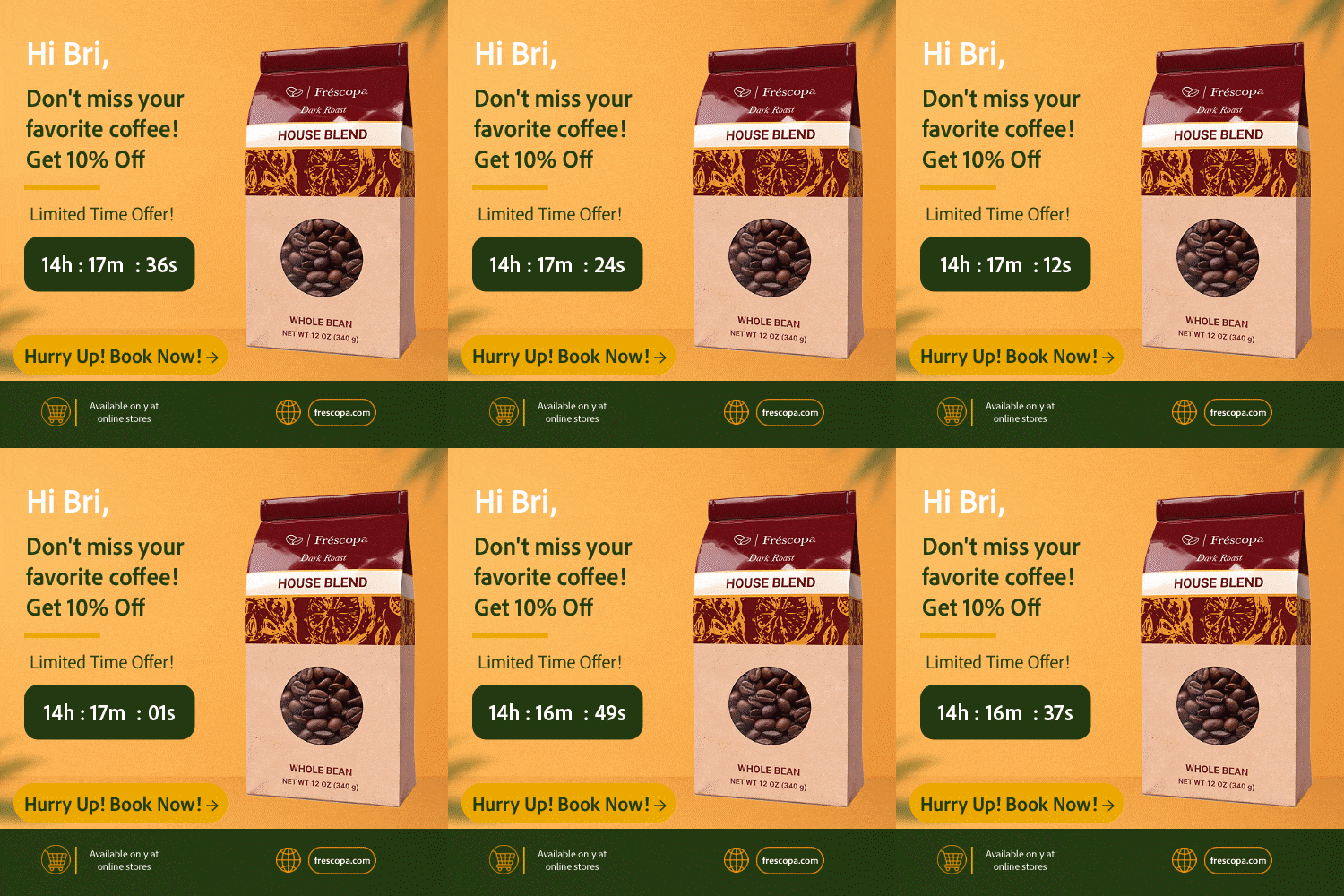
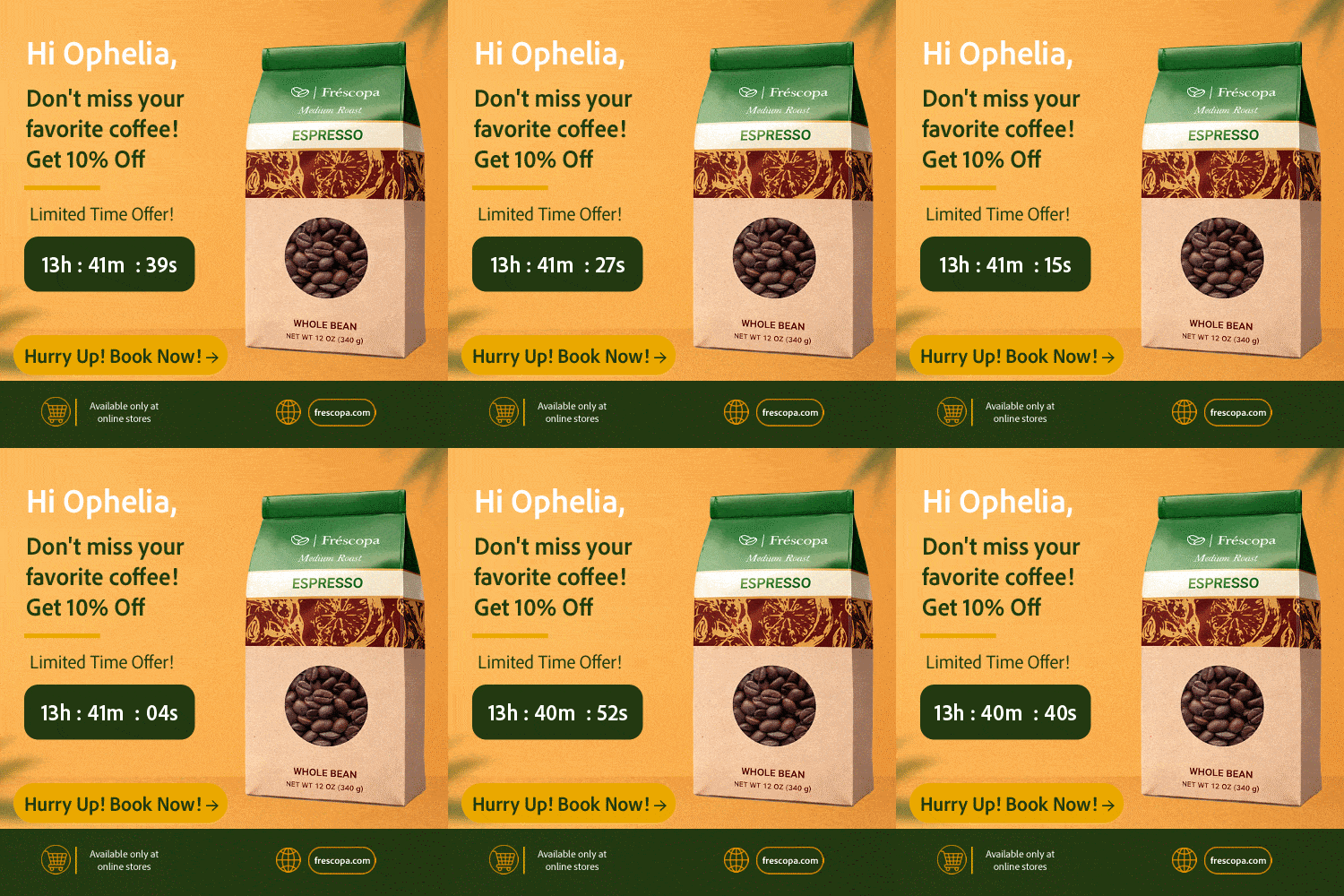
Picture a coffee brand re-engaging shoppers who abandoned a product page with a 48-hour limited-time offer. Every banner comes from the same template. Everything after the ? in the URL is a set of inputs, and each combination renders a different, fully on-brand image:
https://s7d1.scene7.com/is/image/Viewers/Frescopa-Coffee-Banner?$name={name}&$product={product}&$end_time={end_time}&$fallback={fallback}&wid=500&hei=500&qlt=80&fit=constrain&fmt=gif
| User Journey | Inputs (the parameters) |
| Bri, residing in the United Kingdom, drops off from the Frescopa Dark Roast product detail page | $name = Bri $product = Frescopa-darkroast $end_time = Oct 15, 7:30 PM (Time zone: GMT+1) $fallback = The offer has ended. Discover UK’s favorites! |
| Ophelia, residing in Italy, drops off from the Frescopa Medium Roast product review page |
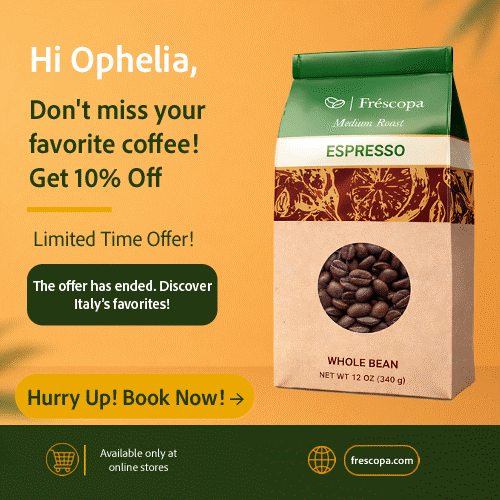
$name = Ophelia $product = Frescopa-mediumroast $end_time = Oct 15, 8:30 PM (Time zone: GMT+2) $fallback = The offer has ended. Discover Italy’s favorites! |
| Live Campaign Output | Expired Campaign Output |
|
|

|
|
|
|
Both end times are the same moment (6:30 PM UTC), written in each shopper’s local time.
Design the Countdown Timer Experience After Zero
Emails get opened late, and a timer that shows zeros or a stale offer is a dead end. The fallback text should acknowledge that the deadline has passed and guide the customer toward a useful next step.
In the Frescopa examples above, the active timer is replaced with “The offer has ended. Discover UK’s favorites!” for Bri and “The offer has ended. Discover Italy’s favorites!” for Ophelia.
The surrounding campaign creative can remain consistent while the timer area changes from a live countdown to an honest, relevant message. Thoughtful fallback copy protects the customer experience and keeps late engagement useful.
Personalize Countdown Timer Campaigns with Adobe Journey Optimizer
Published Dynamic Media Template can be added to email content in Adobe Journey Optimizer and configured with personalization fields and conditional content with its native integration. The countdown reflects the remaining time when recipients open or reopen the email, while recipients who open after the deadline see the configured fallback message.
For implementation guidance, see Working with Dynamic Media in Adobe Journey Optimizer.
This model gives each team a clear role:
- Creative teams establish the reusable visual system and the placement of the countdown.
- Campaign teams configure and personalize the deadline, messaging, and fallback text.
- Brand owners maintain consistency across campaign and audience variations.
Make Every Campaign Moment Count
The goal of a countdown timer is not to make every customer feel rushed. It is to make an important, time-sensitive moment difficult to miss.
When the deadline is genuine, the creative is reusable, and the expired state remains useful, countdown timers can turn timing into a scalable part of the customer experience. Dynamic Media Template help teams make that timing visible—without rebuilding the creative for every activation.
Now it’s your turn! Which campaign in your backlog would benefit most from a countdown that never needs rebuilding? Share it in the comments.