Turn OFF anomaly detection by default | Community
Skip to main content
Level 2
January 22, 2020
Delivered

Turn OFF anomaly detection by default

  • January 22, 2020
  • 10 replies
  • 13649 views

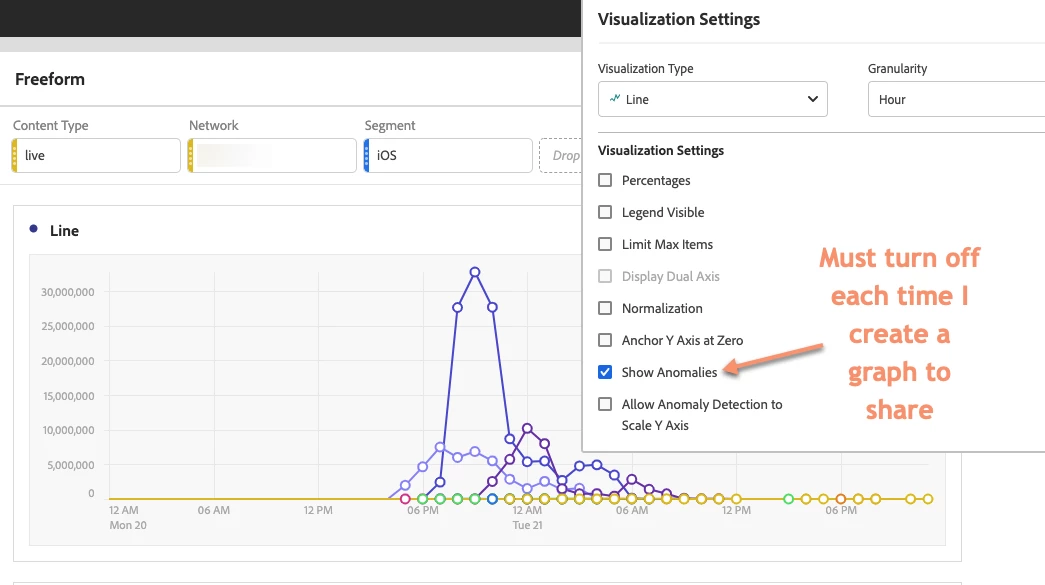
Each time I create a graph, I take an extra step to remove the anomaly bubbles as we have very few reports/scenarios in which they apply or are helpful. Maybe 1%? I would be very, very grateful if there were a toggle somewhere to turn OFF anomaly detection by default. Or perhaps Adobe could explore turning them off for everyone and see if you get any complaints. 🙂 

My company is in media, so our metrics fluctuate significantly based on content available -- NBA Games, Star Wars, etc. etc.

@jenla5, pretty please 🙂 
 

10 replies

Level 4
January 23, 2020

I disagree. Anomaly detection is very helpful in some cases, e.g. travel, ecommerce.

Urs_Boller
Community Advisor
Community Advisor
January 27, 2020

can't you just change permission in the product profile for users who shouldn't see the anomaly detection?

Sondre1234
January 29, 2020

I agree with this suggestion. A toggle for on/off by deafult would be great. I find that I rarely use the anomaly detection and when i need to I would prefer to just turn it on for that graph/table. It also seems to require a lot of computational power with its crunching which is processing power that could be used better elsewhere.

Level 2
February 3, 2020

That's a good idea re: turning it off in permissions, but that's still a lot of hassle. Would prefer a simple default toggle since it seems liek for some users it is helpful, and for others, it's just extra work for the Adobe servers to provide information that's actively not wanted.

yuhuisg
Community Advisor
Community Advisor
October 12, 2020

I would suggest disabling anomaly detection at a Project level. Anomaly detection slows down the whole Project because AA needs to calculate the anomaly for every single datapoint. If the Project contains many tables or a few tables with many cells, the Project is not usable until AA has finished calculating all of the anomalies everywhere. So it would be great to be able to disable anomaly detection in such cases, so that the Project is usable immediately upon loading.

Adobe Employee
July 28, 2021

You can now set a default for anomalies to be enabled or disabled for each new project.  Go to Components -> User Preferences -> Project -> Show Anomalies.  


Level 2
July 28, 2021

Thanks @farnswor! I will turn it off on all my projects post haste!  Thank you for the extra 5 minutes a day back. 🙂


Best, 

Katy

Adobe Employee
September 29, 2021

You now have the ability to turn off anomaly detection and turn off sparklines that appear at the top of each column with Components > User preferences. 

While both of these things did not contribute to additional load time of a project (because they run AFTER the main data query returns), they will help streamline your tables making them more readable, and eliminate queries you don't find valuable!

Level 2
September 30, 2021

@jenla5 Thank you so much! I just turned them off. I also had no idea that preferences section existed, so adjusted a few other things too.

I am so used to turning anomalies off reflexively, it will be nice to skip that step! 


Level 3
September 24, 2024

Well, now my line chart shows anomalies every day when I display daily data, making the chart unreadable, and missing the true anomalies for a thousand insignificant ones. There is no chart setting for show anomalies (thought there used to be) and the column setting for the source data is not selectable. Nor is there a global show/hide anomalies button in the user preferences under Visualizations, and it's unchecked under Freeform table. So there's no way to turn this off now. This is quite annoying.