Create Metric and make it a percentage | Adobe Higher Education
Skip to main content
Level 2
June 5, 2025
Répondu

Create Metric and make it a percentage

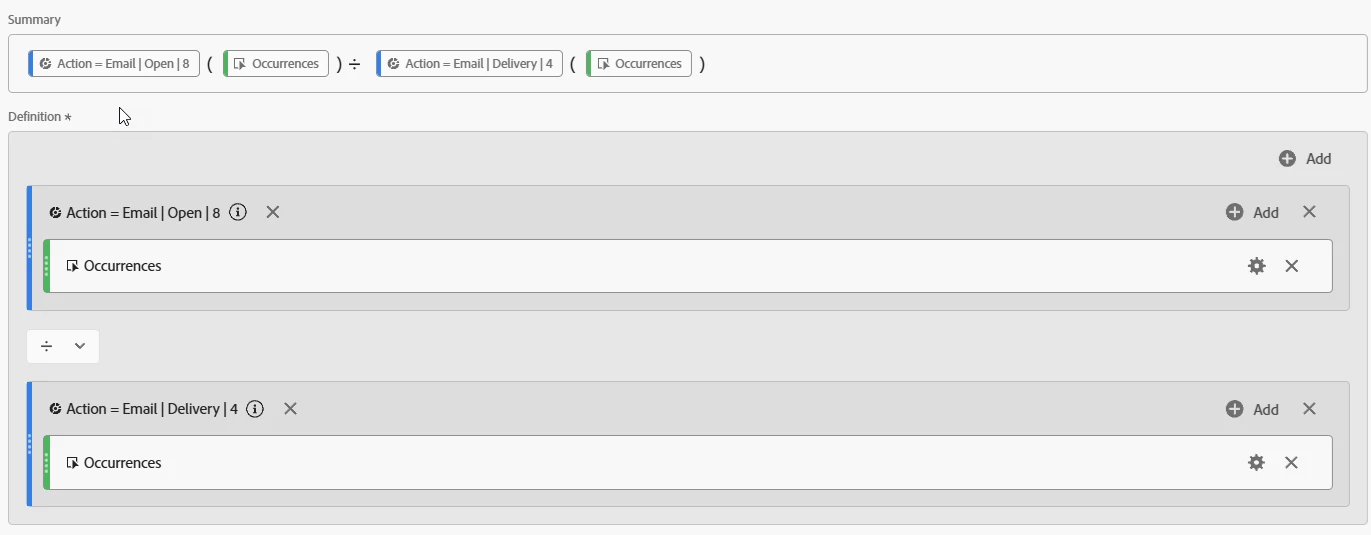
I'm trying to create an Email Open Rate metric and have it as a percentage.  This is what I've done so far but it's just showing it as decimals.  How can I get it to show the decimals as percentages e.g. June 2nd as 44% and not 0.44.  Thanks in advance


Meilleure réponse par Josh Stephens

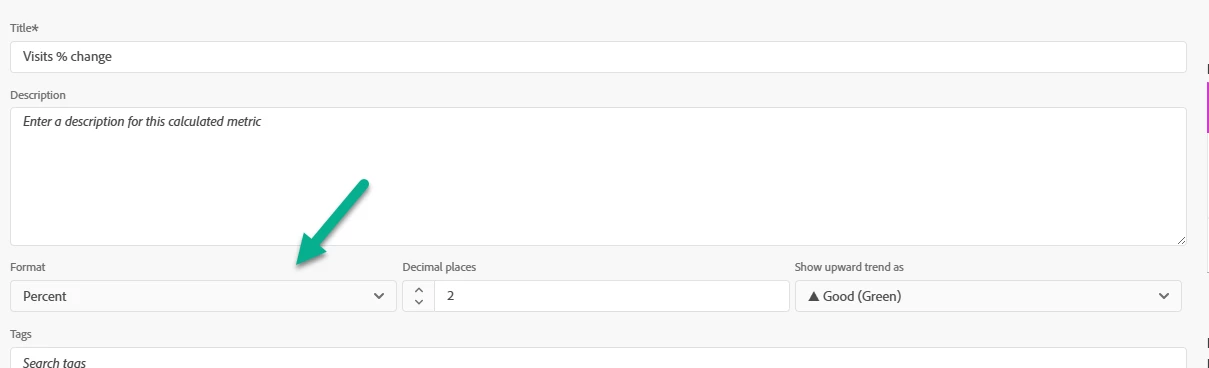
Hi @tthmx9 this is a great question! Near the top of the calculated metric, select the format dropdown and change it to percentage. You can then add additional decimals if you want to show 44.44% for example.


3 commentaires

Josh Stephens
Community Advisor
Community Advisor
June 5, 2025

Hi @tthmx9 this is a great question! Near the top of the calculated metric, select the format dropdown and change it to percentage. You can then add additional decimals if you want to show 44.44% for example.


Vinay_Chauhan
Community Advisor
Community Advisor
June 5, 2025

Hi! You can format it to show as a percentage by editing your calculated metric. Just click the gear icon when you're building the metric, and under “Format,” change it from number to “Percent.” You can also choose how many decimal places you want (e.g., 0 for 44%, or 2 decimal places which might result in 44.00%). 

You can also see the result in the preview on the right hand side of the calculated metric form -


tthmx9Auteur
Level 2
June 6, 2025

Thank you!

Jennifer_Dungan
Community Advisor and Adobe Champion
June 5, 2025

One other interesting piece of information in addition to the two great answers, is that you can change the colour scaling direction on calculated metrics...


By default, Up is Green, but you can flip that so that Up is Red:


This is helpful for calculated rates, like maybe you want to look at a Bounce or Refresh Rate...  In this case, higher numbers are bad, so you can make this change so that conditional backgrounds will appear with the correct colour schemes.