Add Paid/Natural Search to Marketing Channel Report? | Community
Skip to main content
paulc85305160
Level 2
February 7, 2018
Solved

Add Paid/Natural Search to Marketing Channel Report?

  • February 7, 2018
  • 16 replies
  • 41076 views

Hi Everyone!

All of our marketing channels have been defined and the processing rules have been created.

On the Classification Rule Builder, how can Paid/Natural search be setup so that it can be classified with everything else under our marketing channels.

Select Rule TypeEnter Match CriteriaSet ClassificationTo

Thanks!

This post is no longer active and is closed to new replies. Need help? Start a new post to ask your question.
Best answer by SarahEOwen

Hi -

Yuppers Here's how to do it.

1. Click on Admin > Reports Suites

2. Select the Report Suite that you are creating these marketing channels for

3. Hover over Edit Settings > Marketing Channels > Marketing Channel Manager

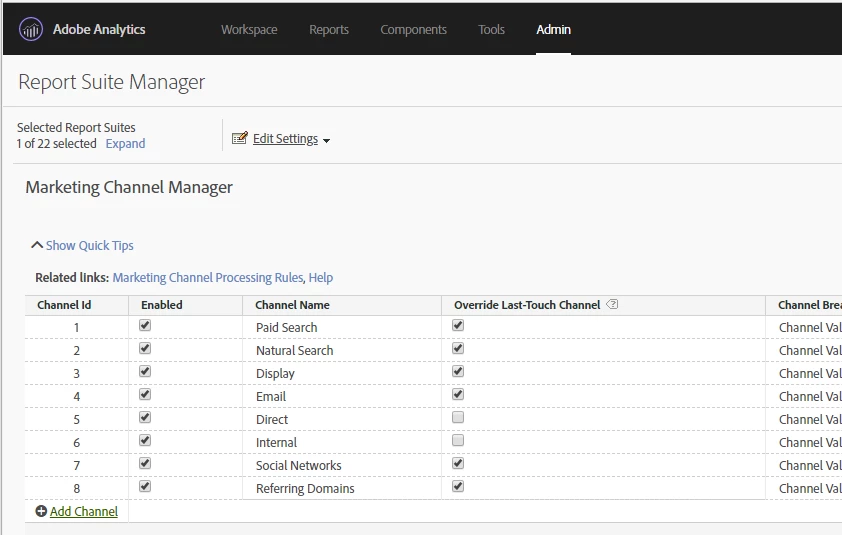
4. On this page, make sure to have a Channel named Paid Search and Organic Search (see screen shot below for a visual)
5. Now click on Marketing Channel Processing Rules (the link is beside the phase "Related links:").

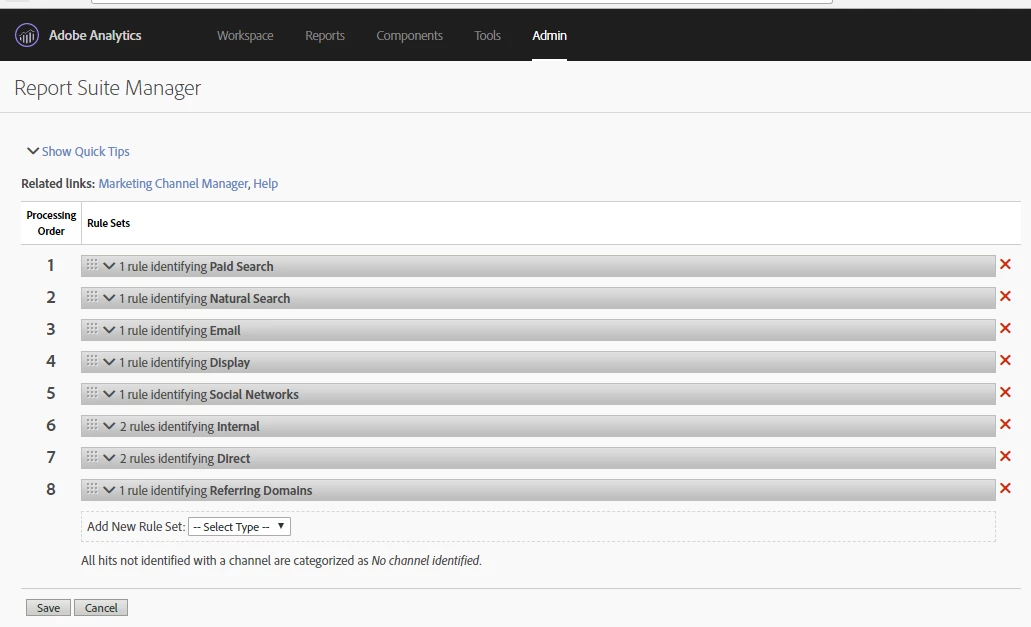
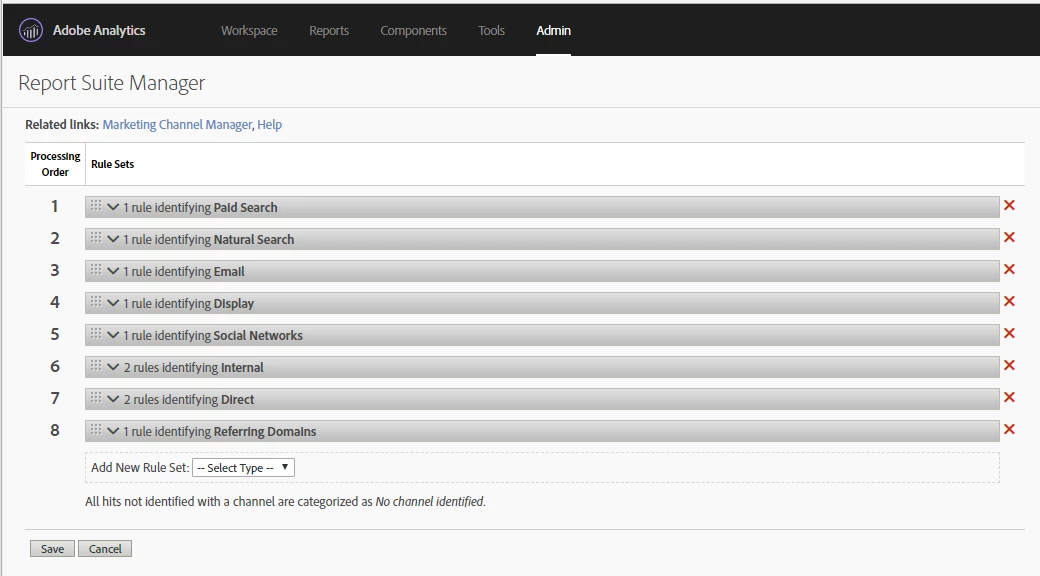
6. This page is displayed (see screen shot below)
7. Clicking on the chevron on the gray bar that says "1 rule identifying Paid Search" you will see the rule (see screen shot below for a visual)
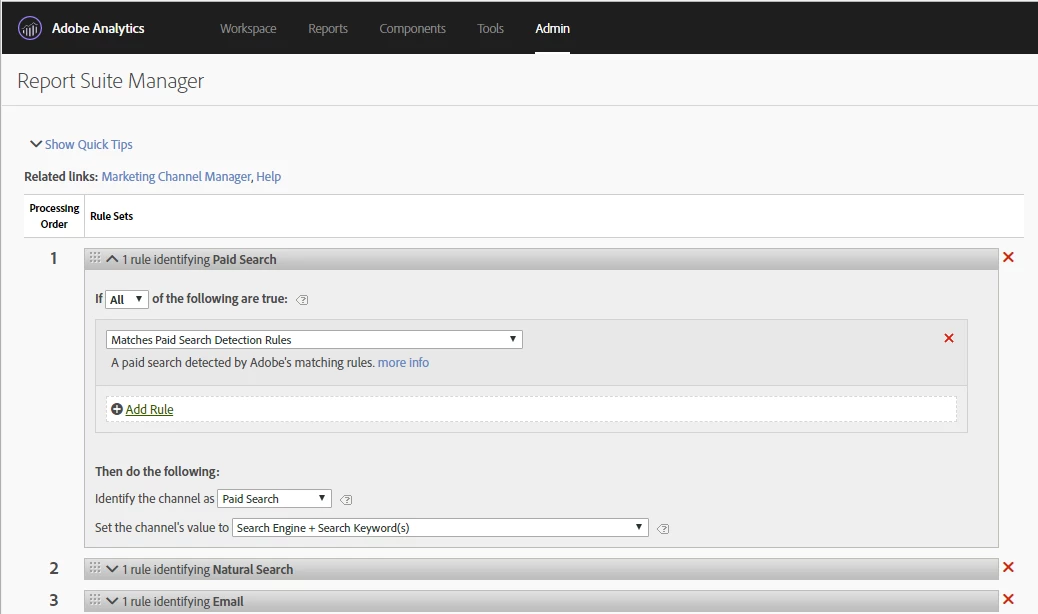
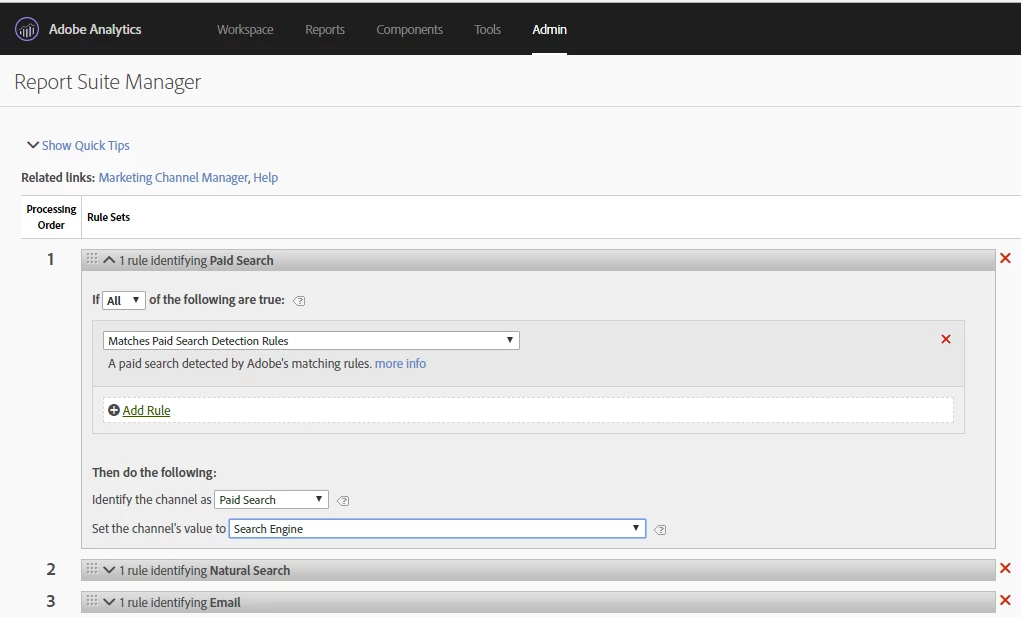
8. The default value for "Set the channel;s value to" is "Search Engine + Search Keyword(s). Given that the keywords are not usually available in analytics any more, I change this value to be "Search Engine" (see screen shot below for visual)
9. And then you see the next Marketing Channel processing rule is "1 rule identifying Natural Search" And when you expand it, you the rule (see screen shot below for visual)
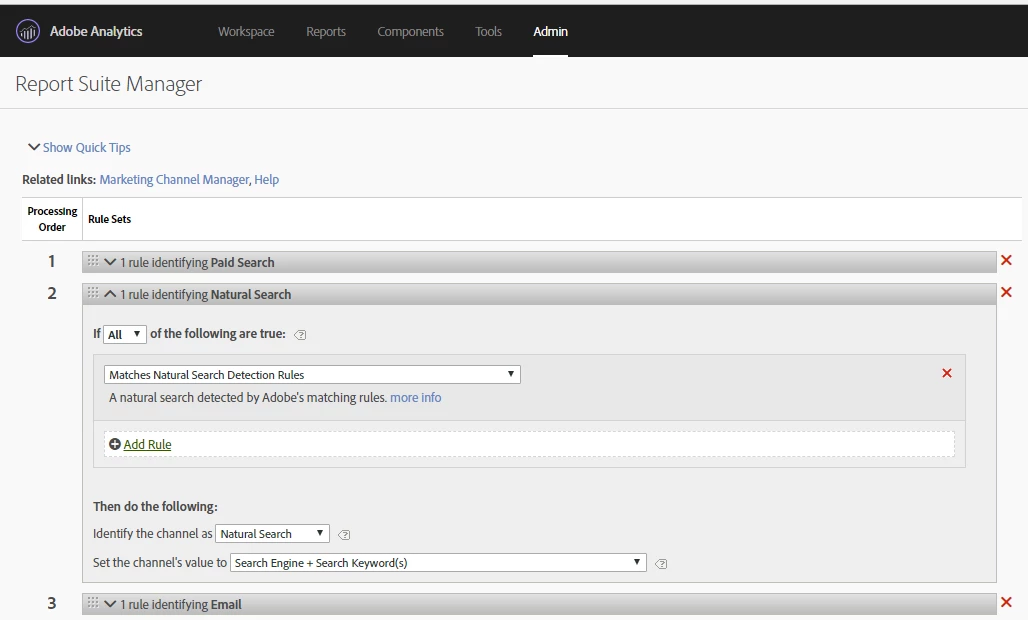
10. As with the Paid Search, I also change the "Set the channel's value to" from "Search Engine + Search Keyword(s)" to "Search Engine" (see screen shot below for visual).
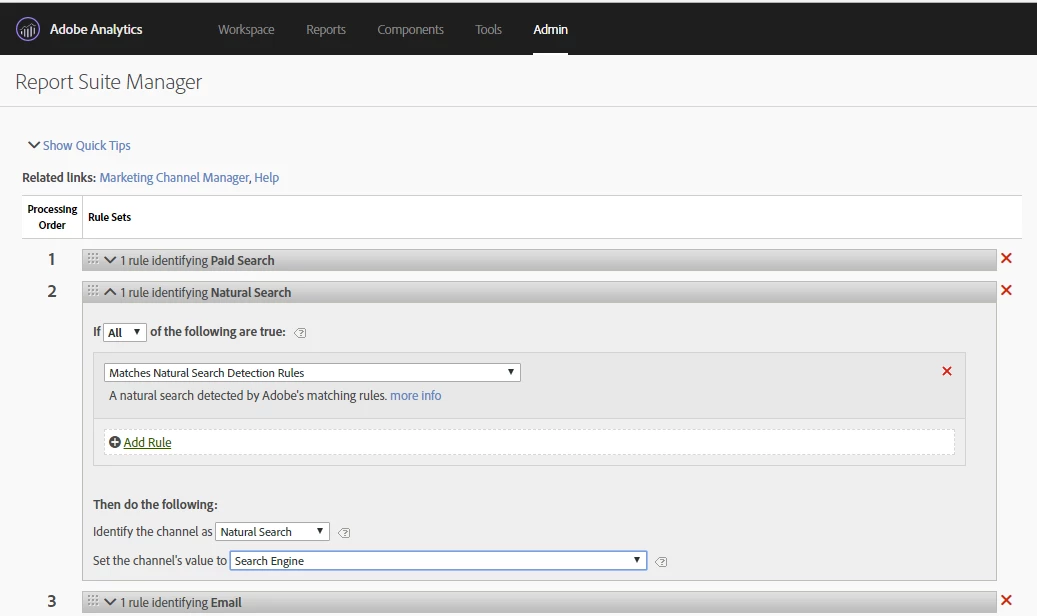
11. Click the "Save" button at the bottom of the page to save your changes. And you are done!
Thanks -

Sarah

16 replies

SarahEOwen
Level 9
February 7, 2018

Hi -

The Paid Search Detection logic is set-up via the Admin tool in Adobe Analytics.

  1. In the top navigation, click Admin > Report Suites to open the Report Suite Manager.
  2. Select the report suite you are making the Marketing Channel Rules for
  3. Click Edit Settings > General > Paid Search Detection.
  4. On the Paid Search Detection page, you will need to fill out the "Classify a Search Engine / Keyword as a paid search" section (see screen shot below). I usually leave Search Engine as "Any" and for the Query string I use the "contains" and enter the value of the tracking code that is specific to paid search (i.e. the portion of the CID= value that is specific for paid search)

    5. Click Add. And that's it!

Once you have the Paid Search Detection logic set up, the Natural Search Detection is also done. This is because Adobe knows that if a search referrer was not a paid search referrer, it must be a natural search referrer.

This article by Brent Dykes does a fantastic job of explaining how to set up Marketing Channel rules: Refresher on Adobe Analytics' Marketing Channels Reports: Part III | Adobe Blog 

And this Adobe Help article does a nice job of explaining stuff too: Frequently Asked Questions and Examples

Hopefully this helps!

Sarah

paulc85305160
Level 2
February 7, 2018

Hi Sarah!

Thanks for your reply!

Once I have the paid search logic setup, is it even possible to add them under the marketing channel rule builder?

I would like to build a marketing channel report keeping all my current channel metrics but also bringing in the split of natural/paid search traffic as additional 'marketing channels' in the report.

Thanks!

SarahEOwen
SarahEOwenAccepted solution
Level 9
February 8, 2018

Hi -

Yuppers Here's how to do it.

1. Click on Admin > Reports Suites

2. Select the Report Suite that you are creating these marketing channels for

3. Hover over Edit Settings > Marketing Channels > Marketing Channel Manager

4. On this page, make sure to have a Channel named Paid Search and Organic Search (see screen shot below for a visual)

5. Now click on Marketing Channel Processing Rules (the link is beside the phase "Related links:").

6. This page is displayed (see screen shot below)

7. Clicking on the chevron on the gray bar that says "1 rule identifying Paid Search" you will see the rule (see screen shot below for a visual)

8. The default value for "Set the channel;s value to" is "Search Engine + Search Keyword(s). Given that the keywords are not usually available in analytics any more, I change this value to be "Search Engine" (see screen shot below for visual)

9. And then you see the next Marketing Channel processing rule is "1 rule identifying Natural Search" And when you expand it, you the rule (see screen shot below for visual)

10. As with the Paid Search, I also change the "Set the channel's value to" from "Search Engine + Search Keyword(s)" to "Search Engine" (see screen shot below for visual).

11. Click the "Save" button at the bottom of the page to save your changes. And you are done!

Thanks -

Sarah

PratheepArunRaj
Community Advisor and Adobe Champion
February 8, 2018

Dear Paul,

To bucket your Marketing Channels under two broad categories, say, Organic(Natural) and Paid, just classify.

Step 1 : Create Classification under Marketing Channel Classifications.

Step 2 : Map the marketing Channels into Organic and Paid as per your definition using Classification Rule Builder.

Thank You!

Arun

Thank You, Pratheep Arun Raj B (Arun) | Xerago | Terryn Winter Analytics
paulc85305160
Level 2
February 13, 2018

Thank you both very much!

jayakrishnaap53
Level 3
February 14, 2018

Hey Sarah, Thank you so much for detailed explanation. In our project we have implemented the paid search detection and marketing channel processing as you showed on the screenshot above. Moreover, here we have used some parameter value as well like shown on the below screenshot. But we have also added "cpc" on paid search detection as well.

Marketing Channel Rule :

Paid Search Detection -

However, we see still the data shows "unspecified" on the report. The campaign is live and we couldn't see any data on the report for what we implemented.

This would be really helpful if you help us on this issue.

Hyder_Ziaee
Adobe Employee
Adobe Employee
February 14, 2018

Hi Jayakrishna,

I think there is a confusion between query string parameter and its value.

Take a sample URL of the format: https://www.abcde.com/path?p1=val1&p2=val2

Here p1 and p2 are paramters and val1 and val2 are values of the paramters.

From your screenshots, it seems Paid/paid/cpc/CPC are values and not parameters. As such, your paid search detection rules are incorrect.

jayakrishnaap53
Level 3
February 14, 2018

Hey, Thanks for your prompt assist.

So, you want me to add that parameter as "umedium" in Paid Search Detection as per the screenshot (what we have used).

Here lets consider this is our campaign URL - ?source=BEN_D_H&umedium=CPC&uadpub=Bing&ucampaign=Somethingelsegood&ucreative=state&uplace=goodone&cmpid=1

what should I need to add on the Paid Search Detection then? please let me know.

SarahEOwen
Level 9
February 14, 2018

Hi @jayakrishnaap53766400 - 

A couple questions:

1) Is the "Matches Paid Search Detection Rules" the 1st row in your Marketing Channels?

2) Is umedium only used for Paid Search or is it used for other types of campaigns (i.e. banner ads, social media posts, etc.)?

Hi @hyderziaee -

If only the query parameter is placed in the Paid Search Detection rule, then how would the rule be able to differentiate between paid search and say a banner ad when the same query parameter is used on both but specific values denote search vs. banner?

For example, here is a paid search URL --> abc.com?cid=t_s_restOfTheValue and here is a banner ad URL --> abc.com?cid=t_b_restOfTheValue. See how both have cid= as the query parameter but the first 4 characters denote the different marketing tactics --> t_s_ denotes a search and t_b_ denotes a banner ad

Have a happy day -

Sarah

Hyder_Ziaee
Adobe Employee
Adobe Employee
February 14, 2018

So Sarah's second question is spot on. You should have a parameter for detecting paid search, Further categorization of the paid search, as which search engine was it or other identification should be through its value.

The  paid search is being detected through the presence of the parameter in the URL, not its value.

if pid is my parameter, both the following will be categorized as paid search, if pid is mentioned in the rules:

  • abc.com?pid=value1&cid=value2
  • abc.com?pid=&cid=value2

It is essentially a flag. The absence of this parameter indicates an organic search.

Hope this helps.