Can't override blue rows on report | Community
Skip to main content
spencer_w
Level 2
July 30, 2026
Solved

Can't override blue rows on report

  • July 30, 2026
  • 2 replies
  • 99 views

Hi all, 


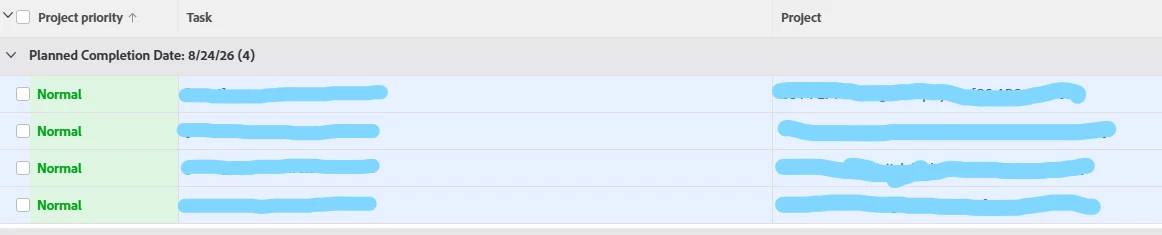
We are trying to create a task report filtered specifically to show “not ready” tasks so users can plan ahead. However, when changing the “Task » Can Start” from true to false it turns all of our reporting rows blue. 

 

Filter in the report
Blue reporting rows

There is conditional formatting on the “priority” column as you can see, but there is nothing anywhere (including in those conditions) that uses blue or “apply to entire row.” 


Even if I attempt to add a condition to override this to a white background, the blue remains. The only way to turn it off is to reset the “can start” filter to true. 


Any ideas what could be causing this behavior? Is there some sort of global setting I’m missing? Totally stumped. Thanks in advance!

Best answer by StutiTi

Hi ​@spencer_w , I tested this in a report filtered on Can Start = false and the rows did not turn blue on their own, so this isn't automatic behavior triggered by the filter itself. That points to something specific in your view or instance rather than expected Workfront behavior.

Since it's not reproducible as a default and it's persisting even when you try to override it, I'd recommend opening a support case so Adobe can look at your specific report configuration and instance. That's the fastest way to get to the root cause here.

2 replies

skyehansen
Adobe Champion and Community Advisor
July 31, 2026

is this happening on multiple reports? I would take a recording of yourself creating a task report from scratch, filtering it and then showing the blue rows that result in this. Then just send the recording to Support.

StutiTiAdobe SupportAccepted solution
Adobe Support
August 4, 2026

Hi ​@spencer_w , I tested this in a report filtered on Can Start = false and the rows did not turn blue on their own, so this isn't automatic behavior triggered by the filter itself. That points to something specific in your view or instance rather than expected Workfront behavior.

Since it's not reproducible as a default and it's persisting even when you try to override it, I'd recommend opening a support case so Adobe can look at your specific report configuration and instance. That's the fastest way to get to the root cause here.