Can you create custom hover effects on buttons? | Community
Skip to main content
ChrisPhillipsUC
Level 2
June 24, 2026
Solved

Can you create custom hover effects on buttons?

  • June 24, 2026
  • 1 reply
  • 126 views

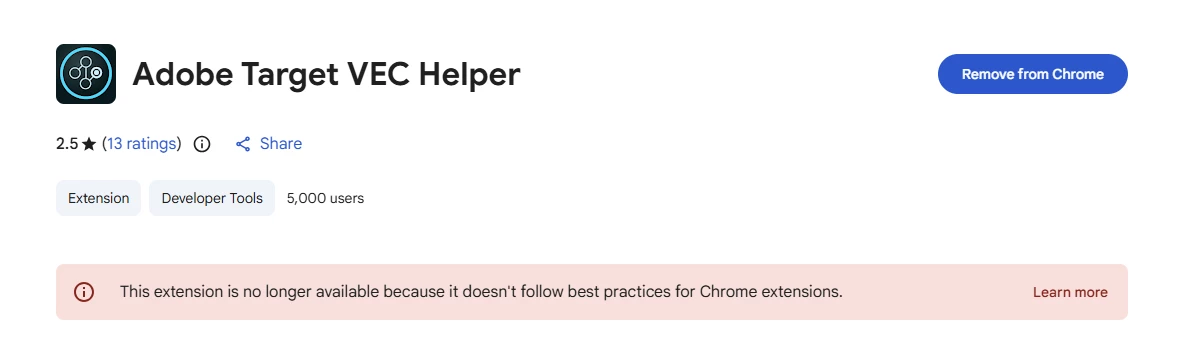
It seems it was possible using VEC extension in Chrome, but Chrome no long has this as an option.

So...for a Target user, who knows nothing about CSS or Code can a user change the :hover effects of a text link or a button with text?

Is there anything in the existing UI that could do this. I have found the basic RTE options that can style the text but nothing about adding button/link states.

Our customer base/AEM editors should be able to do with without getting a developer involved to write inline CSS as this is Marketing tool not a Developer tool. 

Any ideas more than welcome!


    Best answer by PrasanthV

    Hi ​@ChrisPhillipsUC,

    The direct answer regarding native, click-and-point features in the Adobe Target UI is no. The Visual Experience Composer (VEC) does not have an out-of-the-box dropdown or toggle designed to modify specific pseudo-states like :hover or :active visually.

    The core WYSIWYG editor changes the default visual state of the element as it appears on page load.

    However, because you are dealing with AEM Editors and Marketers who shouldn't have to touch inline code or rely on a developer, you can implement a workaround that keeps the process entirely code-free for them.

    The Strategy: Leverage "Custom CSS" Once (Architect Layer)

    While the marketers can't click a button to change a hover state, the VEC does include an feature called Edit CSS (available via the Page Settings gear icon or the element options panel).

    Instead of writing custom code for every single activity, you can set up global utility helper classes in your site's main style sheet (AEM client libraries). This creates an environment where marketers can alter hovers using simple text fields.

    How to Make it No-Code for Marketers

    Have your development team add a few universal "Personalization Utility Classes" to your global AEM CSS codebase once.

    Step 1: The One-Time Developer Setup (In AEM)

    Your team drops helper classes into the site style sheets like this:

    CSS


    /* Generic global utilities for Target users */
    .target-hover-red:hover { background-color: #FF0000 !important; color: #FFFFFF !important; }
    .target-hover-blue:hover { background-color: #0000FF !important; color: #FFFFFF !important; }
    .target-hover-green:hover { background-color: #008000 !important; color: #FFFFFF !important; }

    Step 2: The Marketer's Workflow (In Target VEC)

    Now, when an AEM editor wants to change a button's hover state in Target, they don't write code. They use the native CSS Class tool.

    1. Open the activity in the VEC.

    2. Click on the button or text link they want to modify.

    3. In the context menu, select Edit CSS Class.

    4. Type in the helper class (e.g., target-hover-red) and click save.

    The button immediately inherits the hover rules safely, cleanly, and without any code on the marketer's screen.

    1 reply

    PrasanthVAccepted solution
    Level 3
    June 29, 2026

    Hi ​@ChrisPhillipsUC,

    The direct answer regarding native, click-and-point features in the Adobe Target UI is no. The Visual Experience Composer (VEC) does not have an out-of-the-box dropdown or toggle designed to modify specific pseudo-states like :hover or :active visually.

    The core WYSIWYG editor changes the default visual state of the element as it appears on page load.

    However, because you are dealing with AEM Editors and Marketers who shouldn't have to touch inline code or rely on a developer, you can implement a workaround that keeps the process entirely code-free for them.

    The Strategy: Leverage "Custom CSS" Once (Architect Layer)

    While the marketers can't click a button to change a hover state, the VEC does include an feature called Edit CSS (available via the Page Settings gear icon or the element options panel).

    Instead of writing custom code for every single activity, you can set up global utility helper classes in your site's main style sheet (AEM client libraries). This creates an environment where marketers can alter hovers using simple text fields.

    How to Make it No-Code for Marketers

    Have your development team add a few universal "Personalization Utility Classes" to your global AEM CSS codebase once.

    Step 1: The One-Time Developer Setup (In AEM)

    Your team drops helper classes into the site style sheets like this:

    CSS


    /* Generic global utilities for Target users */
    .target-hover-red:hover { background-color: #FF0000 !important; color: #FFFFFF !important; }
    .target-hover-blue:hover { background-color: #0000FF !important; color: #FFFFFF !important; }
    .target-hover-green:hover { background-color: #008000 !important; color: #FFFFFF !important; }

    Step 2: The Marketer's Workflow (In Target VEC)

    Now, when an AEM editor wants to change a button's hover state in Target, they don't write code. They use the native CSS Class tool.

    1. Open the activity in the VEC.

    2. Click on the button or text link they want to modify.

    3. In the context menu, select Edit CSS Class.

    4. Type in the helper class (e.g., target-hover-red) and click save.

    The button immediately inherits the hover rules safely, cleanly, and without any code on the marketer's screen.

    ChrisPhillipsUC
    Level 2
    June 29, 2026

    Thank you!!! This should work perfectly. 
    I was hoping it would be a little like browser DevTools where you can change the values on the go, but having classes to choose from will be easier for non-developers to understand.

    Level 3
    July 2, 2026

    I’m glad it helped you.