Connection to PowerBI using Query Service - sslmode | Community
Skip to main content
Level 2
November 26, 2024
Solved

Connection to PowerBI using Query Service - sslmode

  • November 26, 2024
  • 3 replies
  • 1469 views

Hi,


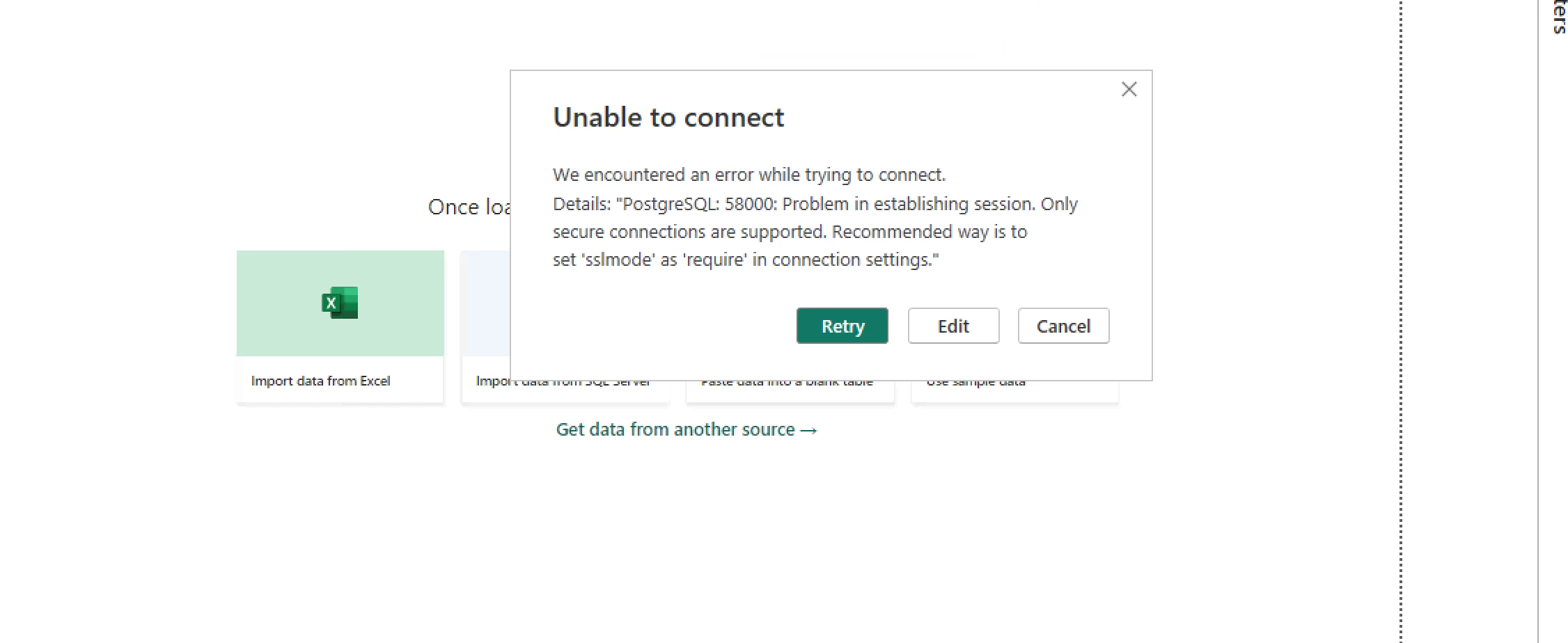
I'm trying to connect PowerBI to Query Service. However, I'm running into a problem "Unable to connect". It's says that only secure connections are supported, and that I have to set "sslmode" as "require" in connection settings. Where do I have to set that while connecting to PostgreSQL?


Thanks
Best answer by Parvesh_Parmar

Hi @renatozu , 


I have just did a test and my connection is working. 

I have followed the following steps: 


Steps to Connect Power BI to Query Service

  1. Open Power BI:

    • Launch Power BI Desktop.
    • Select Get Data from the top menu.
  2. Select Data Source:

    • In the search bar, type "PostgreSQL".
    • Select PostgreSQL database from the results and click Connect.
  3. Enter Server and Database Information:

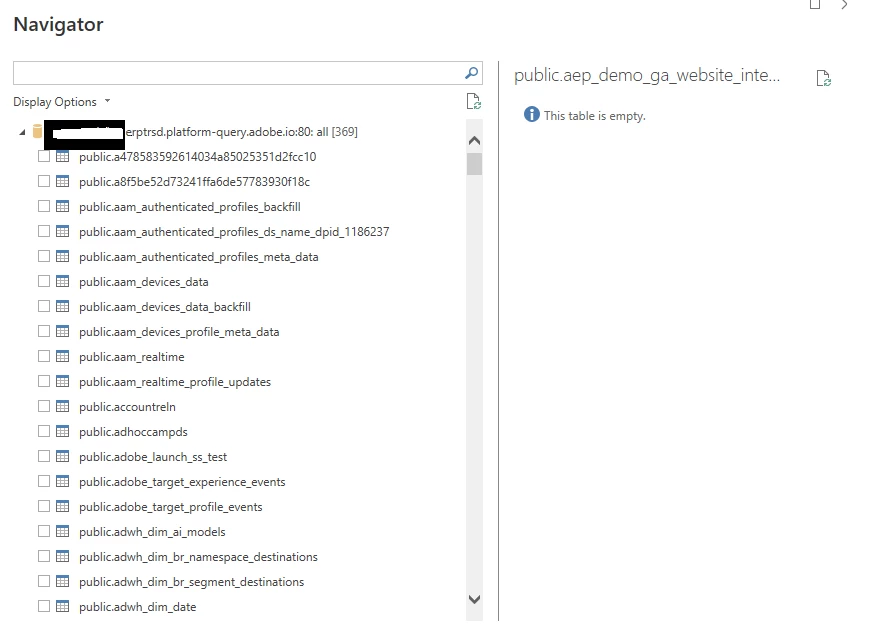
    • In the PostgreSQL database dialog, enter the server and database values from your Adobe Experience Platform credentials.
    • For the server, use the host value from the Query Service Credentials section and append :80 for production (e.g., made-up.platform-query.adobe.io:80).
    • For the database, you can use "all" or specify a dataset table name (e.g., prod:all).
  4. Choose Data Connectivity Mode:

    • You can select either Import or DirectQuery mode:
      • Import: Imports the full dataset into Power BI.
      • DirectQuery: Queries the data source directly without importing data.
  5. Authentication:

    • Enter your username (Organization ID) and password (authentication token) from the Query Service credentials page.
    • Click Connect.

Kr,

Parvesh 


3 replies

Tof_Jossic
Adobe Employee
Adobe Employee
November 26, 2024
Parvesh_Parmar
Community Advisor
Parvesh_ParmarCommunity AdvisorAccepted solution
Community Advisor
November 27, 2024

Hi @renatozu , 


I have just did a test and my connection is working. 

I have followed the following steps: 


Steps to Connect Power BI to Query Service

  1. Open Power BI:

    • Launch Power BI Desktop.
    • Select Get Data from the top menu.
  2. Select Data Source:

    • In the search bar, type "PostgreSQL".
    • Select PostgreSQL database from the results and click Connect.
  3. Enter Server and Database Information:

    • In the PostgreSQL database dialog, enter the server and database values from your Adobe Experience Platform credentials.
    • For the server, use the host value from the Query Service Credentials section and append :80 for production (e.g., made-up.platform-query.adobe.io:80).
    • For the database, you can use "all" or specify a dataset table name (e.g., prod:all).
  4. Choose Data Connectivity Mode:

    • You can select either Import or DirectQuery mode:
      • Import: Imports the full dataset into Power BI.
      • DirectQuery: Queries the data source directly without importing data.
  5. Authentication:

    • Enter your username (Organization ID) and password (authentication token) from the Query Service credentials page.
    • Click Connect.

Kr,

Parvesh 


Parvesh Parmar – Adobe Community Advisor https://www.linkedin.com/in/parvesh-parmar/
RenatoZuAuthor
Level 2
December 3, 2024

Hi @parvesh_parmar 


That's not working for me. After trying to connect, I get the error message that is attached when I created this thread. 


Best,

Renato

March 14, 2025

Hi @renatozu ,


I'm experiencing exactly the same problem.

The past 6 months I could connect to my cloud "prod:all" database in Power Bi desktop, and one week later, the very same credentials triggered the screenshot error you've showing.


In my case; those same credentials can be used without problem in a Power Bi dataflow (that was my workaround).


By your side, Did you found a way to fix the local connection from a desktop file?


RenatoZuAuthor
Level 2
March 19, 2025

Hi @miguelma2 


The issue I was having was because I downloaded PowerBI for desktop directly from web. However, I had to download it directly from the Enterprise Apps Catalog of my Company. So, after uninstalling and reinstalling it again, it worked correctly. That being said, I think this could be due to several reasons. I would recommend reaching your enterprise support to review it.


Best,

Renato