Update the Look and Feel of Your Forms by Checking Out the Marketo Form Library | Community
Skip to main content
December 29, 2014

Update the Look and Feel of Your Forms by Checking Out the Marketo Form Library

  • December 29, 2014
  • 15 replies
  • 9130 views

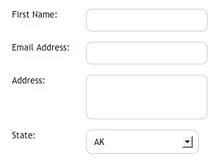
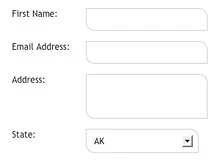
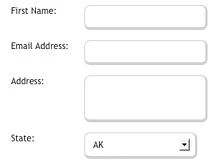
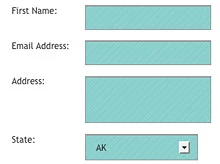
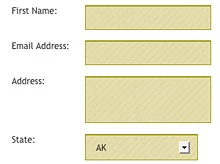
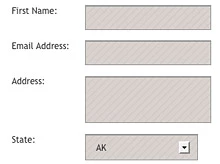
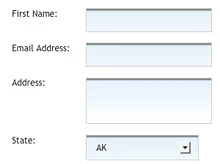
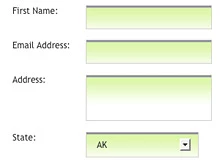
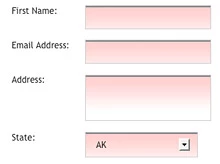
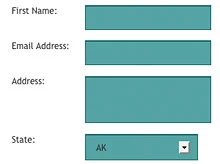
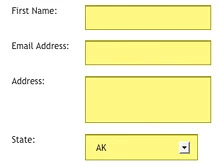
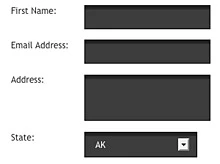
The Form Library lets you style your forms with an up-to-date look and feel just by dragging and dropping the CSS into your Marketo landing pages or template.  As a side note, the Form Library ONLY styles input, textarea, and select (drop-downs) fields and NOT your radio buttons or check-box selections.


Here's how it works:

1. Choose a form from the table below by clicking on the image.
2. Download the zipped file to your desktop.
3. Open the file and upload the provided images into your Marketo image library.
4. Open the provided code and replace "mktoWeb" with your directory name.


Example:


<style>
.mktInput input, .mktInput select, .mktInput textarea  {
background: url(rs/mktoWeb/images/input_bg.png) repeat-x scroll 0 0;
border: 1px solid #D4D2D2 !important;
font-size:20px;
padding: 8px 10px;
cursor:pointer;
}


.mktInput input:focus, .mktInput select:focus, .mktInput textarea:focus  {
background: url(rs/mktoWeb/images/input_bgHover.png) repeat-x scroll 0 0;
}
</style>


5. Copy the code and paste in on your landing page by  choosing the Custom HTML option within the design studio.


Note: Some forms use CSS3 for styling. The style is supported in all major browsers except Internet Explorer. You will need to be using IE9 or higher for any form using CSS3.

Is this article helpful ?

YesNo


Download code for this form

Download code for this form

Download code for this form

Download code for this form

Download code for this form

Download code for this form

Download code for this form

Download code for this form

Download code for this form

Download code for this form

Download code for this form

Download code for this form

This post is no longer active and is closed to new replies. Need help? Start a new post to ask your question.

15 replies

June 3, 2015

Does not look like the 'Download Code' links are active.  Is this still being worked on?

Kenneth_Law
Level 6
June 3, 2015

Sorry, we didn't link the urls.  The links are all active now.

@James Zeigler​

June 18, 2015

Is there any way to put the "Autofill" with social network area from the top of the form?

October 7, 2015

Is there any way to position the Labels on the Right. Currently I'm only given the option to set Labels "Left" or "Above".

January 21, 2016

Did you get an answer to this?

February 5, 2016

Also would like to know the answer to this question.

March 10, 2016

I did this by applying custom CSS:

.mktoForm .mktoFormRow {

    float: left !important;

}

March 10, 2016

Hey Ben - I had a similar approach to moving the label over to the right. I used this in the CSS:

label {

      float: right !important;

}

Yoav_Guttman1
Level 4
March 23, 2016

are there any other custom examples with CSS you can provide?

March 23, 2016

Hey Yoav,

What is it that you are trying to accomplish? Putting the labels on the right side?