Troubleshooting Web Personalization (RTP) - RTP Data not Flowing into Google Analytics (GA) Instance
Included in this Article:
Overview
Data from RTP can be linked to Google Analytics (GA) for further analysis. Below we show you how to check if data is being transferred and a few troubleshooting steps if you find that it isn't.
Check if Data is Being Transferred to GA
Log in to GA and navigate to Reporting > Behavior > Events > Top Events
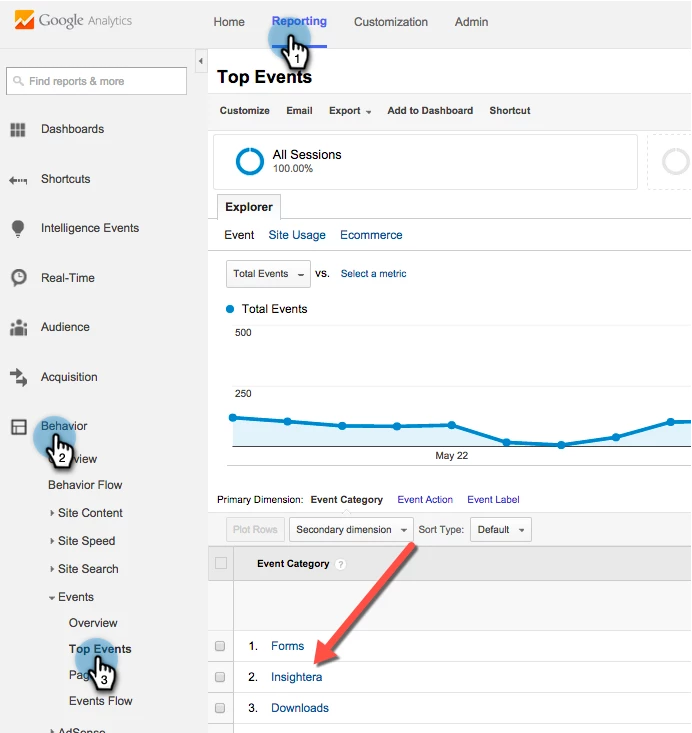
You should find events with either the category "Insighterra" or "RTP". If not, another place to check for incoming RTP data is in the Custom Variables tab.
Navigate to Reporting > Audience > Custom > Custom Variables
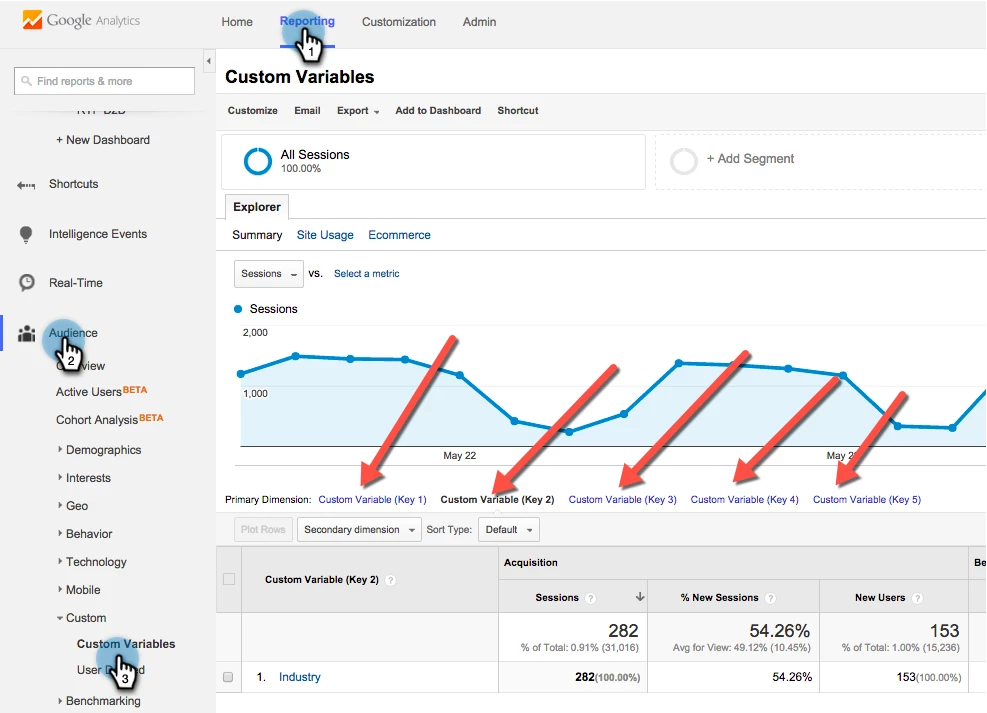
If you use custom variables, you should see RTP data populated here.

If you expected to see populated data in either of these two areas but you aren't seeing any, then you are having issues with your RTP-GA integration. Check out the steps below for some troubleshooting tips.

Troubleshooting Steps
If you have confirmed that there is no data flowing to GA, there are a few troubleshooting steps which you can take.
Check if GA is Enabled
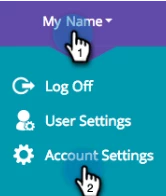
Go to Account Settings
At the bottom of the page, verify that Google Analytics or Google Universal Analytics is enabled. Only one of these integrations should be enabled at a time - if both are, disable one of them.
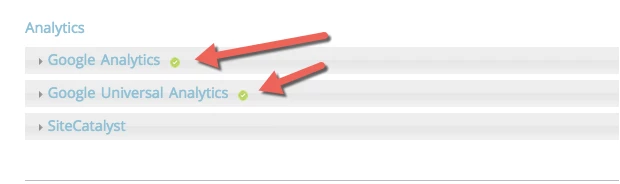
If neither is enabled, go ahead and enable one of them. Follow this article to learn more about enabling and integrating GA with RTP.
Verify both RTP and GA tags are loading on your website
To verify this, you will need to navigate to your web page and open the browser's developer tools window. Follow this link to learn what the developer tools window is and how to get there on different browsers and operating systems.
Navigate to your browser's developer tools
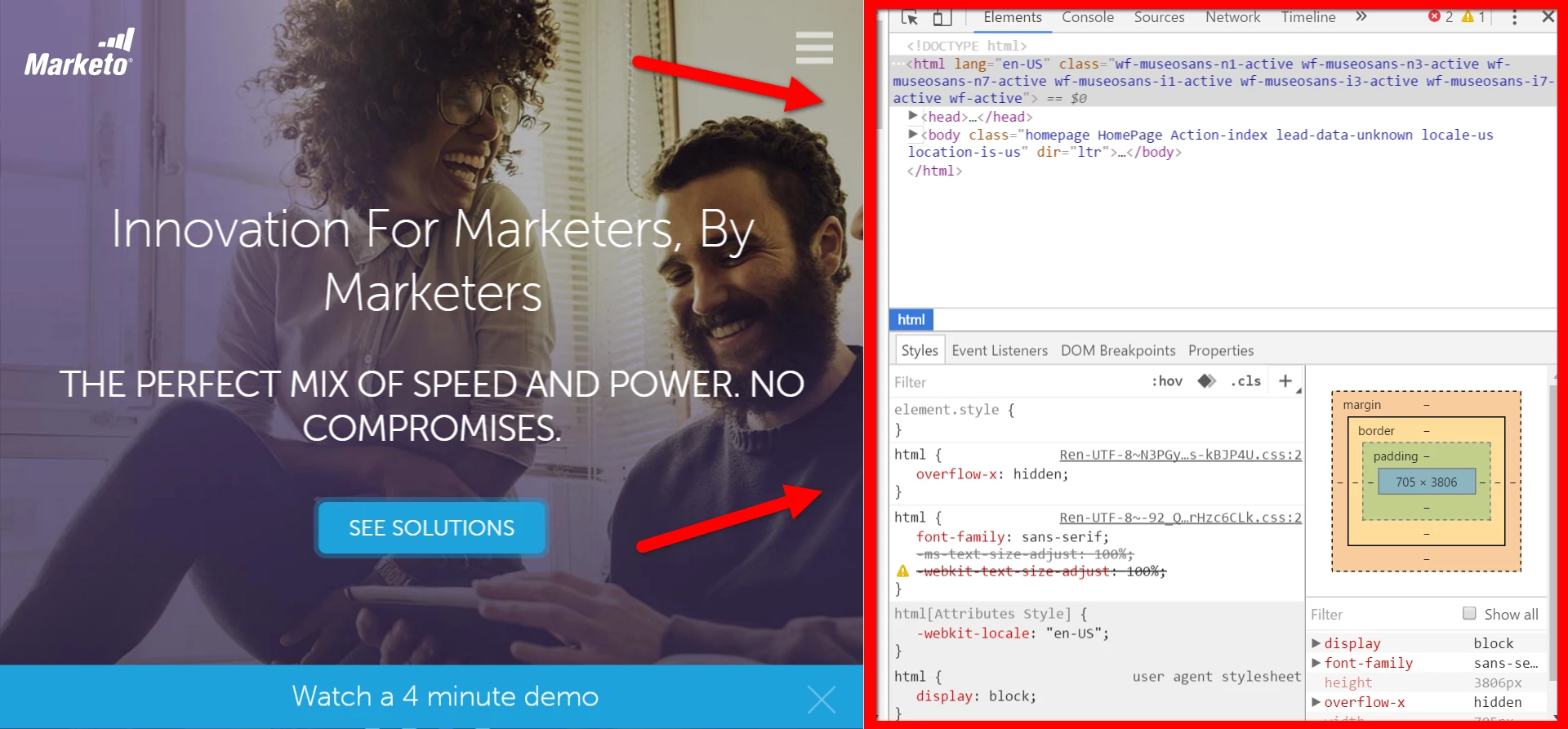
Click the Network tab and search for "analytics.js" and "rtp.js"
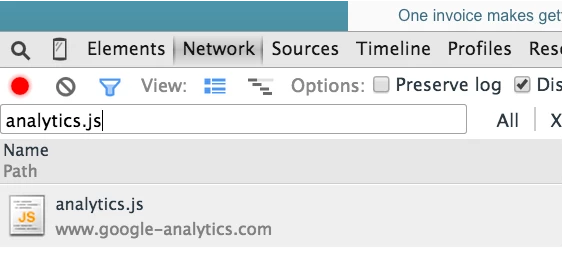
If both "analytics.js" and "rtp.js" show up in your search, then both RTP and GA are loading on your website. If one or both are missing, go through these steps to add an RTP tag to your website, and these steps to add a GA tag.
Check GoogleAnalyticsObject customizations
If you're using Google Universal Analytics, check if customizations have been made to the GoogleAnalyticsObject. Read this article to learn more about this object and its possible customizations. To check for customizations, follow the steps below:
Click on the Console tab in the developer tools and run GoogleAnalyticsObject
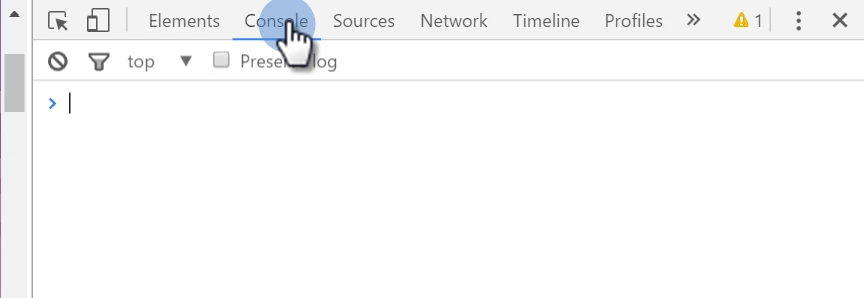
Type "GoogleAnalyticsObject" and hit Enter to check the object's type
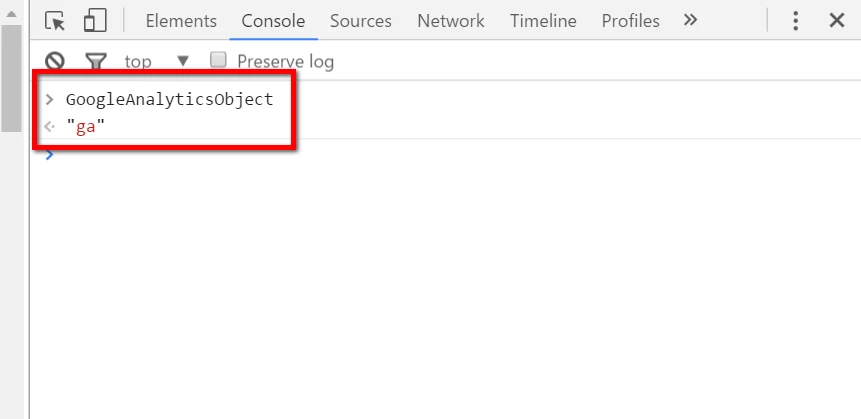
If the object's name is "ga", then you are in the clear. If not, unfortunately we do not currently support the customization.