
Troubleshooting Web Personalization (RTP) - Can't Preview Campaigns using Proxy
Included in this article:
Overview
Preview is a feature that allows you to see your campaign without having the campaign deployed on your website, but not all web pages allow this. If it is not working with your website, here are some troubleshooting steps to try.
Basic Troubleshooting
- Verify the RTP tag is loading properly on the target page. If there is no RTP tag, there's no way for the preview to work.
- Clear your browser cache and cookies.
- Have someone else test the preview. Copy and paste the link from the preview window to share the campaign example with others.
- Copy and paste the link from the preview window into another browser and try it there.
- If it is an In-Zone campaign, verify the div ID specified in the campaign exists on the page you are trying to preview.
- Go to the original website and look for jQuery / Javascript errors.
- Create a new campaign containing only the word "Test" and try to preview it on the same page. Since the maximum length of a URL for most browsers is 2048 characters, a large campaign may fail in the browser
Troubleshooting Web Page Restrictions
If you get an error such as the ones below, it may be that your website is blocking proxy or cross-domain requests. This would be a configuration that was made by the IT team in charge of the webpage, perhaps as some sort of connection timeout or DoS attack prevention measures. You may need to work with your IT team to have the proxy request enabled.

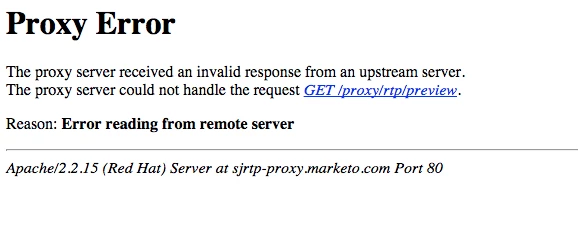
- Verify that the preview URL is correct - this message might also show up when trying to preview on non-existing pages.
- If your site has SSL, make sure the certificate is up to date using a tool such as https://www.sslshopper.com/ssl-checker.html.
Testing with a Sandbox Segment
In cases where the preview option doesn't work due to website proxy or cross-domain restrictions, and you want to see what you campaign looks like live on your website without customers seeing it, we recommend using a Sandbox segment. Sandboxing allows you to match a segment and see the campaign live by targeting a specific term added into the URL. Since leads won't randomly guess the value and alter the URL, it's safe to test on a live site. Here's how you do it.
- Create a new 'Sandbox' segment (i.e "sandbox=1" / "sandbox=2"...)
- Add the Included Pages filter and enter *sandbox=1* as the value for the URL matches.
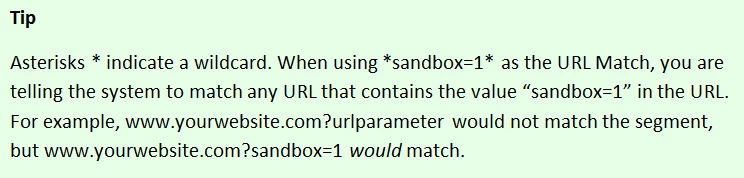
- Click 'Save & Define Campaign'
- Change the campaign's target segment
- Select the new 'Sandbox' segment from the dropdown list
- Click 'Launch'
- Preview on the website
- Go to your live web page and add the URL parameter at the end of the URL, i.e: www.marketo.com?sandbox=1
In order to see the campaign again or changes made, you will need to clear browser cookies.