
Campaign Inspector for Triggered & Recurring Campaigns
Overview
It can be difficult sometimes to know how many trigger campaigns you have running or where they’re located. Marketo can show you where they all are inside of the Campaign Inspector. This article will show you where to find Campaign Inspector and what to look for when you’re going through it.
Turning on Campaign Inspector
Campaign Inspector isn’t enabled in all Marketo instances by default, but it can be switched on pretty quickly.
To turn on Campaign Inspector:
1. Log in to your Marketo instance.
2. Click on the Admin link at the top of the window.

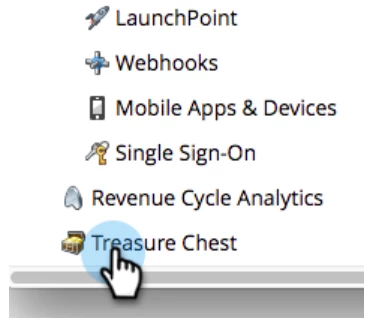
3. Click on Treasure Chest.
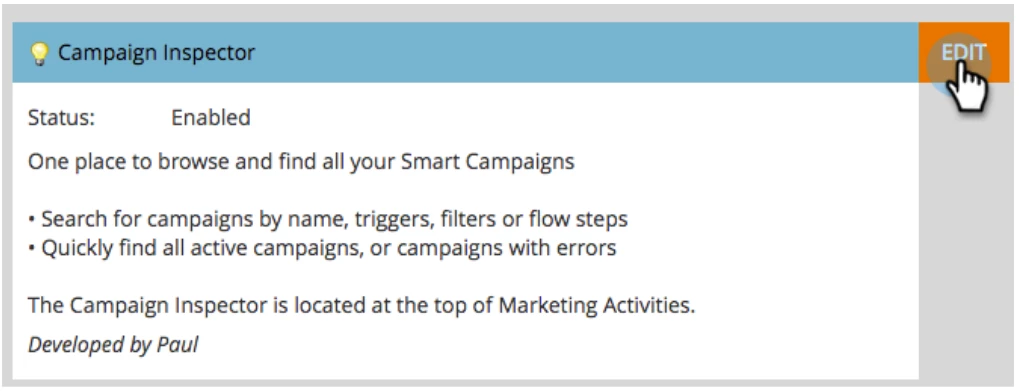
4. On the Campaign Inspector section, click EDIT.
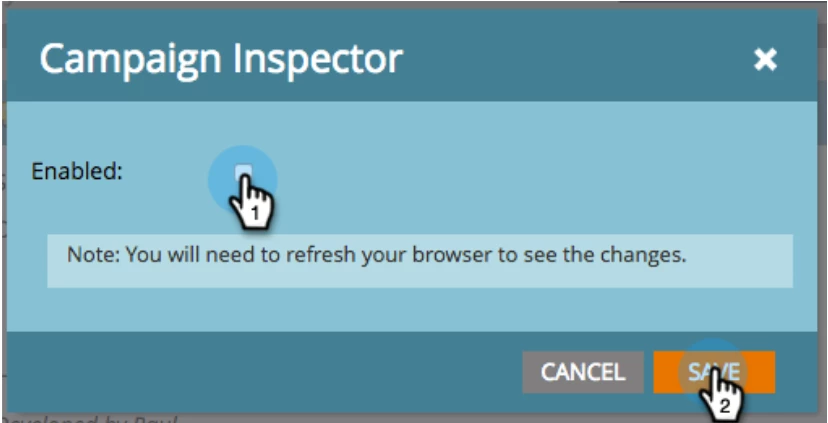
5. In the dialog window that appears, check the Enabled box and click the Save button.
If you have trouble turning on Campaign Inspector, please Contact Marketo Support
Finding Campaign Inspector
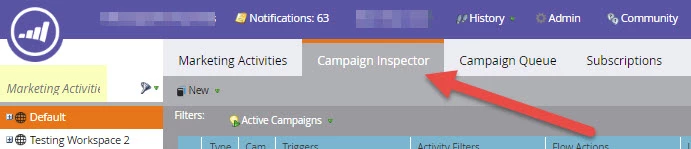
The Campaign Inspector is a tab located inside of Marketing Activities. Once it’s enabled, you will find it right next to the Marketing Activities tab.
What does Campaign Inspector show?
The Campaign Inspector will show you the active trigger campaigns or recurring batch campaigns that you have in your Marketo instance.
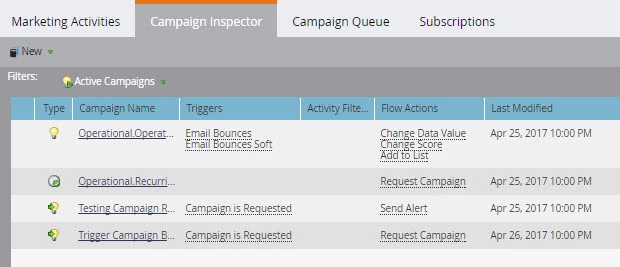
As you can see, the details can be sorted by Campaign Type, Campaign Name, Triggers Used, Activity Filters, Flow Actions used, and the date it was last modified.
Searching for specific campaigns
At the bottom of the window, there is a search field where you can search for specific campaigns.
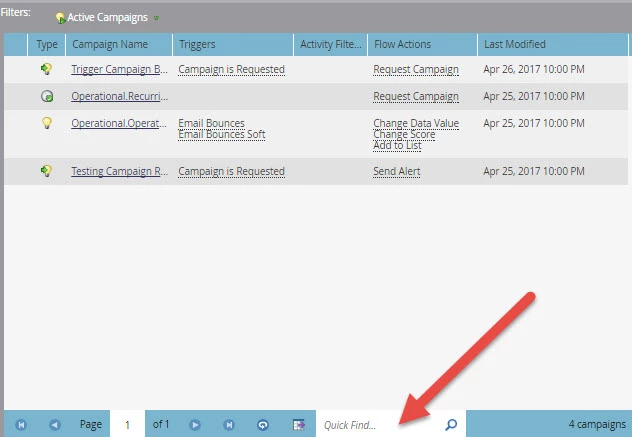
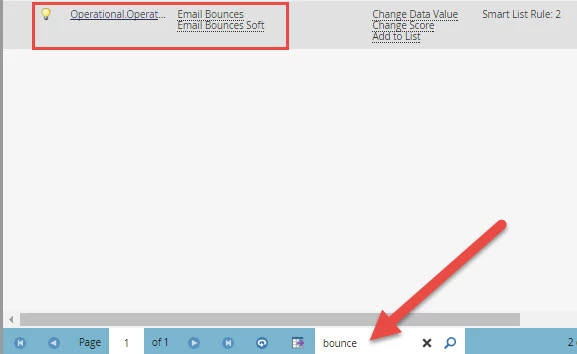
For example, in the screenshot above, you’ll see an operational campaign with triggers listening for emails that have bounced. If you search for the word “bounce” in the quick find, these campaigns will pop right up! Makes it really handy when you have large numbers of campaigns running!
Exporting the results
One of the great benefits of Campaign Inspector is that it has the ability to export results! Just click the export button at the bottom on the toolbar and you’ll get the spreadsheet downloaded.
