Build an Email Analysis Report That Shows you A/B Test Info
You can now build reports that show you A/B test data. Here we go!
1. Launch Revenue Explorer.
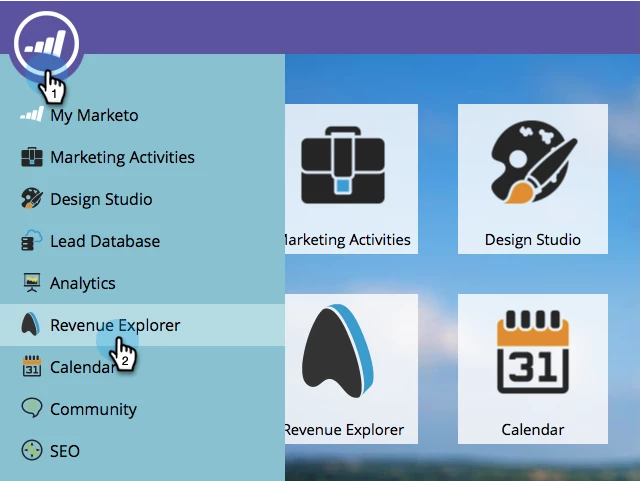
2. Click New Report.
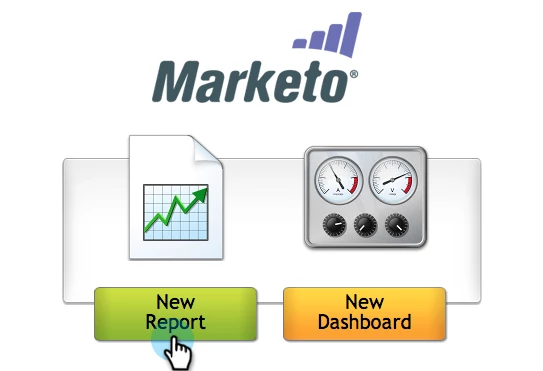
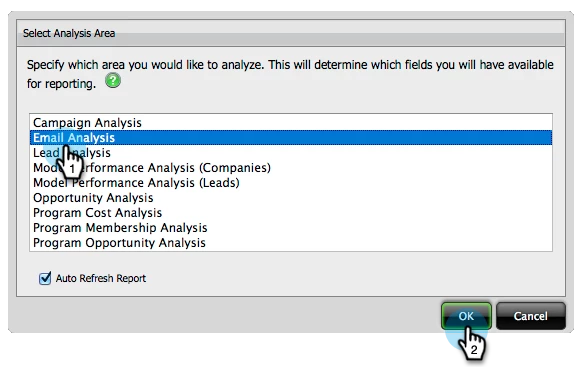
3. Select the Email Analysis area and click OK.
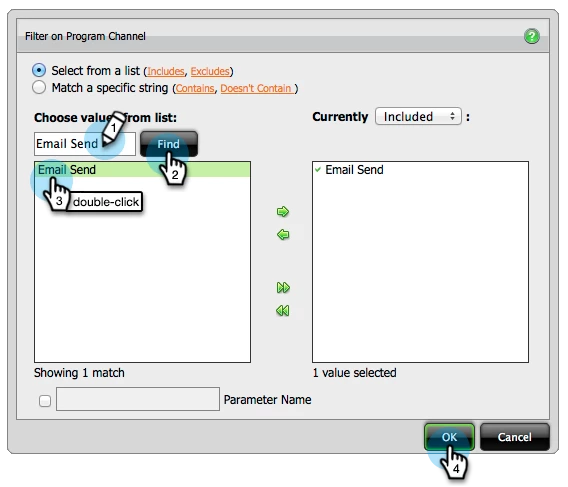
4. Find and right click Program Channel, then click Filter.
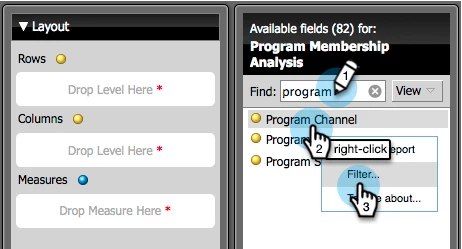
5. Find and add Email Send or Email Blast, then click OK.
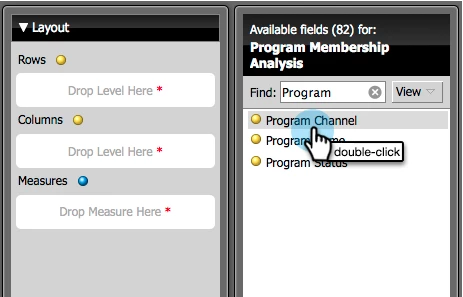
6. Double click the Program Channel yellow dot to add it as a column.
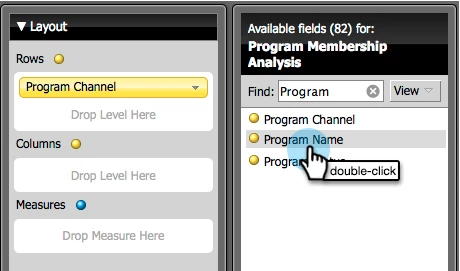
7. Double click the Program Name (yellow dot)
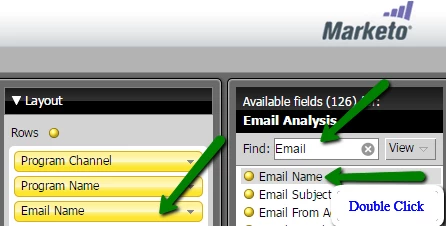
8. Double Click Email Name (yellow dot)
9. Double click Opened (blue dot)
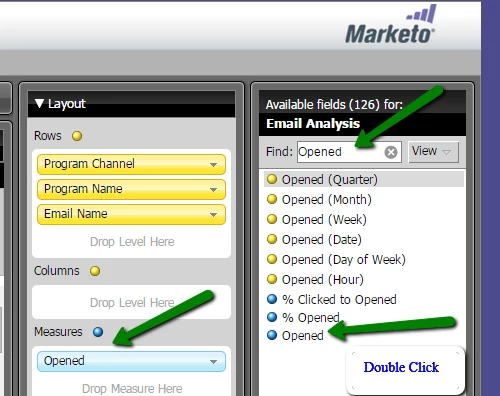
And that's all she wrote! Check out your awesome report. See how you can see which subject line worked best?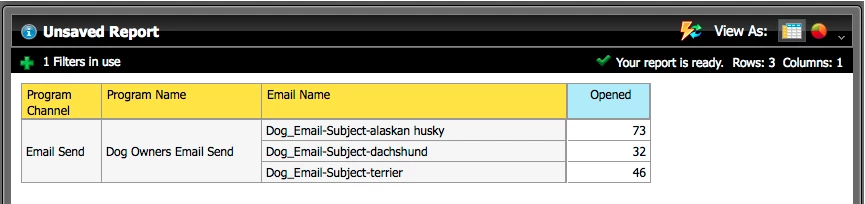
Depending on what type of A/B test was done, you can see Subject Line, From Address, Send Time and Whole Email data appended in the Email Name.
Deep Dive: