Build a Program Membership Analysis Report that Shows Your Success Timeframe
Do you need a report that shows you a programs success over time? We have you covered.
Here is how:
1. Open Revenue Explorer.
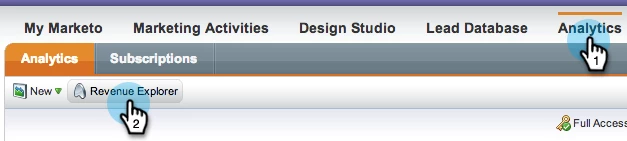
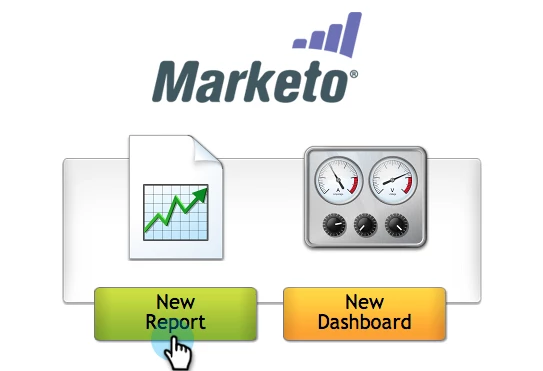
2. Click New Report.
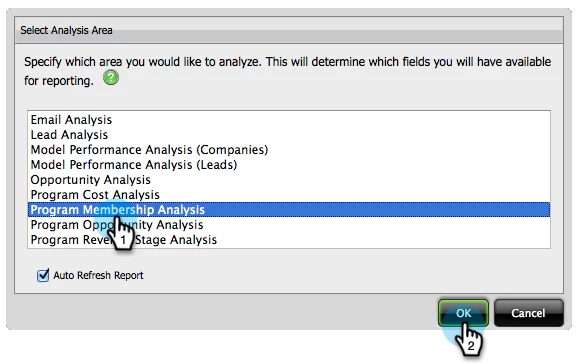
3. Select the Program Membership Analysis area and click OK.
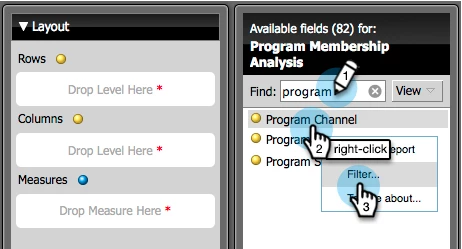
4. Find the Program Channel yellow dot, right click it and click Filter.
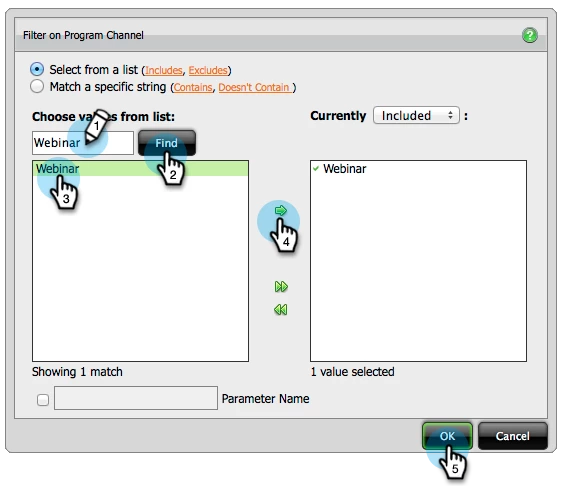
5. Find your program channel, select it, add it and click OK.
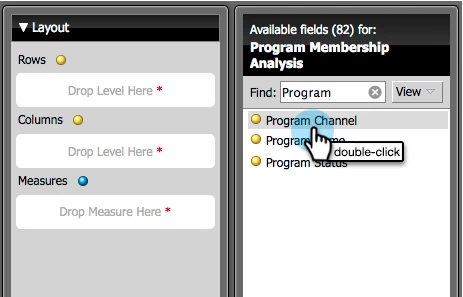
6. Double click the Program Channel yellow dot to add it as a column.
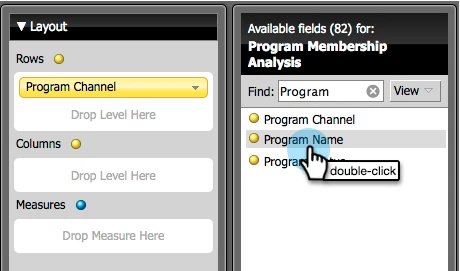
7. Double click the Program Name yellow dot.
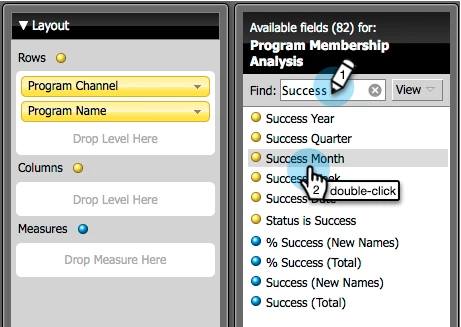
8. Find and double click the Success Month yellow dot.
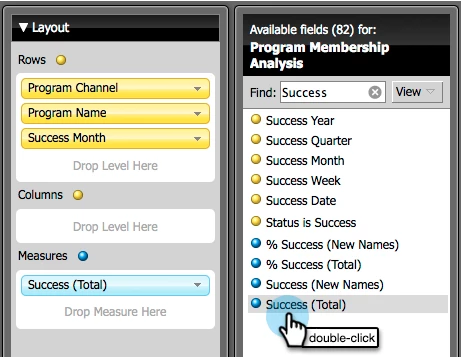
9. Finally double click the Success (Total) blue dot.
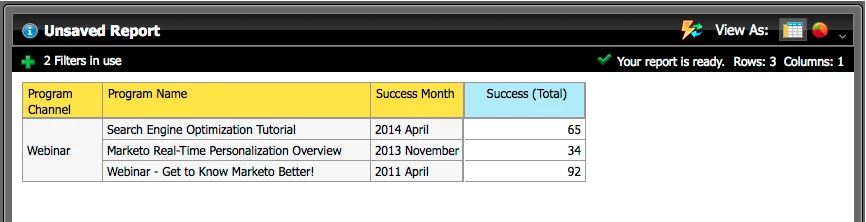
Now that's what I call a fine job! Check out your report: