


IMPORTANT: Marketo Measure/Salesforce JWT authentication setup must be completed by Nov 12
We recently learned about an upcoming Salesforce security requirement that impacts the integration between Salesforce and Adobe Marketo Measure.
Salesforce is introducing mandatory Connected App security updates for integrations that use the refresh token authentication flow. To ensure uninterrupted connectivity between Salesforce and Adobe Marketo Measure, you must update your Salesforce Connected App security settings. The current deadline set by Salesforce is November 12, 2026. Please work with your Salesforce admins to ensure these steps are completed as soon as possible.
Why this change
Marketo Measure is updating its Salesforce authentication to reduce reliance on long-lived refresh tokens. Short-lived access tokens continue to be used, but new access tokens are obtained through JWT-based authentication instead of refresh-token renewal. This reduces exposure associated with long-lived refresh tokens.
Before you begin
Complete the Salesforce steps using an account with System Administrator access. Identify the Salesforce integration/sync user used by your Marketo Measure connection.
Salesforce continues to display the connected app as Bizible. Menu locations and action labels can vary by Salesforce interface and org configuration. Use Setup's Quick Find to locate the pages named below. Screenshots are examples; names and layout may differ in your org.
Steps to follow
1. Install the existing Bizible connected app
1. In Salesforce Setup, search for and open Connected Apps OAuth Usage.
2. Locate Bizible and select Install. If it is already installed, continue to section 2.
3. Complete any installation prompts. This makes the app's local access policies available for your org to manage; a package installation link or AppExchange URL is not required for this route.
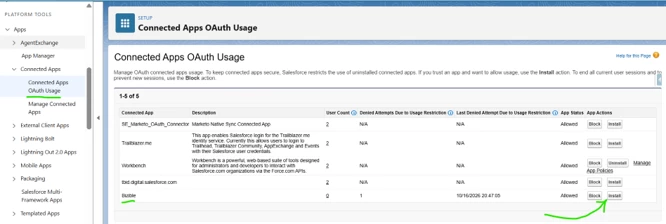
If Bizible is not listed or Install is unavailable, contact your Salesforce administrator or Adobe Support before proceeding. Do not create a replacement connected app.
2. Configure the connected app policy
Open the Bizible policy settings using whichever route is available in your org:
1. Setup > Manage Connected Apps: select Bizible, then Edit Policies; or select Edit next to Bizible if shown.
2. Setup > App Manager: locate Bizible and select Manage from its action menu, then Edit Policies.
3. Setup > Connected Apps OAuth Usage: locate the installed Bizible app and select Manage App Policies, if available.
These are alternative routes to the same policy settings; use only one. If Manage is not available in App Manager, use Manage Connected Apps or Connected Apps OAuth Usage instead.
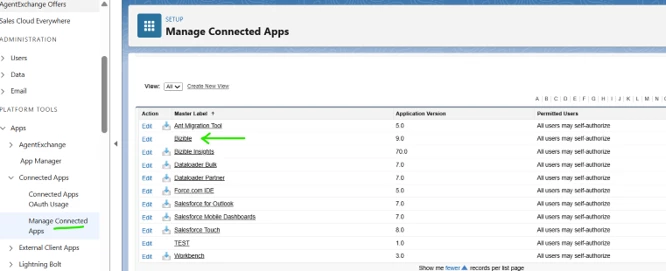
Update OAuth Policies
1. Under OAuth Policies, set Permitted Users to "Admin approved users are pre-authorized."
2. Acknowledge any Salesforce confirmation prompt, then save the changes.
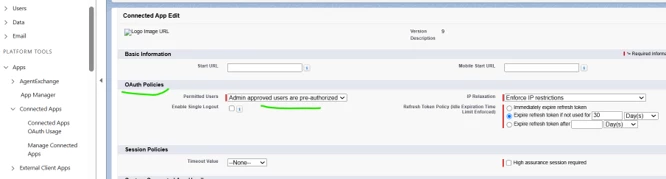
Important: Complete the permission-set configuration and user assignment below before attempting JWT authentication. This policy restricts app access to approved users, so account for any other users who require access to this connected app.
Other settings visible in the screenshot, including IP restrictions, refresh-token policies and session policies, are examples only. Do not change them solely to match the screenshot.
3. Add Bizible to a permission set
1. In Setup, search for and open Permission Sets.
2. Open an appropriate permission set already assigned to the Measure integration/sync user. Alternatively, you can also create a dedicated permission set and open it. The easiest way to create a new dedicated permission set is to clone the existing Bizible Administrator Permission Set.
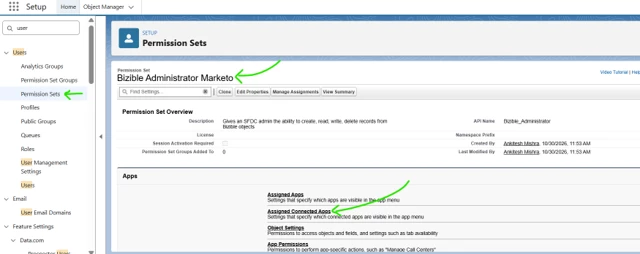
3. Open Assigned Connected Apps, then select Edit.
4. Select Bizible under Installed Connected Apps and use Add to move it to Enabled Connected Apps. Select Save.
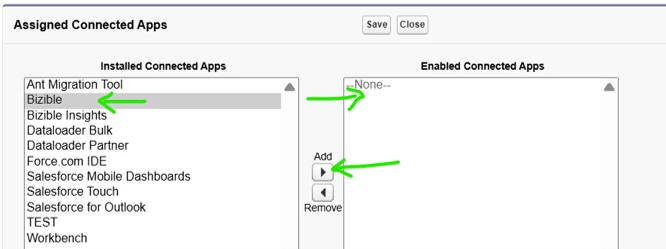
5. Confirm that Bizible appears under Assigned Connected Apps.
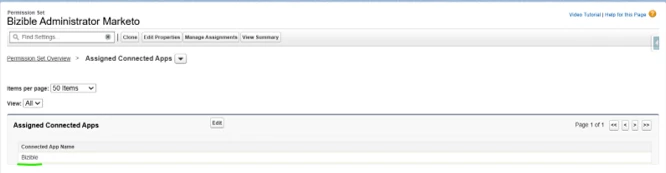
4. Assign the permission set to the sync user
1. In the permission set, select Manage Assignments > Add Assignments.
2. Select the Salesforce integration/sync user used by Marketo Measure, then complete the assignment.
If this user already has the permission set, no additional assignment is needed. You can also assign it from Setup > Users > [integration/sync user] > Permission Set Assignments, using Edit Assignments where available.
5. No certificate upload is required
You do not need to upload a certificate for this change. The certificate is already configured for the Bizible connected app.
6. Enable JWT in Marketo Measure
After completing the Salesforce configuration, enable the JWT authentication feature in Marketo Measure for the Salesforce connection. If the feature is not available, contact Adobe Support for assistance.
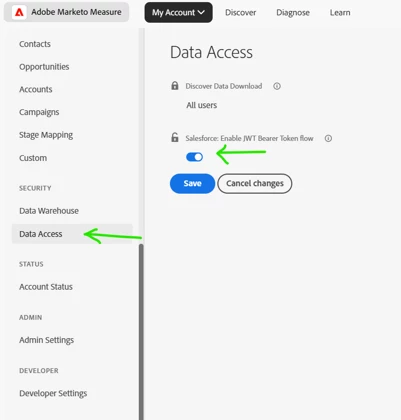
Note: If you no longer use Measure and Salesforce integration, please uninstall the Bizible app from your Salesforce.
If you encounter any issues or need assistance with this change, contact Adobe Support.