
Capture a full page (scrolling) screenshot of Email Editor 3.0 previews
Screenshotting the Email Preview pane creates a quick shareable proof. (To be clear, the Marketo Engage UI isn’t suitable for final approval: you must use email client(s) or suitable client testing apps.)
Emails are typically taller than the viewable area, even on hi-res screens, so you need a full page or scrolling screenshot of the Preview pane:
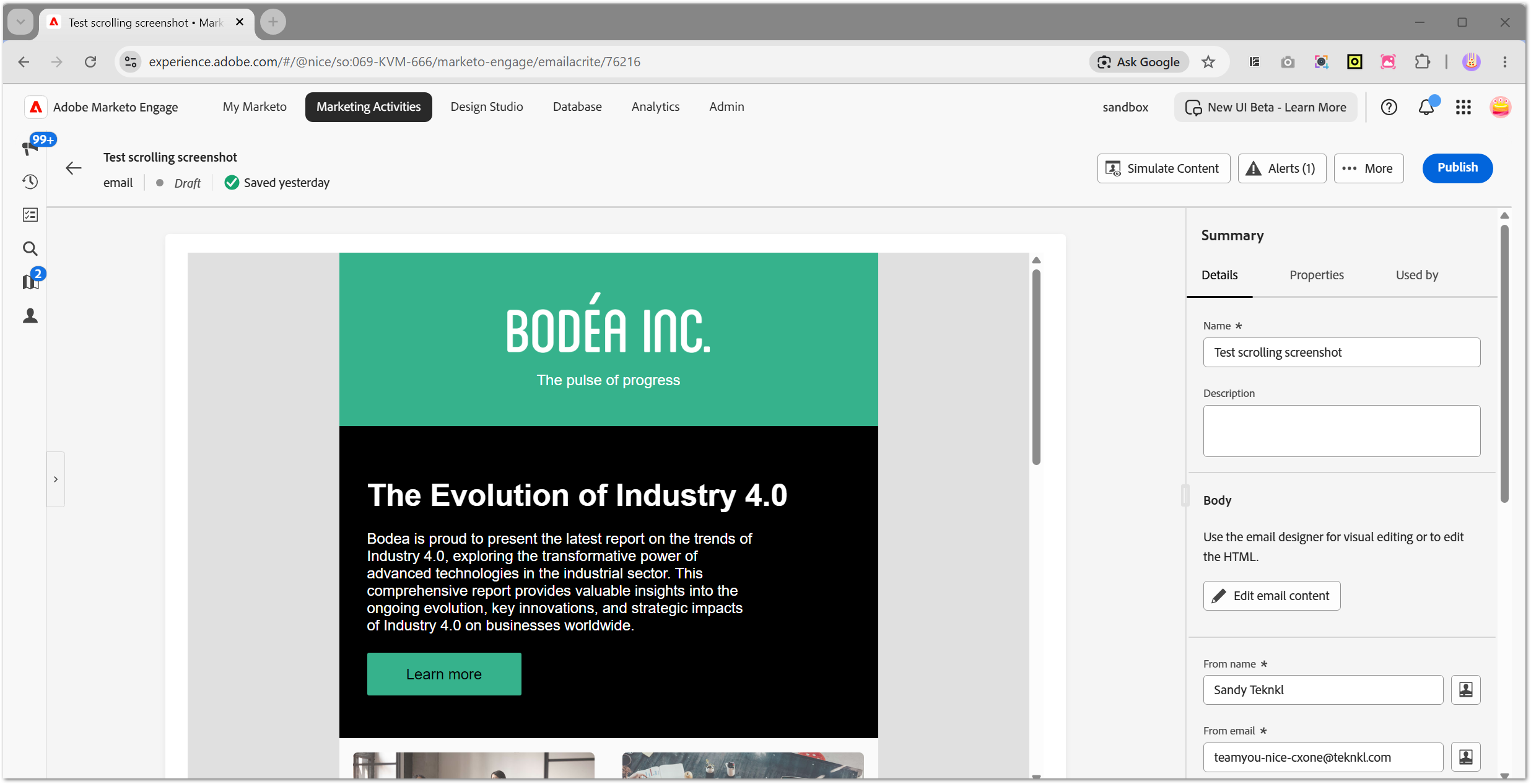
And while there are many ways to take a scrolling screenshot, including browser extensions and Chrome’s built-in Capture full size screenshot command –
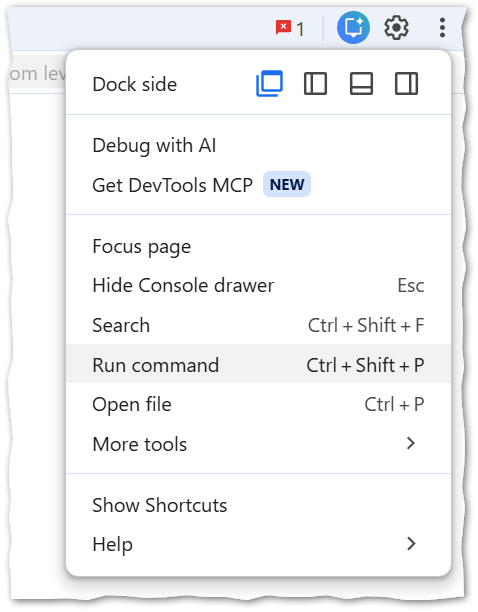
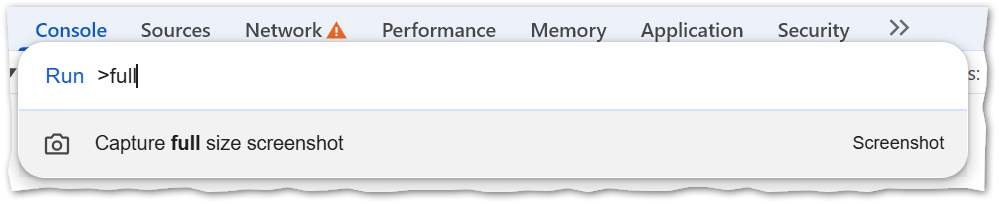
– none of those are able to dive correctly into Email Editor 3.0’s complex nested IFRAMEs. (Like what native devs call a multiple-document interface.) As a result, while some element will be scrolled down, it’s not the one you want or one you can even see[1]:
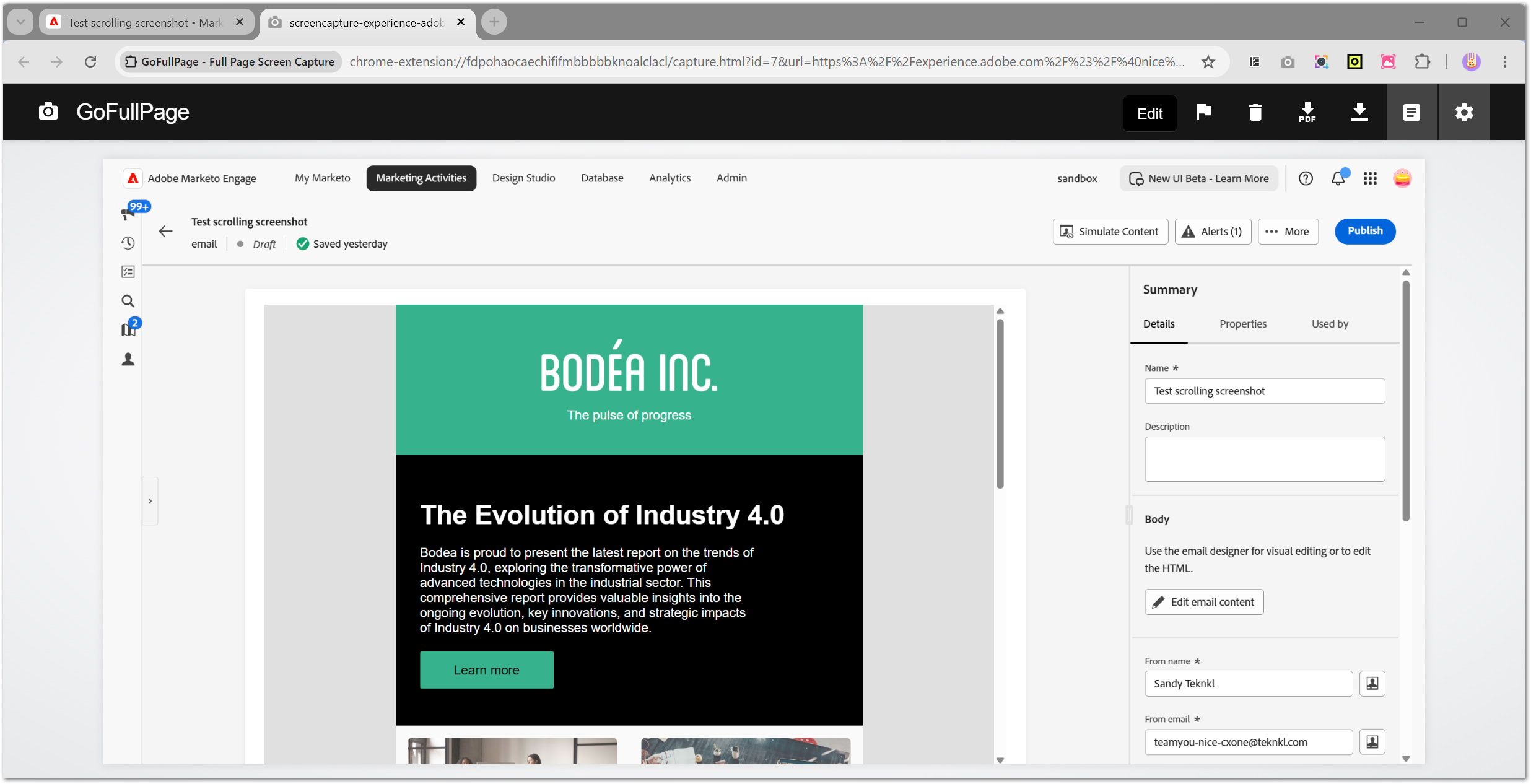
(Demo uses the GoFullPage Chrome extension only because someone on the Adobe community mentioned that one; four other extensions I tested fail in the same way. Notably, it doesn’t help to tweak the preview IFRAME to allowfullscreen and fill the screen with just that element. From the extension’s perspective, the whole document is open and it still scrolls down the wrong element!)
Get the bookmarklet
What we want is to open the preview in a new tab, then take a screenshot of that. Drag this link to your bookmarks bar and click it whenever you’re looking at an email:
That’ll open a tab dedicated to the email:
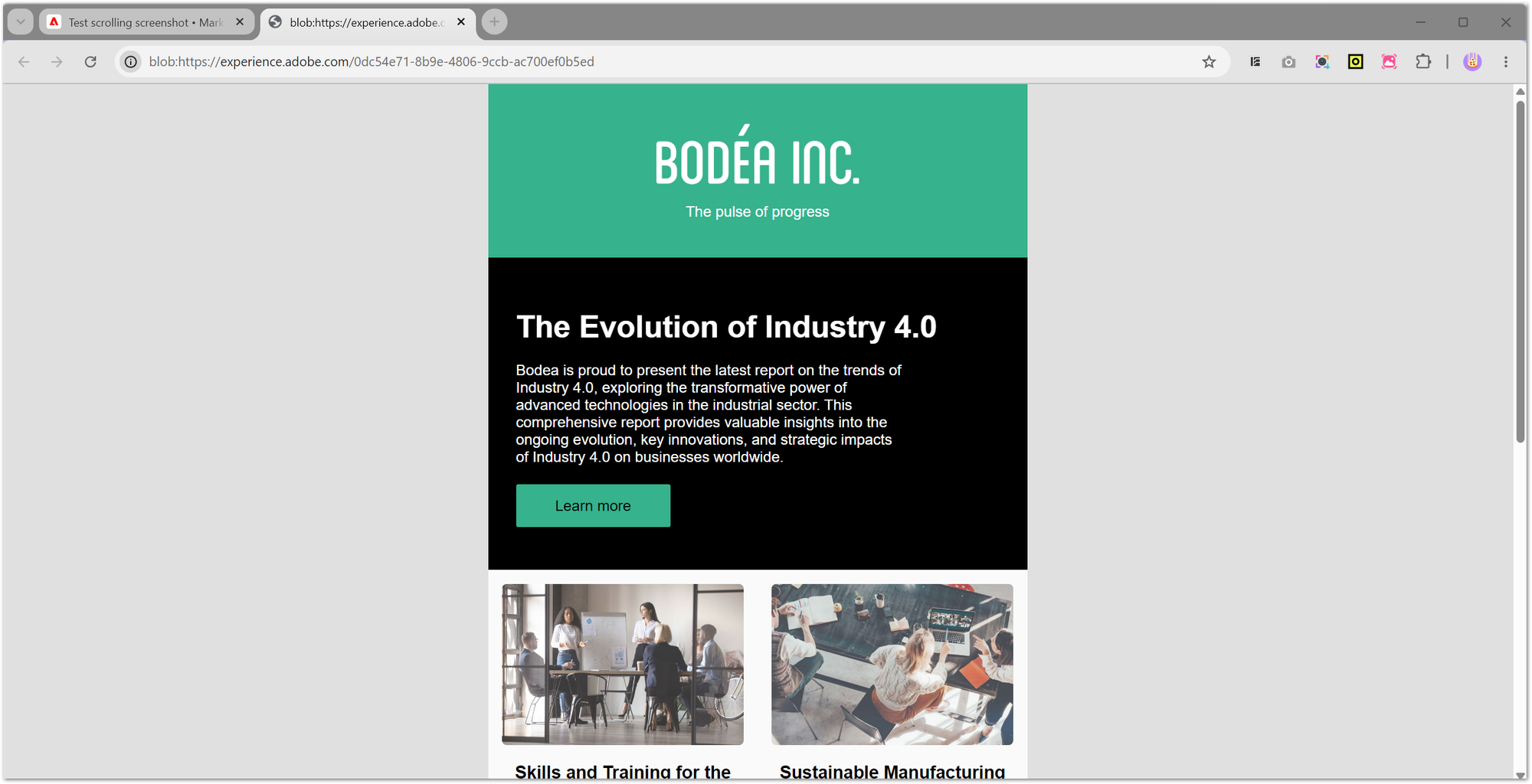
And a screenshot of the tab works perfectly:
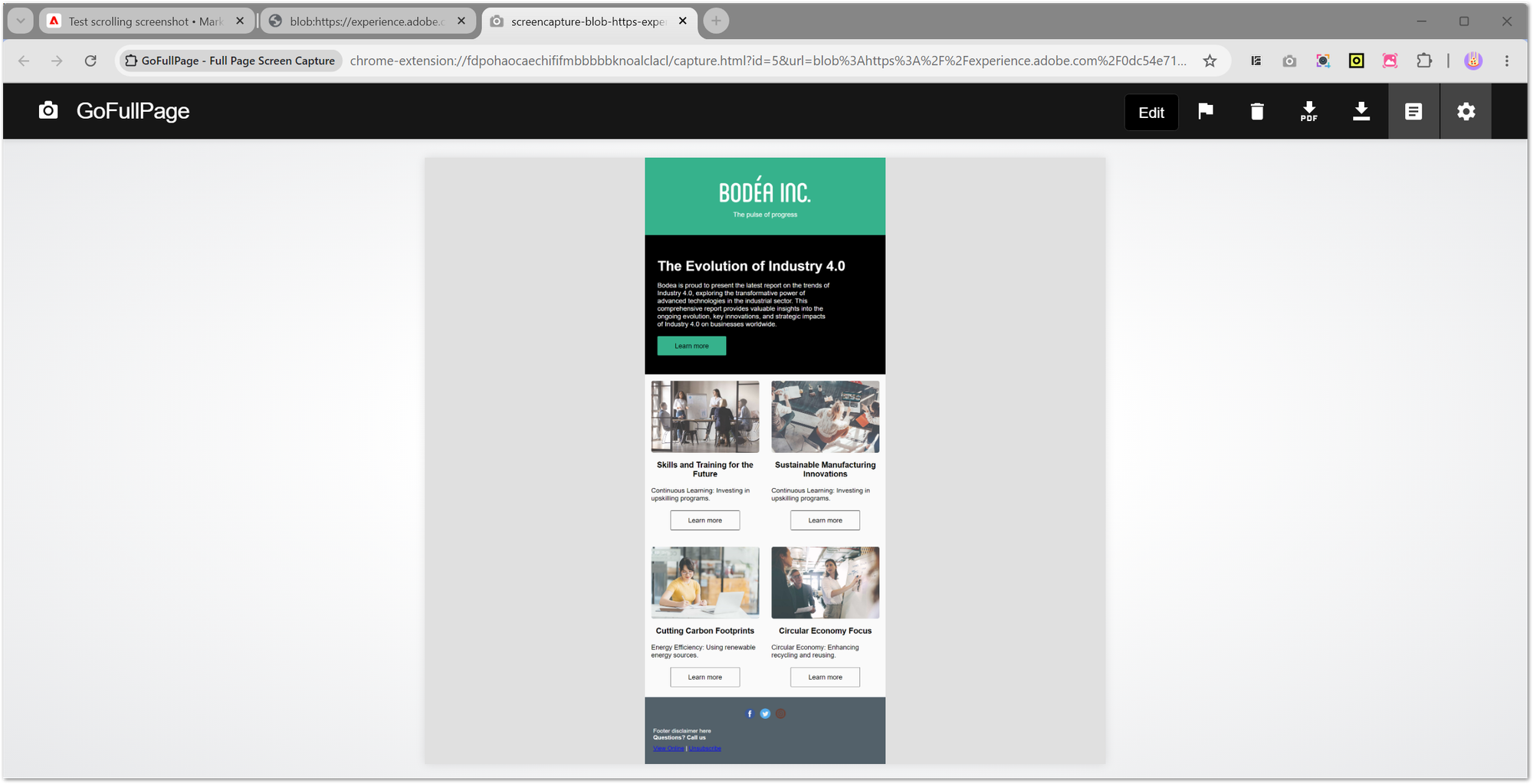
About the code
Here’s the full bookmarklet code:
{
    const appMain = document.querySelector("iframe[id^='exc-app-sandbox-marketoEngage']");
    const nestedApp = appMain.contentDocument.querySelector("iframe[id='nested-app']");
    const previewPane = nestedApp.contentDocument.querySelector("iframe[srcdoc]");

    const previewHTML = previewPane.srcdoc;
    const blob = new Blob([previewHTML], { type: 'text/html' });
    const blobURL = URL.createObjectURL(blob);
    nestedApp.contentWindow.open(blobURL, '_blank');
    setTimeout( () => URL.revokeObjectURL(blobURL), 36E5);
}
It’s pretty basic:
- walk through IFRAMEs to find the preview
- save its inner HTML (via
srcdoc) to a temporary blob - open the
blob:URL in a new tab - clean up blob memory after an hour, so you’ll have to re-click the bookmarklet to get a new one[2]
The sole tricky part is using nestedApp.contentWindow.open instead of traditional window.open. Try window.open for comparison, and ask any questions in the comments!
Oh, you need to allow the extension (one-time)
For an extension to take ’shots of blob: tabs it needs additional permission:
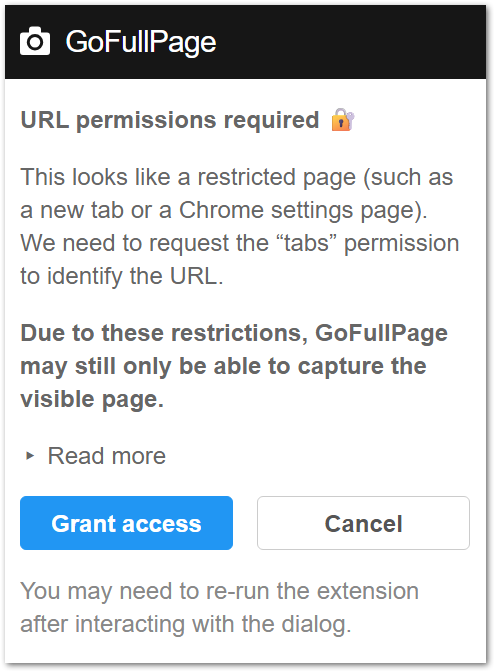
The built-in Dev Tools screenshot doesn’t need that.
Notes
[1] In this example, the Marketing Activities pane was scrolled down by GoFullPage, but that pane is hidden (collapsed left!).
[2] Memory is also reclaimed if you refresh the Marketo UI tab.