Where's the multi-columns feature in Forms 2.0? | Community
Skip to main content
Dan_Stevens_
Level 10
January 26, 2014
Solved

Where's the multi-columns feature in Forms 2.0?

  • January 26, 2014
  • 9 replies
  • 3352 views
According to this discussion (https://community.marketo.com/MarketoIdeaDetail?id=08750000000JC37AAG), Cheryl mentioned that the ability to create multi-column form fields would be a feature of Forms 2.0.  But I can't find it anywhere (both within the Forms 2.0 tool or the new documentation).  Where is it?
This post is no longer active and is closed to new replies. Need help? Start a new post to ask your question.
Best answer by Sean_Tierney2
Hi Dan,

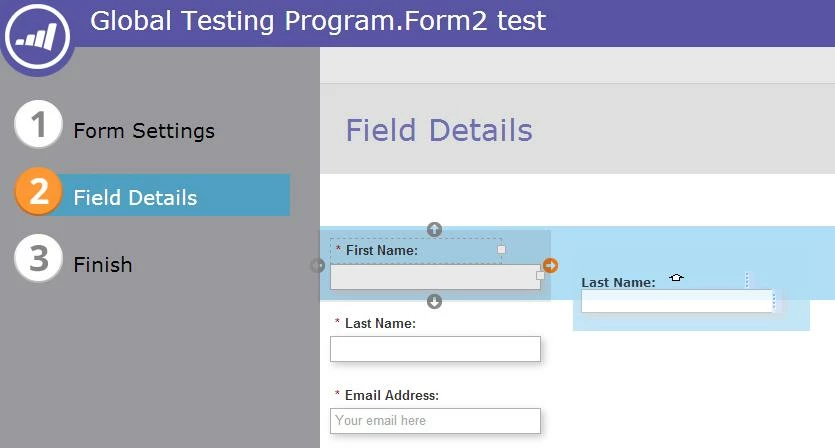
When you are in Step 2 in the Form 2.0 editor (the field details section), you can click and hold on a form field and move it right or left of another (as well as the standard above/below). When you are in the process of moving a field you will see four arrows appear around the field you are hovering over/near. One of the arrows will be highlighted orange identifying where the field you're moving will be placed if you release.

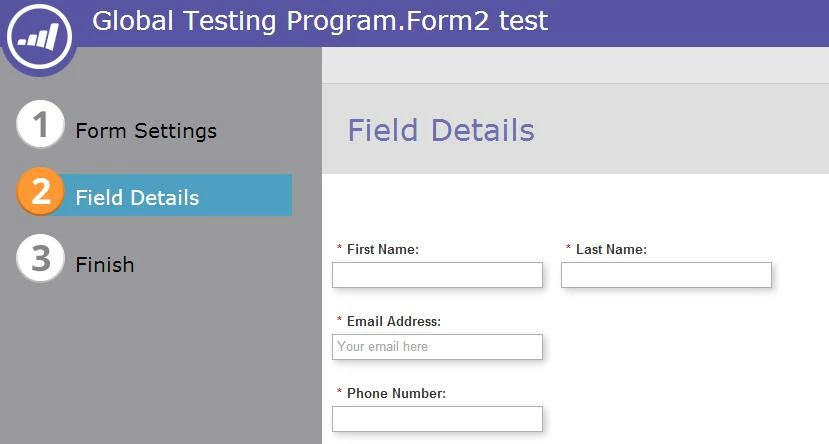
In the example screenshots below, I clicked and held on the form field Last Name and hovered to the right of First Name (notice the arrows around first name and the one highlighted on the right side in orange). When I released the mouse button, the form field last name dropped in right next to first name.


I'm not sure if there is a limit of how many you can place next to each other, but I was able to make 4 columns.

Hope this helps!

Sean

9 replies

Sean_Tierney2
Sean_Tierney2Accepted solution
Level 3
January 26, 2014
Hi Dan,

When you are in Step 2 in the Form 2.0 editor (the field details section), you can click and hold on a form field and move it right or left of another (as well as the standard above/below). When you are in the process of moving a field you will see four arrows appear around the field you are hovering over/near. One of the arrows will be highlighted orange identifying where the field you're moving will be placed if you release.

In the example screenshots below, I clicked and held on the form field Last Name and hovered to the right of First Name (notice the arrows around first name and the one highlighted on the right side in orange). When I released the mouse button, the form field last name dropped in right next to first name.


I'm not sure if there is a limit of how many you can place next to each other, but I was able to make 4 columns.

Hope this helps!

Sean
Dan_Stevens_
Level 10
January 26, 2014
Thanks Sean - I do see that now!  Do you know if it's possible to change the amount of space between each column (other than using custom CSS)?  While this isn't much of an issue using your example above, the fields labels are very close to the fields to the left of the labels when using labels that are to the left of the field.  

Also, do you know if it's possible to include custom text between the form itself and the Submit button?  I should probably open another discussion topic for this one? 
Sean_Tierney2
Level 3
January 26, 2014
I wasn't able to find any overall settings to change the spacing between columns for the whole form at once, but you could add a Rich Text box that contains no text, move it to between the form fields, and just adjust the width with the slider or setting on the right.


You can also use the same rich text object to separate the form fields and submit button.


Let me know if you have anything else!

Thanks,
Sean


Dan_Stevens_
Level 10
January 26, 2014
Thanks Sean!  From what I can see so far, Forms 2.0 was worth the wait!
Michelle_Tizian
Level 10
February 21, 2014
@Dan, were you able to figure out how to adjust the column widgth on a 2 column form?
Dan_Stevens_
Level 10
February 21, 2014
I'm assuming you mean the "gutter" spacing between the 1st and 2nd column?  If so, it's a piece of cake.  Simply add the following style in the "edit custom CSS" area:

.mktoOffset {
  width: 50px !important;
  }


Adjust the width to your needs. BTW, "mktoOffset" is spacing added to the left of every field label.  You can see how it works by enabling Firebug in Firefox.
Michelle_Tizian
Level 10
February 21, 2014
Thanks Dan, somehow, I can't get it to work, or does it not render if you're in preview mode?
Dan_Stevens_
Level 10
February 21, 2014
Sorry Michelle, I forgot to mention, you need to place it on a landing page to view it properly.
Michelle_Tizian
Level 10
February 21, 2014
Thanks Dan :)