
Simulating a DateTime {{my.token}} using an undocumented (but intuitive) method
We all know there’s no official DateTime {{my.token}}[1] —
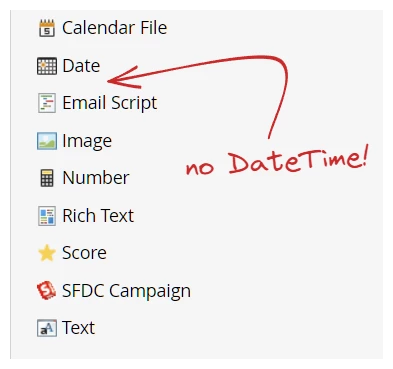 — but there’s an unofficial way to accomplish the same thing.
Just use a properly formatted Text {{my.token}}:

Note the familiar, but non-ISO-standard[2] format yyyy‑MM‑dd HH:mm:ss. It’s parsed as local time in your instance’s timezone.
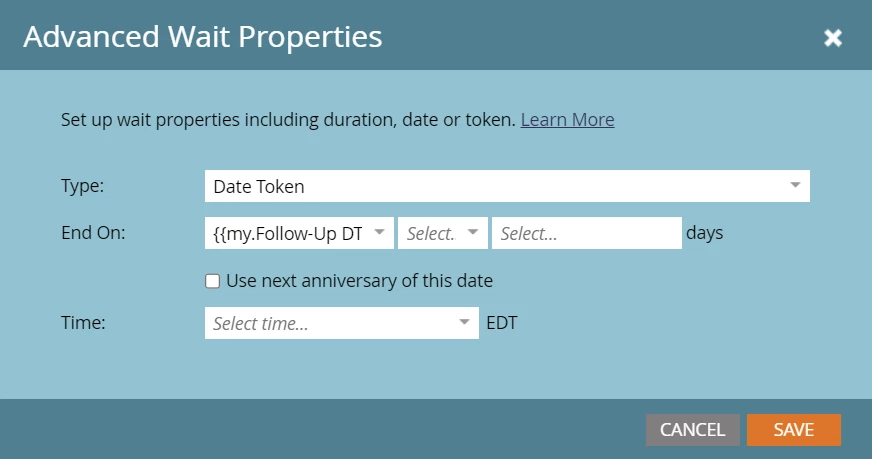
Now, you can use that token in an Advanced Wait:

What’s it good for?
Tokenized program templates are always easier to clone, activate, and modify.
That said, for logged-in Marketo users, a scheduled batch campaign can do everything you can do with a DateTime {{my.token}}. If you’re sending to more than, say, 1000 people definitely think twice before switching to triggers.
To me, the real power of this feature is for API integrations: you can make Request Campaign act like “Schedule Campaign for These Leads” in a single API call, and API calls are precious.
NOTES
[1] A Calendar {{my.token}} has dates + times inside the ICS, but that’s a different beast entirely.
[2] The space character between date and time makes it non-standard. ISO uses a literal T, yyyy‑MM‑dd'T'HH:mm:ss. Marketo uses the non-standard format in webhooks and {{lead.tokens}} as well.
[3] Plus/minus offsets work, too, although they only have 1-day granularity:
