Show Custom Checkbox on Form for Known People | Community
Skip to main content
Level 2
September 23, 2021
Solved

Show Custom Checkbox on Form for Known People

  • September 23, 2021
  • 1 reply
  • 2306 views

Hello,


I am using this approach to show Custom HTML on my LPs with forms for known visitors: https://experienceleague.adobe.com/docs/marketo/using/product-docs/demand-generation/forms/form-actions/show-custom-html-form-for-known-people.html?lang=en 

Welcome back, {{lead.FirstName}} {{lead.LastName}} {{form.Button:default=Download}} {{form.NotYou:default=Not you?}}


I want to insert a checkbox after First and Last name saying: "I have an immediate project need". Once the person checks it and hits Download, the checkbox answer should be sent to a field in our system {{lead.Immediate Project Need}}.


Looks like I can't just add this to the Custom HTML, so I assume it has to be some JS. 


Any suggestions on how to do this?


Thanks,

Yavor
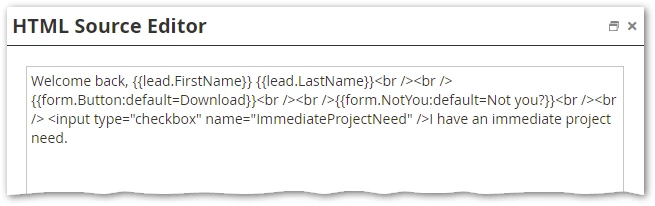
Best answer by SanfordWhiteman

You can add it to the KV HTML, but you also need JS.


You can add the input like so:


Then include the code from here:

Re-enabling the “onSubmit” event when Known Visitor HTML is on


And finally wrap it together with this JS. Note it’s a lot more complex to support the range different input types. This tiny bit of code only supports an emulation of the Marketo Checkbox type.

/* * Add inputs in KV HTML as hidden fields * 1. Deliberately supports only <input type=checkbox> in this barebones example. * 2. Treats inputs as Marketo `Checkbox` (not `Checkboxes`) type. */ MktoForms2.whenReady(function(mktoForm){ const arrayify = getSelection.call.bind([].slice); mktoForm.onSubmit(function(mktoForm){ const formEl = mktoForm.getFormElem()[0]; let kvHTMLClientInputs = formEl.querySelectorAll(".mktoTemplateBox input[type='checkbox']"); let mktoFieldsObj = arrayify(kvHTMLClientInputs) .reduce(function(acc, mktoSingletonLike){ acc[mktoSingletonLike.name] = mktoSingletonLike.checked ? "yes" : "no"; return acc; }, {}); mktoForm.addHiddenFields(mktoFieldsObj); });


1 reply

SanfordWhiteman
SanfordWhitemanAccepted solution
Level 10
September 23, 2021

You can add it to the KV HTML, but you also need JS.


You can add the input like so:


Then include the code from here:

Re-enabling the “onSubmit” event when Known Visitor HTML is on


And finally wrap it together with this JS. Note it’s a lot more complex to support the range different input types. This tiny bit of code only supports an emulation of the Marketo Checkbox type.

/* * Add inputs in KV HTML as hidden fields * 1. Deliberately supports only <input type=checkbox> in this barebones example. * 2. Treats inputs as Marketo `Checkbox` (not `Checkboxes`) type. */ MktoForms2.whenReady(function(mktoForm){ const arrayify = getSelection.call.bind([].slice); mktoForm.onSubmit(function(mktoForm){ const formEl = mktoForm.getFormElem()[0]; let kvHTMLClientInputs = formEl.querySelectorAll(".mktoTemplateBox input[type='checkbox']"); let mktoFieldsObj = arrayify(kvHTMLClientInputs) .reduce(function(acc, mktoSingletonLike){ acc[mktoSingletonLike.name] = mktoSingletonLike.checked ? "yes" : "no"; return acc; }, {}); mktoForm.addHiddenFields(mktoFieldsObj); });


Level 2
September 24, 2021

Hi @sanfordwhiteman ,


thanks for the code, seems to be working. It looks like we want to extend this and add a select field as well. Then be able to capture the Option value and send it to Marketo. How can we achieve this?


Thanks!

SanfordWhiteman
Level 10
September 25, 2021

OK, I added more input type support, including single <select>,  here:


MktoForms2 :: KV HTML client-side fields v1


Correctly supporting the complete range of input types is quite complex. I have code for other forms libraries (e.g. Gravity Forms) to map their types to Marketo types. That code could be merged in here, but the work becomes significant.